

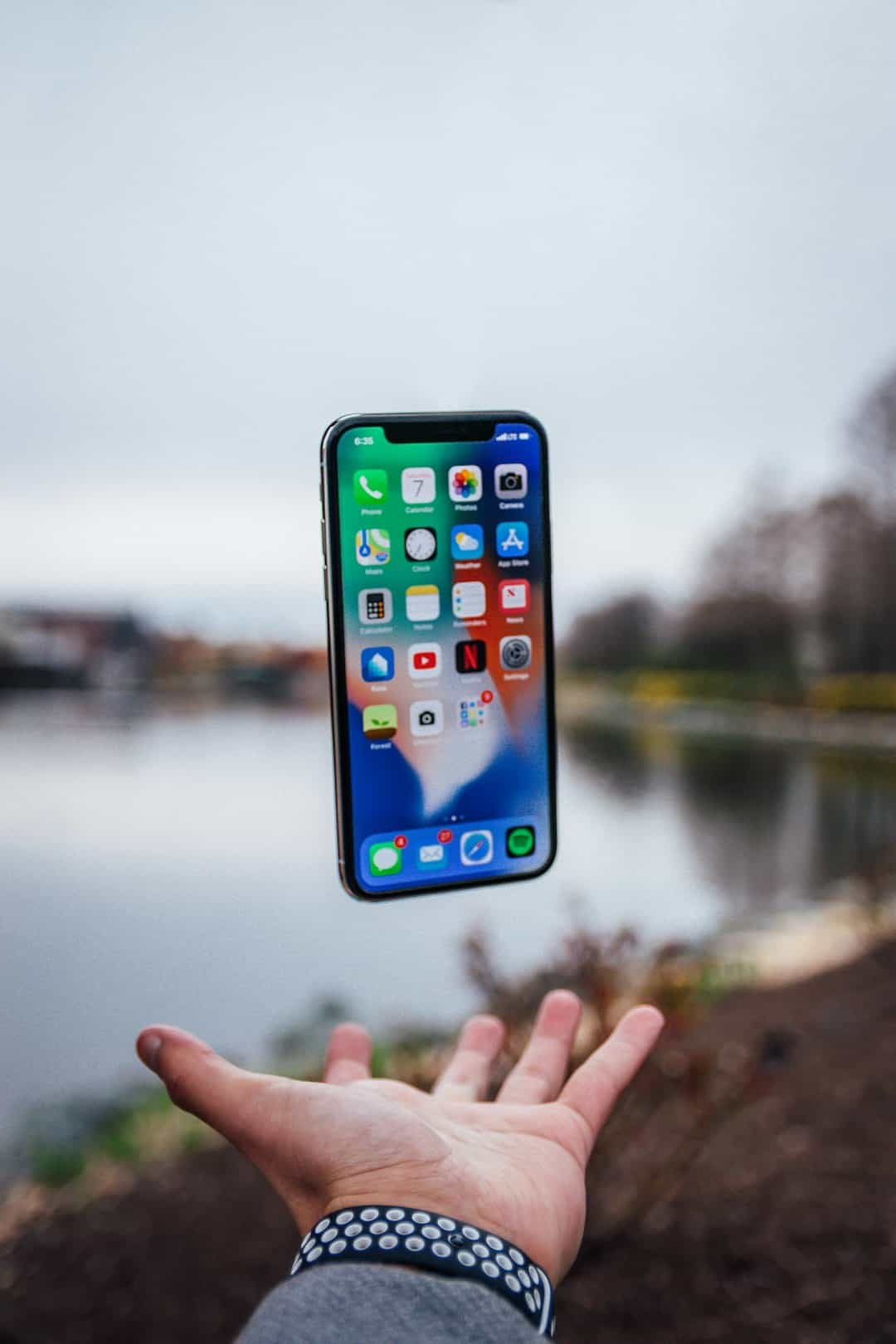
Losing your iPhone to a cracked screen, a swim, or a theft is bad enough — losing every photo on it makes it far worse. The good news is that automatic photo backup costs nothing if you use the right service, and getting it running takes only a few minutes.
Table of Contents
This guide covers the three best free options for automatic iPhone photo backup: Apple’s built-in iCloud Photos, Google Photos, and Amazon Photos. You’ll find the exact steps to turn each one on, what to watch out for, and which option fits your situation best.
Quick Answer
Turn on iCloud Photos (Settings → [Your Name] → iCloud → Photos → ‘Sync this iPhone’) for seamless built-in backup with 5 GB of free storage, or install Google Photos and enable Backup for 15 GB free. Both work automatically in the background so every new photo is protected without any extra effort on your part.
Option 1: iCloud Photos — Built-In, Zero Setup Friction
iCloud Photos is baked into every iPhone, so there’s nothing to download. Open Settings, tap your name at the top, tap iCloud, then Photos, and toggle ‘Sync this iPhone’ to on. From that point, every photo and video you take is uploaded to iCloud automatically whenever your iPhone is connected to Wi-Fi.
The catch: Apple provides each account 5 GB of free iCloud storage, and that space is shared with your iCloud Backup, iCloud Drive, and other data. That 5 GB limit has been in place since 2011 and hasn’t changed. For anyone with a growing photo library, it fills up faster than expected — and when it does, new photos stop syncing silently with no mid-shot warning. If you shoot casually and have a modest library, iCloud Photos is the most effortless option. Heavy shooters should add a second free service below.
Option 2: Google Photos — 15 GB Free, Best All-Around
Google Photos is the most practical free option for most iPhone users because it includes 15 GB of free storage — three times what iCloud offers at no cost. Download Google Photos from the App Store, sign in with your Google Account, tap your profile picture in the top right, tap the Settings icon, choose Backup, and toggle Backup on. Google Photos will upload your entire camera roll over Wi-Fi and then keep everything new synced automatically going forward.
One important note: the 15 GB is shared across your entire Google Account, including Gmail and Google Drive. If those are already full, your effective photo quota is smaller. During the initial backup of a large library, keep the Google Photos app open and your iPhone plugged in — the first upload can take time depending on library size and connection speed.
Under Backup settings, you’ll also find an ‘Upload size’ option. ‘Storage saver’ compresses photos slightly to use less of your quota; ‘Original quality’ uploads at full resolution and counts against storage at a higher rate. For most people, Storage saver is a reasonable trade-off to stretch the free 15 GB as far as possible.
Option 3: Amazon Photos — Unlimited for Prime Members
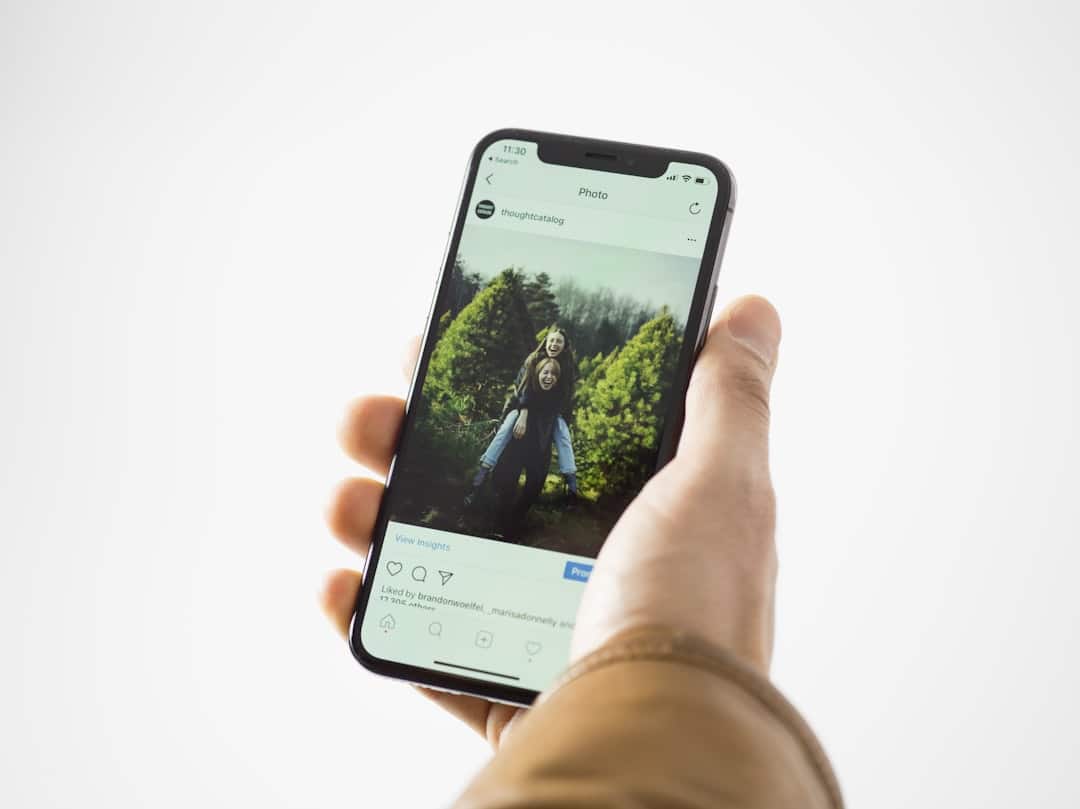
If you’re already an Amazon Prime subscriber, Amazon Photos is one of the best-kept secrets in free iPhone backup. Prime membership includes unlimited full-resolution photo storage plus 5 GB of video storage at no additional cost. Download the Amazon Photos app from the App Store, sign in with your Amazon account, and enable Auto-Save in the app settings — from there it backs up your camera roll automatically, just like the other services.
Non-Prime Amazon customers receive 5 GB of free storage total, putting it in the same tier as iCloud’s free plan and making it less compelling without a Prime subscription. But for Prime members, the unlimited photo storage makes Amazon Photos an outstanding backup destination, especially when paired with Google Photos for video coverage.
Tips and Common Mistakes
Use more than one service. Running both Google Photos and iCloud Photos simultaneously gives you redundant copies at no cost. A real backup means at least two copies in two places — if one service has a problem, the other has you covered. Don’t assume backup is working just because you turned it on once. Open your backup app periodically and confirm photos are actually uploading. A full storage quota or an accidentally toggled-off setting will silently stop backups without alerting you. Check for the ‘Storage full’ warning and act on it before photos pile up unprotected on your device. Let the initial backup finish before trusting the service. The first sync may need to upload hundreds or thousands of photos — keep the app open, plug your iPhone in, and let it run on a strong Wi-Fi connection. Once done, daily backups of a handful of new shots are fast. Finally, check whether ‘Upload over cellular’ is enabled if you travel frequently or spend stretches away from Wi-Fi. Turning it on ensures photos back up even off your home network, though it does draw on your mobile data plan.
Explore more: More technology guides.
iPhone photo backup FAQs
Does iCloud automatically back up iPhone photos?
Yes. Once you enable iCloud Photos in Settings → [Your Name] → iCloud → Photos, your photos sync automatically whenever your iPhone is on Wi-Fi. Apple includes 5 GB of free iCloud storage shared across all iCloud data, so frequent photographers may hit the limit and need a second free service like Google Photos.
Is Google Photos backup really free for iPhone users?
Yes. Google Photos is a free app in the App Store, and every Google Account includes 15 GB of free storage shared across Google Photos, Google Drive, and Gmail. You enable automatic backup inside the app’s settings with just a few taps, and it works in the background from then on.
What happens when my free cloud storage fills up?
Automatic backups stop — new photos are no longer uploaded, but anything already backed up remains safe in the cloud. The fix is to free up space by deleting old files or photos, or add a second free service so at least one backup destination keeps working even when the other is full.
Make Your Digital Life Better
More practical tech how-tos, tool picks, and guides to upgrade your everyday digital life. More on GTWebs.
Photo by Neil Soni on Unsplash.