

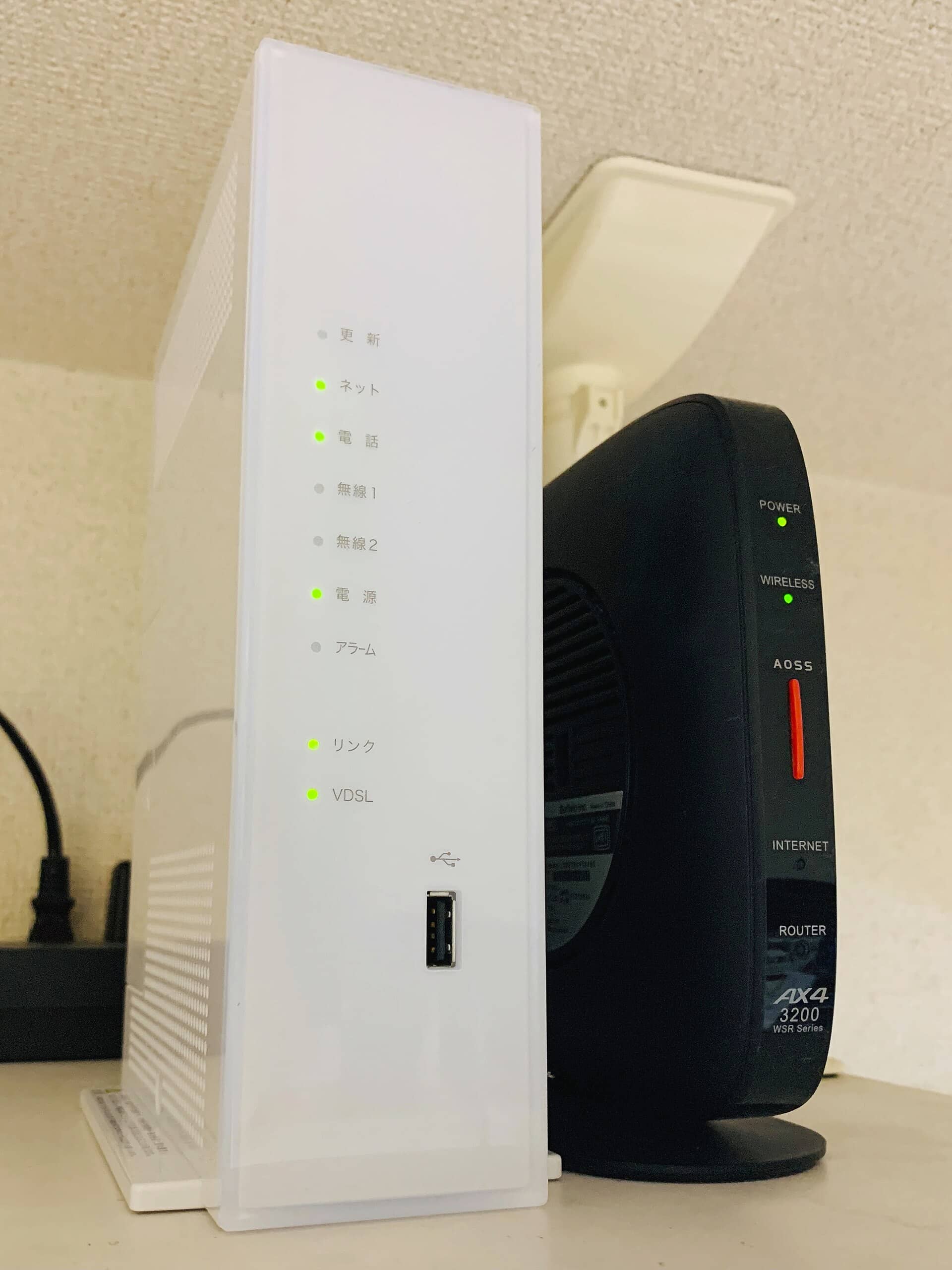
If your WiFi drops to a crawl the moment you walk into a specific room, you’re not imagining things. One-room slowdowns are among the most common home networking complaints, and they almost always have a fixable cause — whether it’s what your walls are made of, where your router sits, or which frequency band your device is clinging to.
Table of Contents
This guide walks you through diagnosing the problem first, because the right fix depends on the cause. Then it covers solutions in order: free tweaks, inexpensive gadgets, and more powerful upgrades if you need them.
Quick Answer
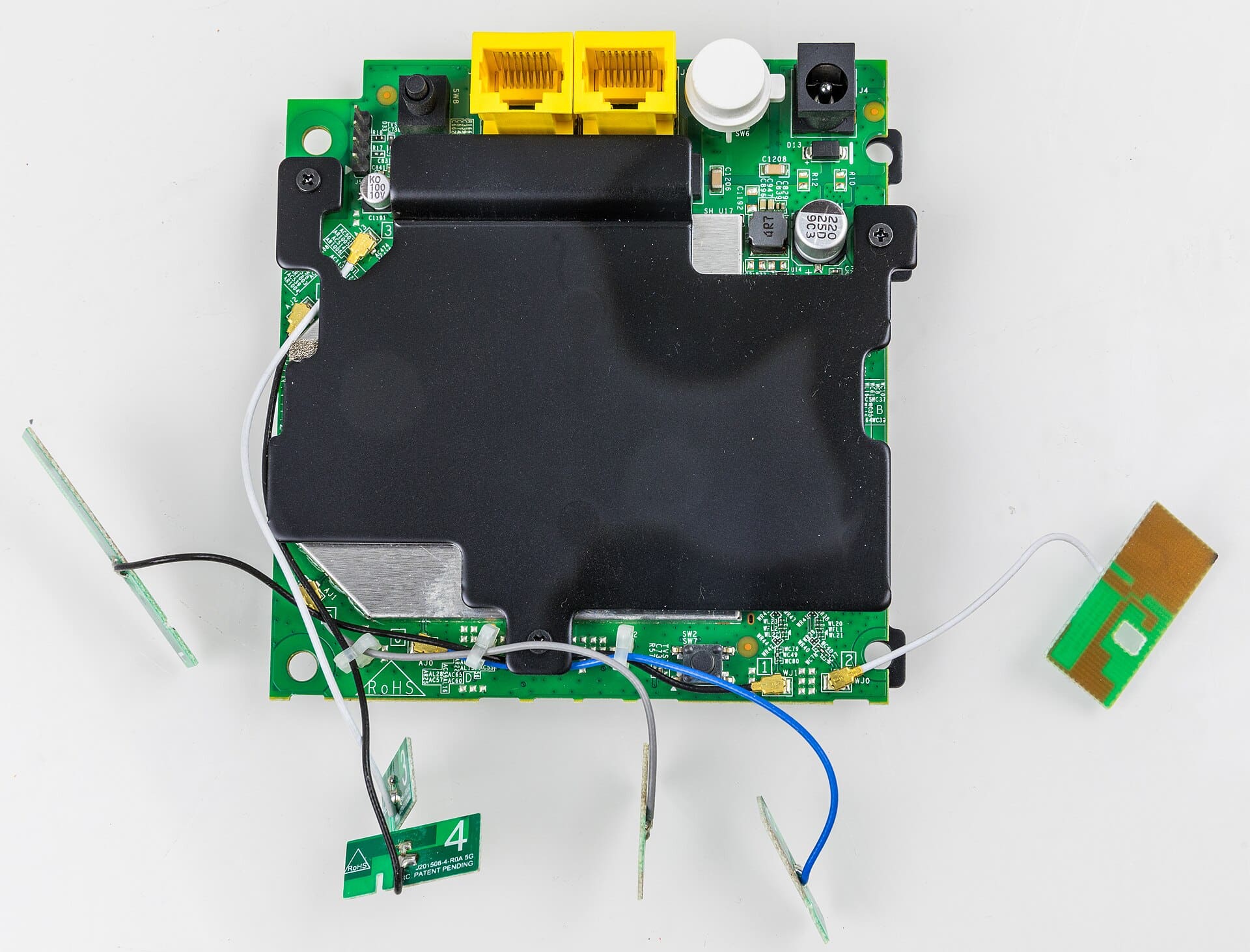
Move your router to a more central, elevated location and switch affected devices to the 2.4 GHz band for better wall penetration. If that doesn’t resolve it, a mesh node or MoCA adapter installed near the problem room is the most reliable long-term fix.
Step 1: Diagnose Before You Fix
Start by checking whether the slowdown affects one device or every device in the room. If all devices in that room are slow, the problem is the WiFi signal itself. If it’s just one laptop or phone, try toggling WiFi off and on or restarting the device — phones and laptops sometimes lock onto a weak, distant signal and refuse to let go.
To map your signal precisely, use a free app like NetSpot (available for Windows, macOS, iOS, and Android) or WiFiMan by Ubiquiti (free on iOS and Android). Walk room to room and watch signal strength in real time. This tells you whether you have a genuine dead zone or a roaming problem — where your device stays connected to a far-away router instead of switching to a closer access point.
The most common physical culprits are thick concrete or brick walls, floors between levels, metal studs or ductwork hidden inside walls, large mirrors, and rooms on the far end of the house from the router. The 5 GHz band — which delivers the fastest speeds — is especially sensitive to walls and loses signal quickly with distance. The 2.4 GHz band travels farther through obstacles, though it offers lower peak speeds.
Free Fixes to Try First
Reposition your router. If it’s tucked in a corner, inside a cabinet, or sitting flat on the floor, moving it to a central, elevated, unobstructed location is the single biggest free upgrade you can make. Think of your router’s signal as radiating outward in a sphere — the more of the house that sphere covers symmetrically, the fewer dead zones you’ll get.
Switch your band. If your router broadcasts separate 2.4 GHz and 5 GHz networks, try connecting the problem room’s devices to the 2.4 GHz network. It travels farther and punches through walls more easily. For everyday browsing and streaming at a distance, the practical speed difference is often minimal.
Change your WiFi channel. On 2.4 GHz, nearby networks on overlapping channels create interference that can tank performance in certain rooms. Log into your router’s admin panel — usually accessible by typing 192.168.1.1 or 192.168.0.1 into a browser — and set the 2.4 GHz channel manually to 1, 6, or 11. These are the only three non-overlapping channels on that band. A WiFi analyzer app like NetSpot will show you which channels neighboring networks occupy so you can pick the least crowded one.
Update your router firmware. Manufacturers regularly release updates that fix signal bugs and improve stability. Check your router’s admin panel or its companion app for any pending updates and apply them.
Hardware Solutions for Stubborn Dead Zones
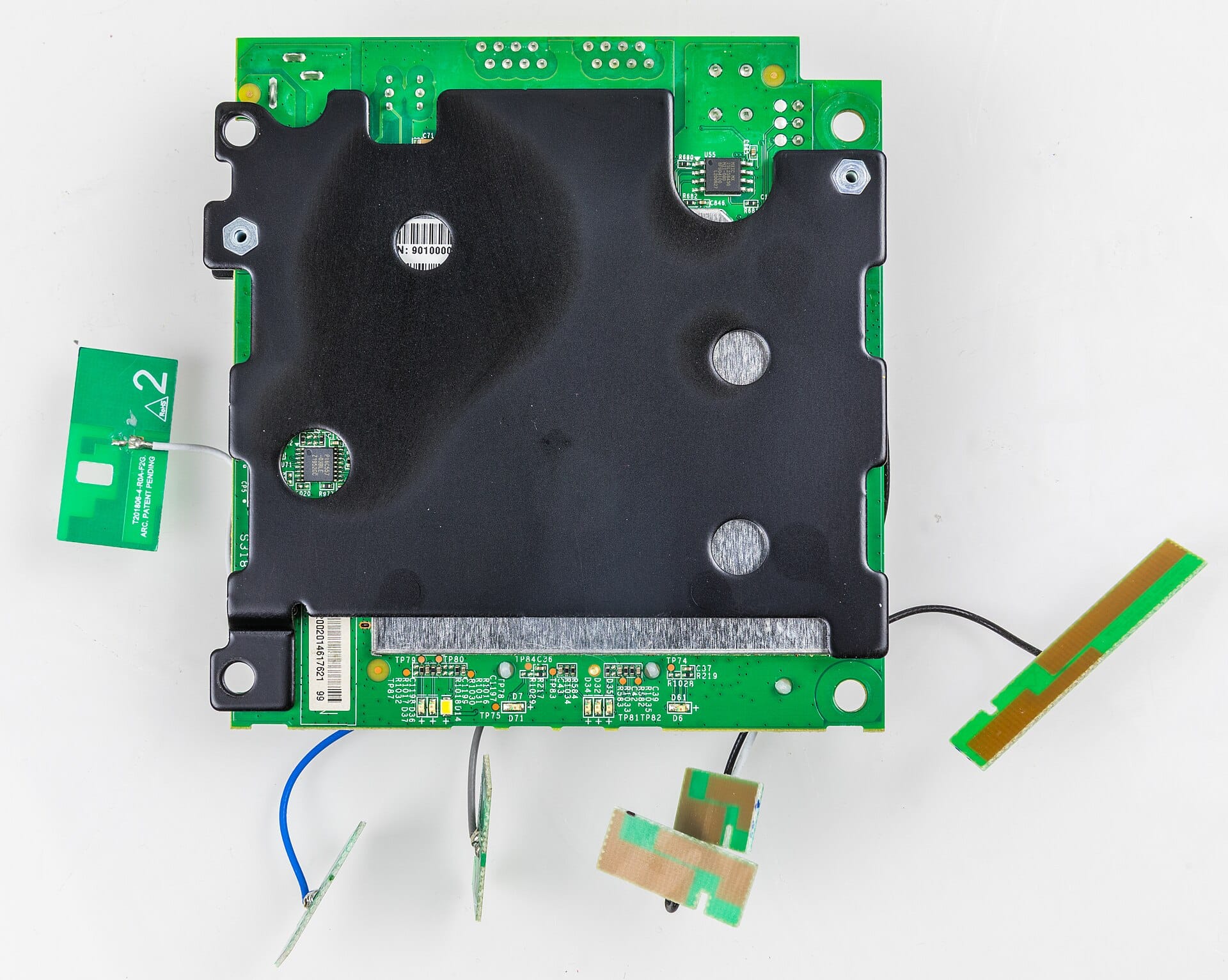
If free fixes aren’t enough, a WiFi extender is the most accessible hardware option. Place it roughly halfway between the router and the dead zone — not inside the weak area itself, where it won’t have enough signal to rebroadcast effectively. Modern WiFi 6 extenders from brands like TP-Link and Asus plug into a wall outlet and extend coverage meaningfully. The main tradeoff: most extenders create a second network name you must join manually, and single-band models can reduce throughput because they receive and retransmit on the same radio.
A mesh WiFi system is the better long-term upgrade for homes with persistent coverage gaps. Mesh replaces or supplements your existing router with multiple nodes that share a single network name. Your devices connect and switch nodes automatically as you move around. Established systems from Eero, Netgear Orbi, TP-Link Deco, and Google Nest WiFi all place satellite nodes in or near the problem room. Connecting nodes via Ethernet cable when possible — called wired backhaul — gives the strongest, most consistent performance.
MoCA adapters are a powerful but underused option if your home has coaxial cable jacks — the same type used for cable TV — in the affected room. MoCA 2.5 adapters use those existing coax lines to create a fast, low-latency wired link between rooms without running new Ethernet. You can then plug a small wireless access point or mesh satellite node into the MoCA adapter at the far end for strong, stable coverage. Powerline adapters work similarly using your home’s electrical wiring and are useful in homes without coax, though performance varies depending on your electrical circuit layout.
Tips and Common Mistakes
Don’t place your extender inside the dead zone itself. It needs a strong incoming signal from your router to have anything useful to rebroadcast. The ideal spot is somewhere you still have a solid signal but it’s partway toward the problem room — think hallway or adjacent room, not the corner where coverage fails.
Keep your router away from microwaves, cordless phones, and Bluetooth devices. These share the 2.4 GHz frequency and can create interference that shows up as erratic speeds, often in rooms near the kitchen or home office.
If devices in the problem room aren’t switching off a weak router to a closer mesh node, look for a ‘band steering’ or ‘roaming assist’ setting in your router’s admin panel. Some routers hold devices too tightly; enabling this setting encourages automatic handoff to the strongest nearby node.
Don’t overlook your router’s age. Consumer routers can degrade over time, showing weaker signal even before they stop working entirely. If your router is several years old and dead zones that didn’t exist before have started appearing, replacing the router itself may be the most efficient fix.
Explore more: More Technology Guides.
fix slow WiFi one room FAQs
Why is my WiFi slow in just one room but fast everywhere else?
The most common reasons are distance from the router, walls made of dense materials like concrete or brick, or your device being stuck on the shorter-range 5 GHz band while other rooms happen to be closer. The room’s position — far corner, different floor, or blocked by metal objects — is usually the deciding factor.
Will a WiFi extender slow down my internet?
Single-band extenders can reduce throughput because they use the same radio to both receive and retransmit the signal. Dual-band extenders and mesh satellite nodes handle this more efficiently by using separate radios for backhaul. For the best speeds, look for an extender with a dedicated backhaul channel, or back it with a wired connection via Ethernet, MoCA, or powerline adapters.
What’s the difference between a WiFi extender and a mesh system?
A WiFi extender rebroadcasts your existing router’s signal and typically creates a separate network name you must join manually. A mesh system uses multiple nodes that all share one seamless network name — your devices connect and switch nodes automatically as you move. Mesh systems generally deliver more consistent speeds and a smoother experience, especially in larger or multi-story homes.
Make Your Digital Life Better
More practical tech how-tos, tool picks, and guides to upgrade your everyday digital life. More on GTWebs.
Photo: Project Kei / CC BY-SA 4.0, via Wikimedia Commons.