

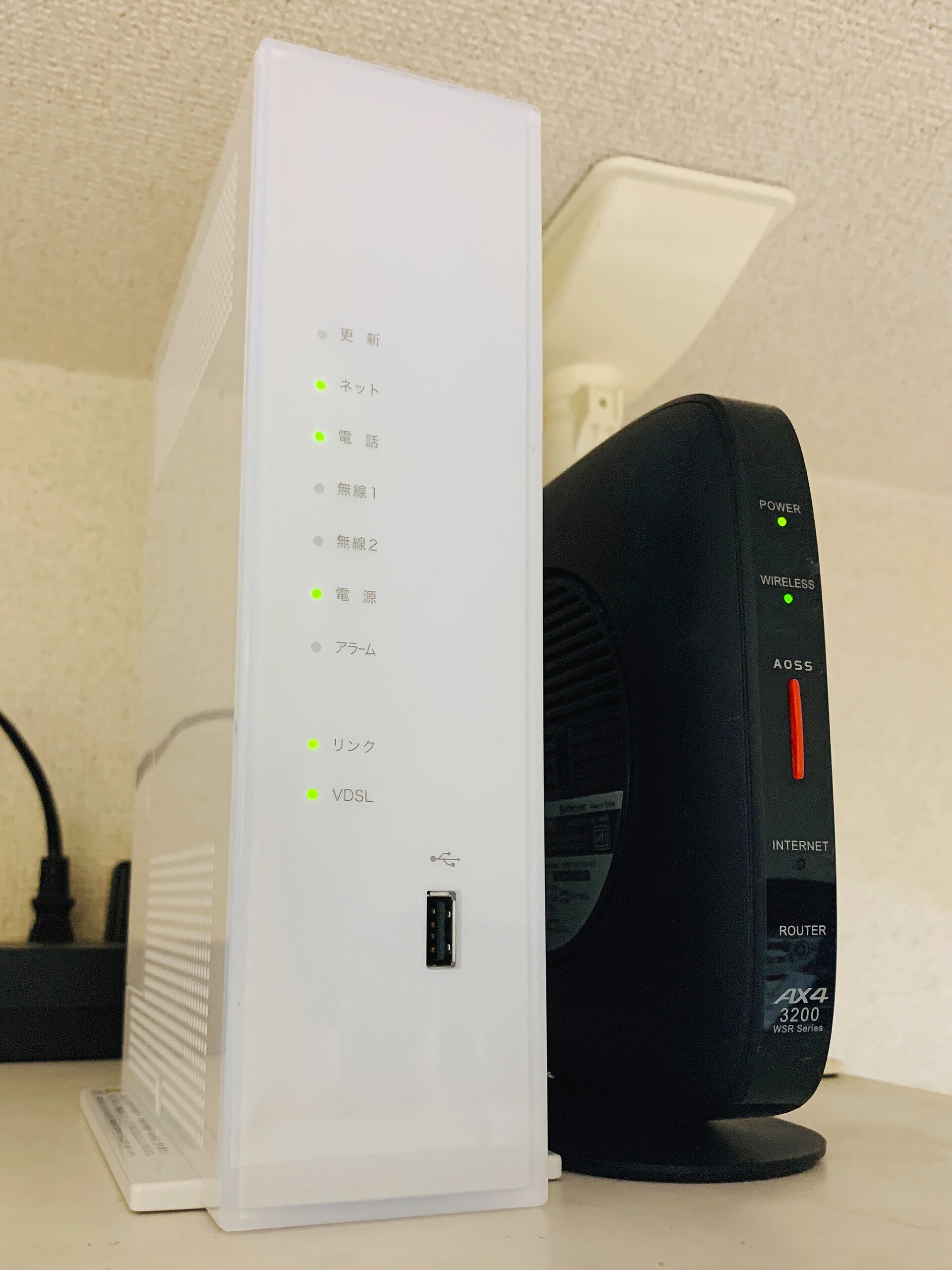
Noticed your internet slowing to a crawl at odd hours? Wondering if a neighbor is piggybacking your connection — or if a device you don’t recognize quietly joined your network? Finding out who is on your home WiFi takes less than five minutes, and you don’t need any special technical skills to do it.
Table of Contents
This guide covers three reliable methods: checking your router’s built-in admin panel, using the free Fing app on your phone, and running a quick command in your computer’s terminal. You’ll also learn how to identify unfamiliar devices by name and what to do if you find an intruder.
Quick Answer
Open a browser and go to your router’s admin page — usually 192.168.1.1 or 192.168.0.1 — log in with the credentials printed on your router’s label, and look for a section called Connected Devices, Attached Devices, or DHCP Client List. Every device currently on your WiFi will be listed there with its name, IP address, and MAC address. If you’d rather skip the router login, the free Fing app for iOS or Android scans your network and shows the same information in seconds.
Method 1: Check Your Router’s Admin Panel
This is the most direct method and works on every router without installing anything. Start by finding your router’s IP address, which is the address you type into a browser to reach the admin panel. On Windows, open Command Prompt and type ipconfig — look for the line that says Default Gateway. On a Mac, go to System Preferences → Network → Advanced → TCP/IP and check the Router field. The address is almost always 192.168.1.1, 192.168.0.1, or 10.0.0.1.
Type that address into your browser’s address bar and log in. The default username and password are usually printed on a sticker on the back or bottom of your router — common defaults are admin/admin or admin/password, though you should have changed these when you set up the router. Once logged in, navigate to the connected-devices section. The exact label varies by brand: Netgear calls it Attached Devices and shows it on the main page; TP-Link users go to Advanced → Network → DHCP Client List; ASUS routers display it on the Network Map home screen; Linksys puts it under Status → Local Network → DHCP Client Table; and D-Link shows it under Status → Client Sessions. Google and Nest WiFi users can skip the browser entirely — open the Google Home app, tap WiFi, then Devices.
Each device in the list shows a hostname (like ‘Johns-iPhone’), an IP address, and a MAC address. The hostname is the most useful identifier at a glance, but not every device broadcasts a clear name. If you see something labeled with a string of numbers or a brand you don’t recognize, use the MAC address to identify it — paste the first six characters (the vendor prefix) into macvendors.com to find out which manufacturer made the device.
Method 2: Use the Fing App (Fastest Option)
Fing is a free network scanner available for iOS and Android. Download it, make sure your phone is connected to the WiFi network you want to inspect, and tap Scan Network. Within seconds it returns a list of every connected device with its name, IP address, MAC address, and device manufacturer — often identifying the specific brand and model of phones, smart TVs, and IoT gadgets using its device-recognition database.
The free version of Fing handles basic scanning and device identification, which is all most households need. Fing also offers a desktop version for Windows and macOS called Fing Desktop, which can run continuous background monitoring and alert you whenever a new device joins. GlassWire is another Windows-focused option that provides similar new-device alerts alongside a visual graph of which apps and devices are consuming bandwidth.
For router-brand apps, Netgear’s Nighthawk app, TP-Link’s Tether app, and the ASUS Router app all show connected devices and let you manage them without opening a browser — a convenient alternative if your router already supports one of these.
Method 3: Quick Command-Line Scan
If you’re comfortable with a terminal, the arp -a command works on Windows, Mac, and Linux and takes under a second to run. Open Command Prompt, Terminal, or PowerShell, type arp -a, and press Enter. You’ll see a table of IP addresses and MAC addresses for every device your computer has recently communicated with on the local network. It’s a quick sanity check but won’t catch devices that haven’t exchanged any traffic since your last reboot.
For a more thorough scan on Mac or Linux, nmap -sn 192.168.1.0/24 (replace with your actual subnet if different) actively pings every address in the range and returns a list of live hosts with hostnames. Nmap is a free, open-source tool widely used for legitimate network auditing; install it via Homebrew on Mac (brew install nmap) or your Linux package manager.
Tips and Common Mistakes
Don’t panic at the device count — modern households often have many more connected devices than people expect. Smart TVs, streaming sticks, game consoles, smart speakers, thermostats, security cameras, and even some appliances all show up on the list. Before assuming an unknown device is an intruder, walk through your home and think about everything that connects to WiFi.
If you do find a device you genuinely can’t identify and want to remove it, the most reliable approach is to change your WiFi password. Every device — authorized and unauthorized — will be disconnected, and you then reconnect only the devices you own. Most routers also support MAC address filtering or a guest network with its own password, which lets you isolate visitors from your main network without sharing your primary credentials.
Always change your router’s default admin password if you haven’t already. The default credentials are widely published and leaving them in place is the single most common way an attacker gains control of a home router. While you’re in the admin panel, also check that your WiFi is set to WPA3 or at minimum WPA2 encryption — older WEP or open networks are trivially compromised.
Explore more: More technology guides.
home WiFi device monitoring FAQs
Can I see who is on my WiFi from my phone without a computer?
Yes. The free Fing app for iOS and Android scans your network and lists all connected devices in seconds, no computer or router login required. Many router manufacturers also offer their own apps — Nighthawk for Netgear, Tether for TP-Link, ASUS Router, and Google Home for Google/Nest WiFi — that show the same information.
What if a device shows an unknown or strange name in the list?
Copy the device’s MAC address and paste the first six characters (the vendor prefix) into macvendors.com. This will tell you which company manufactured the network chip — for example, Apple, Samsung, Espressif (commonly used in smart-home devices), or Amazon. That usually narrows down what the device is. If it still doesn’t match anything in your home, changing your WiFi password is the safest next step.
Does checking the router admin panel show devices connected to the 5 GHz band separately?
It depends on your router. Most modern routers with band steering combine both the 2.4 GHz and 5 GHz bands under a single device list. Older or more advanced routers may list them separately by band. The device list typically shows all connected devices regardless of which band they’re using.
Make Your Digital Life Better
More practical tech how-tos, tool picks, and guides to upgrade your everyday digital life. More on GTWebs.
Photo: Project Kei / CC BY-SA 4.0, via Wikimedia Commons.