


If your phone is still eating through its cellular data plan even though WiFi works fine at home and the office, the problem is almost always background activity: apps refreshing, syncing, and streaming at full quality the moment you step off your WiFi network. You don’t need to disable WiFi or live in airplane mode to fix this.
Table of Contents
This guide walks through the built-in data-saving tools on iPhone and Android, plus the app-level settings (Netflix, Spotify, browsers, Maps) that make the biggest dent in your monthly usage — all without touching your WiFi toggle.
Quick Answer
Turn on your phone’s built-in cellular data-saving mode (Low Data Mode on iPhone, Data Saver on Android), restrict background data for apps you rarely use, cap streaming quality in Netflix/YouTube/Spotify, and download maps and playlists for offline use. These changes only affect data used over your cellular connection — WiFi keeps working normally.
Turn On Your Phone’s Built-In Data Saver
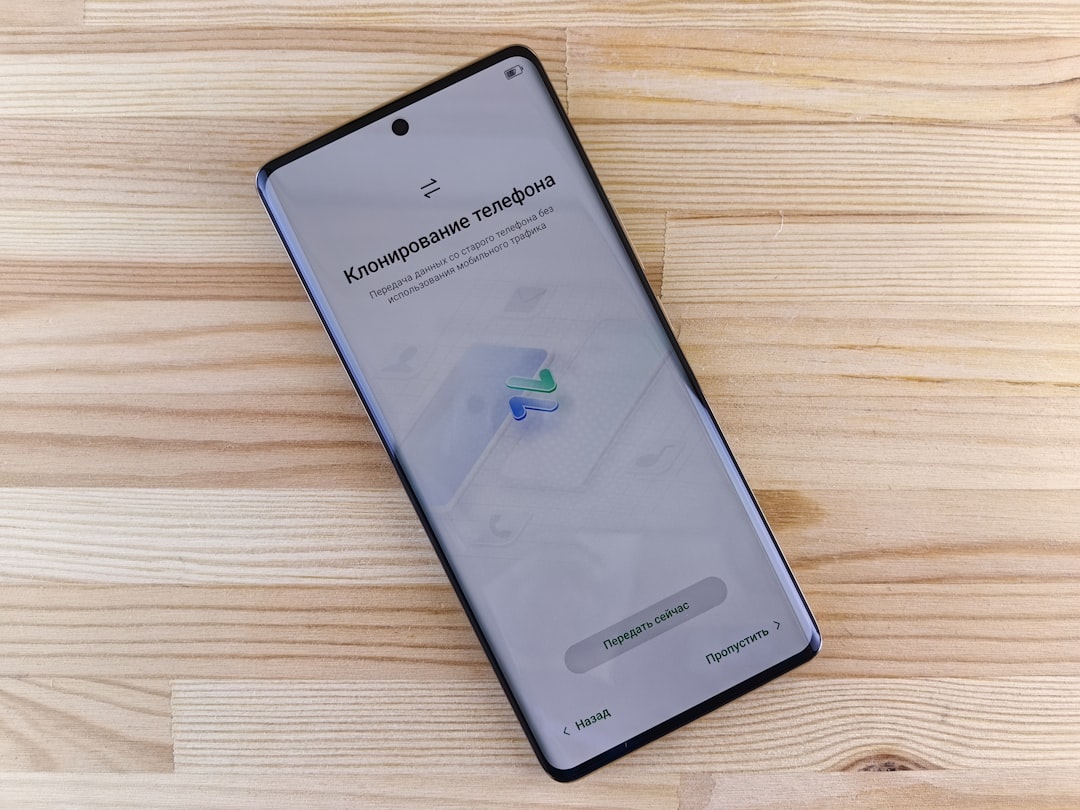
On iPhone: go to Settings > Cellular > Cellular Data Options and turn on Low Data Mode (on newer iOS versions with 5G, this is under Cellular Data Options > Data Mode). This pauses automatic app updates, background app refresh, iCloud Photo syncing, and reduces streaming video quality whenever you’re on cellular. If you have Dual SIM or multiple eSIMs, you can enable it separately for each line. iOS also lets you turn on Low Data Mode for a specific WiFi network (tap the (i) next to the network name in Settings > WiFi) if you’re on a slow or capped WiFi connection too — but that’s a separate toggle from your cellular setting.
On Android: go to Settings > Network & internet > Data Saver and turn it on. This blocks most apps from using data in the background while on a metered (cellular) connection and signals apps to use less data in the foreground — for example, images on web pages won’t load automatically until you tap them. If a specific app needs to keep syncing in the background (like a work email client), open Data Saver > Unrestricted data and allow it individually. A small icon appears in your status bar whenever Data Saver is active.
Cut Data Use in the Apps That Consume the Most
Video and music streaming apps are usually the biggest data drains, so start there. In Netflix, go to your profile > App Settings > Video Playback > Cellular Data Usage and choose “Save Data” instead of “Automatic” or “Maximum Data.” You can also download shows over WiFi ahead of time and watch them offline on cellular. In Spotify, open Settings > Data Saver and turn it on, or go to Settings > Media Quality and set your cellular streaming quality to Low or Normal instead of High/Very High — download playlists over WiFi for offline listening when you’re commuting.
For YouTube, the app has a similar per-connection default video quality setting under your profile icon > Settings > Video quality preferences, where you can set a lower resolution specifically for mobile data. Social apps like Instagram, Facebook, and X also let you disable autoplay video over cellular data in their settings menus — look for “Data usage” or “Video autoplay” settings and set them to WiFi-only.
Google Maps is worth setting up before you travel: tap your profile picture > Offline maps > Select your own map, download the area over WiFi, and Maps will use the offline data for routing instead of pulling map tiles over cellular. Turn-by-turn driving directions work offline, though live traffic, alternate routes, and lane guidance require a connection.
Tips and Common Mistakes
Check which apps are actually using your cellular data before you start restricting things blindly — on iPhone, Settings > Cellular shows a per-app breakdown; on Android, it’s Settings > Network & internet > SIM/Data usage. This tells you where to focus instead of guessing.
A common mistake is enabling Low Data Mode or Data Saver and then wondering why messages or emails stop syncing promptly — that’s the feature working as intended. Whitelist specific apps (mail, messaging) as “unrestricted” if you need them to stay live in the background.
Don’t forget app and OS updates: both iPhone and Android let you restrict automatic app updates and system updates to WiFi only (App Store > Settings, or Play Store > Settings > Network preferences > App download preference). A single large app or OS update can undo a lot of the savings from everything else on this list.
Also check your cloud photo/video backup settings (iCloud Photos, Google Photos) — these are set to back up over WiFi only by default, but it’s worth confirming, since photo and video backups are one of the largest silent data users on a phone.
Explore more: More technology how-to guides.
reducing mobile data usage FAQs
Does Low Data Mode or Data Saver affect WiFi too?
By default these settings target cellular data. iPhone lets you separately enable Low Data Mode on individual WiFi networks if needed, and Android’s Data Saver only restricts background data when you’re on a metered connection, which is normally your cellular plan unless you’ve marked a WiFi network as metered.
Will turning on Data Saver break apps like WhatsApp or email?
No — messaging and email apps typically keep working, though background syncing (like instant push notifications for some apps) may be delayed until you open the app or reconnect to WiFi. You can exempt specific apps from restrictions in the Data Saver settings.
What uses the most mobile data on a typical phone?
Video streaming (Netflix, YouTube, TikTok, Instagram/Facebook video), automatic app and OS updates, and cloud photo/video backups are usually the largest contributors, followed by music streaming and app background refresh.
Can I set a cellular data limit so I don’t go over my plan?
It depends on your phone. iPhone’s Settings > Cellular only shows usage statistics for the current period, which you can reset manually to match your billing cycle — it does not let you set a warning threshold or a hard cutoff that blocks cellular data. Many Android phones do offer this under Settings > Network & internet > Data usage > Data warning & limit, letting you set a warning point and a limit that disables cellular data once reached. If your iPhone plan has a hard cap, check with your carrier — some carriers offer their own usage alerts or limits through their app or account settings.
Make Your Digital Life Better
More practical tech how-tos, tool picks, and guides to upgrade your everyday digital life. More on GTWebs.
Photo: CDC Global / CC BY 2.0, via Wikimedia Commons.