

If your inbox and read-it-later list keep growing faster than you can get through them, a good text-to-speech app can turn that backlog into something you listen to on a walk, a commute, or while doing chores. The tricky part is that not every app handles every source well — some are built for PDFs and ebooks, some are built for web articles, and only a few genuinely handle email well.
Table of Contents
This guide compares the apps that actually work for listening to articles and emails on a phone in 2026, including free options already built into iOS and Android, so you can pick the right one instead of paying for features you won’t use.
Quick Answer
For most people, Speechify is the best all-around pick because it reads articles, PDFs, and emails through a share-sheet integration on both iPhone and Android, with natural voices and adjustable speed. If you want something free with genuinely high-quality voices, ElevenReader (from ElevenLabs) is the strongest no-cost option. And if you’d rather not install anything, Apple’s built-in Spoken Content feature (iOS) and Chrome’s “Listen to this page” (Android) already do a solid job at zero cost.
The Best Apps Compared
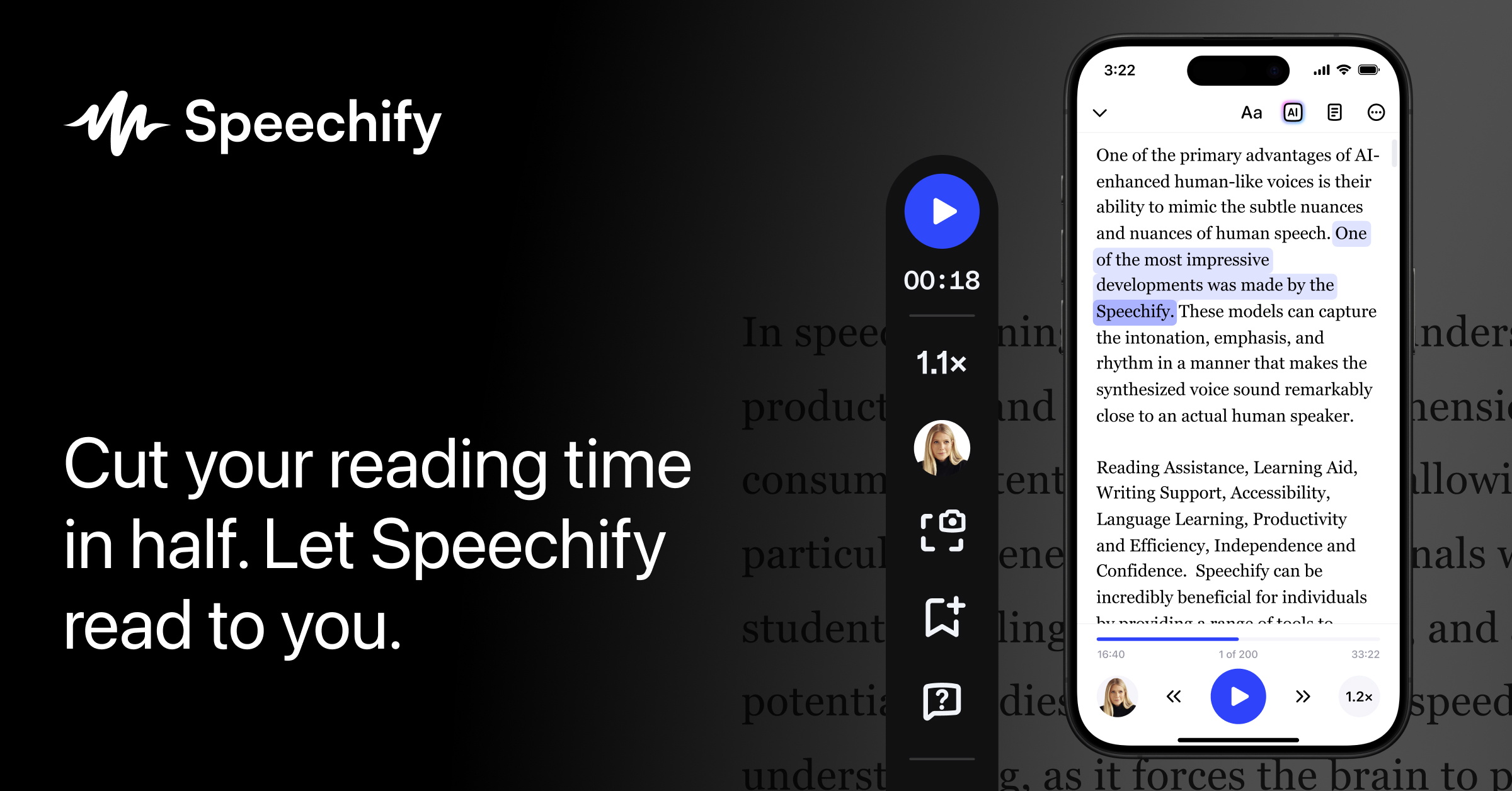
Speechify (iOS, Android, Chrome, Mac, web): The free tier gives you 10 basic voices at up to 1.5x speed, enough to try it out. Premium (around $29/month, or roughly $139/year when billed annually) unlocks 1,000+ natural voices, 60+ languages, speeds up to 5x, OCR scanning for printed text, and offline downloads. To listen to an email or article, you share the page or message directly into the app from your phone’s share sheet, which is what makes it useful for email specifically — most competitors focus only on articles and files.
ElevenReader (iOS, Android, web, Chrome extension): Made by ElevenLabs, known for some of the most natural-sounding AI voices available. The app is free to download and use, with a monthly allowance of listening time on the free plan (10 hours), and it reads articles, PDFs, ePubs, and pasted or scanned text in 32 languages. It doesn’t have direct email integration, but you can copy email text in or share a link if the email is web-based.
NaturalReader (iOS, Android, web, Chrome extension): A longtime favorite for reading articles, browser pages, and documents, with an AI Smart Filter that strips out ads and page clutter before reading. There’s a free web tool with limited daily use, but the mobile app plans start at roughly $79/year (Lite tier) and go up from there for premium voices and voice cloning. Good choice if you’re already reading mostly in a browser.
Built-in and free (no install): On iPhone, go to Settings > Accessibility > Spoken Content and turn on “Speak Screen.” Then in Mail, Safari, or Notes, swipe down with two fingers from the top of the screen and it reads everything on screen aloud, complete with rate controls. On Android, Chrome has a “Listen to this page” tool — open a webpage in Chrome, tap the three-dot menu, and select it to hear the article read aloud, including an AI-narrated mode on supported pages. Android also has a system-wide “Select to Speak” accessibility tool (Settings > Accessibility) that reads any selected text, including in the Gmail app.
How to Start Listening to Articles and Emails Today
Decide what you’re mostly trying to listen to. If it’s mainly emails, prioritize an app with share-sheet or app-level integration (Speechify, or Apple’s Spoken Content if you’re on iPhone) rather than a pure article/ebook reader. If it’s mostly saved articles and PDFs, ElevenReader or NaturalReader will feel more natural since they’re built around imported documents.
Install the app and grant it access to your share sheet (iOS) or set it as an accessibility service (Android), since that’s the mechanism most of these apps use to grab text from other apps like Mail or Gmail.
Test the voice speed before committing to a subscription. Most people can comfortably listen at 1.25x–1.75x speed once they’re used to it; free tiers usually cap speed lower than paid tiers, so try a paid trial before assuming you need it.
For a no-cost trial run, start with your phone’s built-in option first (Spoken Content on iPhone, Listen to this page or Select to Speak on Android). If you outgrow it — usually because you want faster speeds, better voices, or PDF/OCR support — that’s the signal to move to a dedicated app.

Tips and Common Mistakes
Don’t judge an app on its free-tier voice quality alone — many apps (Speechify, NaturalReader) intentionally keep free voices robotic-sounding to push upgrades, while their paid voices sound dramatically better. Try a free trial of the paid tier before writing an app off.
Watch for annual vs. monthly pricing traps: several of these apps charge noticeably more per month if you don’t commit to an annual plan, so check both before subscribing.
If you mainly want to listen to newsletters or saved articles rather than live emails, a browser-based “Listen to this page” tool or read-it-later app with TTS built in can save you from paying for a full subscription app.
Email TTS support is the biggest differentiator between these apps — many well-reviewed TTS apps are actually built for books and PDFs and handle email poorly or not at all, so if email is your priority, confirm share-sheet or in-app email support before subscribing.
Explore more: More technology guides.
Text-to-speech apps for articles and emails FAQs
Is there a free text-to-speech app that reads emails and articles?
Yes. ElevenReader is free to use with a monthly listening allowance, and both iPhone (Spoken Content) and Android (Listen to this page in Chrome, or Select to Speak) have built-in free tools that read articles and emails aloud without installing anything.
Which app is best specifically for reading emails aloud?
Speechify has the most direct email integration through its share-sheet feature on iPhone and Android. On iPhone, Apple’s built-in Spoken Content feature also reads Mail messages aloud for free.
Do these apps work offline?
Some do. Speechify’s paid tier supports offline downloads, and Apple’s built-in Spoken Content works offline since it uses the device’s own voices. Free tiers of most third-party apps typically require an internet connection.
Make Your Digital Life Better
More practical tech how-tos, tool picks, and guides to upgrade your everyday digital life. More on GTWebs.
Images: Speechify.