

If you’re tired of photo apps that lock basic tools like healing brushes or masking behind a monthly fee, there’s good news: you don’t need to pay to edit like a pro on iPhone. One app has quietly stayed completely free for years, and it just got a major overhaul in 2026.
Table of Contents
This guide covers the best truly free option, what you get without paying a cent, and where other popular apps like Adobe Lightroom and VSCO fall short of being fully free — so you know exactly what you’re signing up for before you download anything.
Quick Answer
Snapseed is the best free photo editing app for iPhone with no subscription. Developed by Google, it’s entirely free with no ads, no watermarks, and no in-app purchases — every tool is unlocked from the moment you install it, and it just received a major redesign (version 4.0) in 2026.
Why Snapseed Is the Top Pick
Snapseed gives you more than 30 pro-level tools and filters, and none of them are paywalled. That includes selective (region-based) adjustments, curves, healing/spot removal, HDR, perspective correction, and a double exposure mode — the kind of tools that competing apps typically reserve for paid tiers.
The 4.0 update reworked the app around non-destructive editing, meaning your edit stack is preserved even after you close the app, so you can reopen a photo you edited weeks ago and tweak any individual step without starting over. It also added a built-in camera mode with manual ISO, shutter speed, and focus controls, plus film-simulation looks inspired by classic stocks like Kodak and Fuji.
Other useful additions in the redesign include smart subject/background selection for faster masking, four new effects (Dehaze, Color/HSL, Bloom, and Halation), and a gallery view that lets you copy an edit style from one photo and paste it onto others for quick batch editing.
To get started: download Snapseed from the App Store, open a photo, tap Tools to browse the full toolkit, and use the Looks tab for one-tap filters you can still fine-tune afterward. Every edit is stacked and editable later, so don’t be afraid to experiment.
Other Free Options (and Their Catches)
Adobe Lightroom Mobile has a usable free tier: crop, rotate, exposure, contrast, highlights/shadows, saturation, free presets, and a color mixer (HSL) all work without paying. But the brush-based local adjustment tools — the radial, linear, and brush selection tools used for masking and targeted edits — are premium-only, along with the healing brush, geometry tools, batch editing, RAW editing, and cloud sync. So Lightroom is free to use, but its selective-editing tools specifically are not.
VSCO also has a free tier, but it’s deliberately limited: you get a modest starter set of presets plus basic exposure/contrast/color tools. The brand’s larger film-look preset library and video editing tools require the paid VSCO Plus plan, so most people hit VSCO’s free ceiling quickly.
Apple’s built-in Photos app is worth keeping in your rotation too. It’s already on your phone, handles quick crops, filters, and basic adjustments well, and syncs seamlessly with iCloud — useful for fast edits when you don’t need Snapseed’s full toolkit.
One app to skip for this purpose: the original standalone Pixelmator for iPhone was discontinued by Apple after its Pixelmator acquisition, and Apple’s newer Pixelmator Pro is being folded into a subscription bundle — so it’s no longer a reliable one-time-purchase, no-subscription option.
Tips and Common Mistakes
Don’t assume every app labeled ‘free’ on the App Store is actually free to use fully — check whether core tools (brush-based local adjustments/masking, healing, RAW support) are locked behind a subscription before you invest time learning the interface, as is the case with Lightroom’s premium tier and VSCO’s paid plan.
In Snapseed, use the Looks tab as a starting point, not a finish line — apply a filter, then go back into Tools to adjust exposure, selective color, or curves so the result doesn’t look like everyone else’s default filter.
Export your final image at full resolution: in Snapseed, use the Export option (not just Save) if you want to keep your original untouched and create a separate edited copy.
If you shoot in RAW/ProRAW, remember Snapseed supports RAW files, but you’ll get more consistent results editing exposure and white balance first before applying stylized looks.
Explore more: More Technology guides.
Snapseed FAQs
Is Snapseed really free with no hidden costs?
Yes. Snapseed has no subscription, no ads, no watermarks, and no in-app purchases — every tool, including advanced ones like healing and curves, is available for free.
Does Snapseed work with iPhone RAW/ProRAW photos?
Yes, Snapseed supports RAW file editing, which is one of the features many competing free apps restrict to paid tiers.
Is Adobe Lightroom Mobile free on iPhone?
Lightroom Mobile has a free tier with solid basic editing tools like exposure, color mixer, and cropping, but the brush-based local/selective adjustment tools (masking, radial and linear selections, adjustment brushes) are premium-only, along with the healing brush, geometry tools, RAW editing, and cloud sync.
Make Your Digital Life Better
More practical tech how-tos, tool picks, and guides to upgrade your everyday digital life. More on GTWebs.
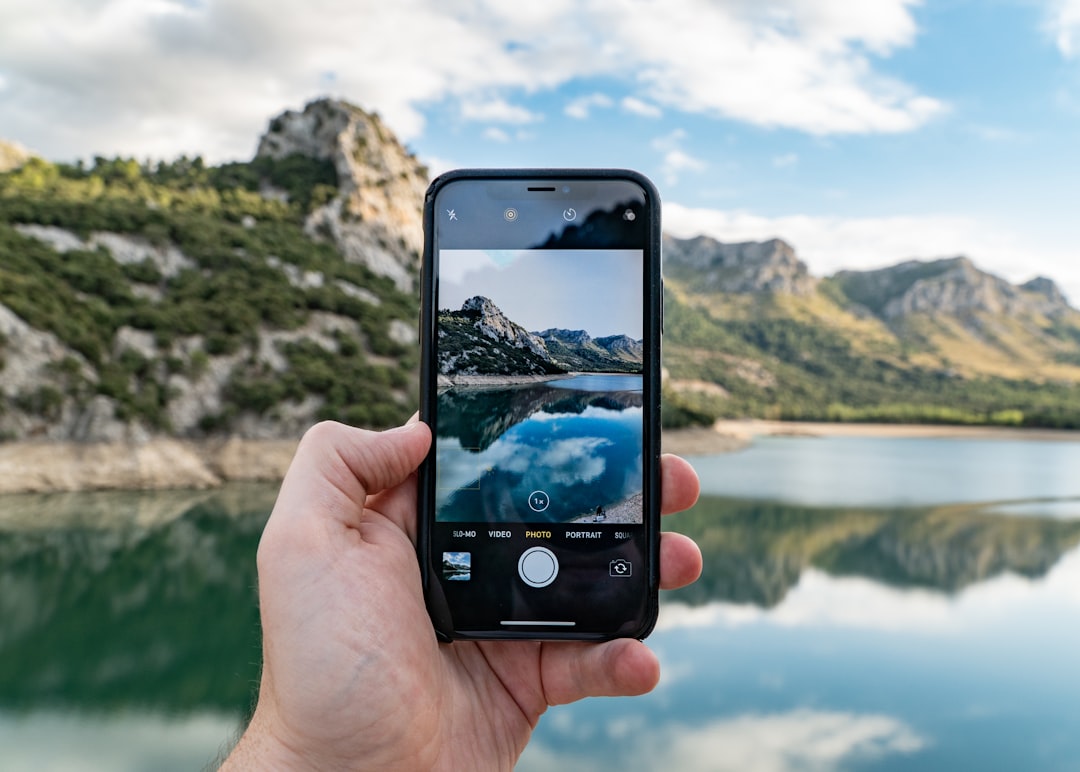
Photo by Josh Power on Unsplash.