

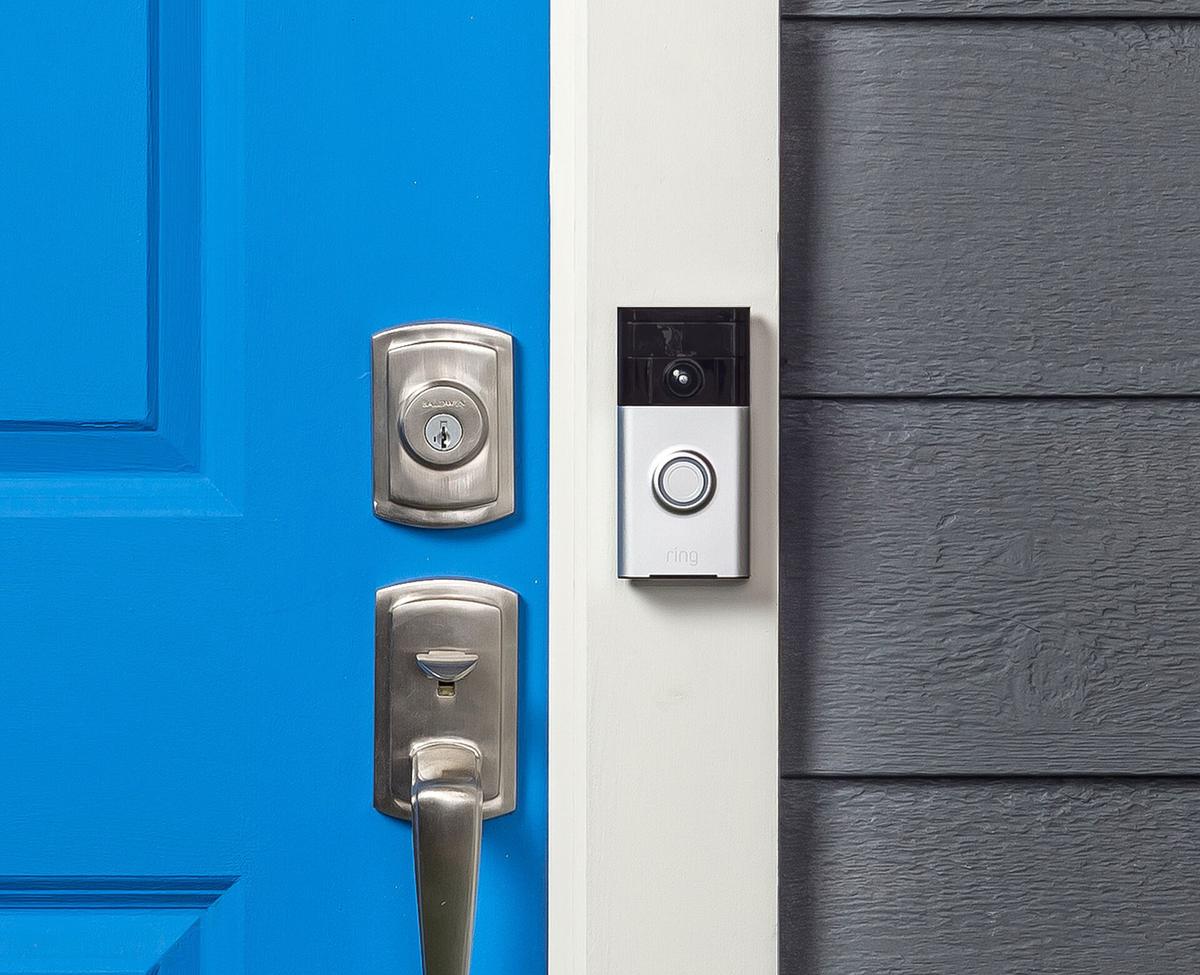
If your phone keeps buzzing with “Someone is at your door” every time a car drives by, a branch sways, or your cat wanders across the porch, the problem almost always comes down to three Ring app settings: Motion Zones, Motion Sensitivity, and Smart Alerts. None of them are hidden exactly, but Ring spreads them across a few different menus, so it’s easy to miss one and keep getting flooded with notifications.
Table of Contents
This guide walks through exactly where to find each setting and in what order to adjust them, so you stop getting pinged for every passing car and start getting notified only when it actually matters.
Quick Answer
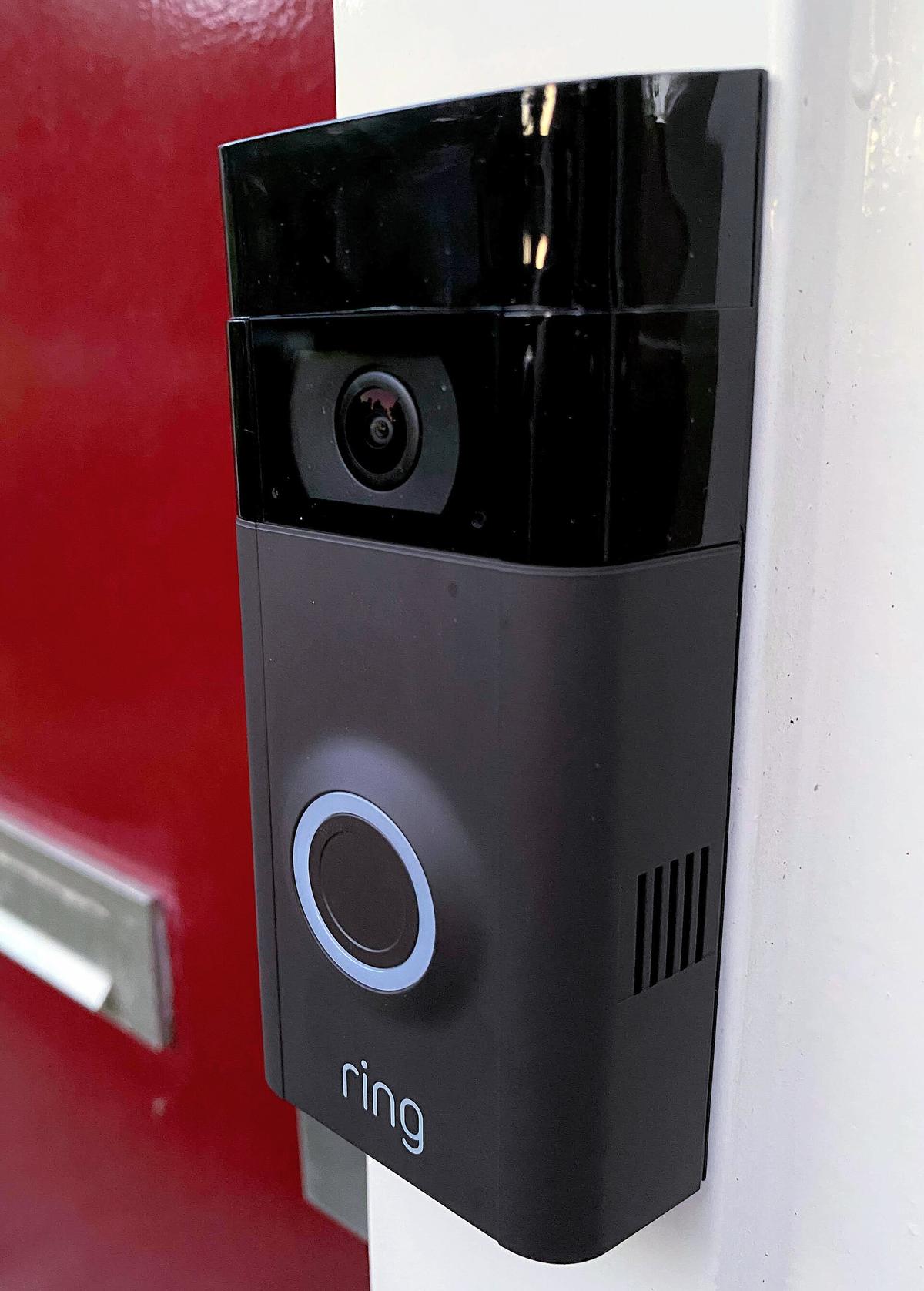
Open the Ring app, go to the device that’s triggering false alerts, and tap the Motion Settings tile. From there, tighten the Motion Zones so the camera only watches your porch or walkway (not the street), lower Motion Sensitivity a notch or two, and turn on Smart Alerts so you’re only notified for “Person” activity instead of any motion. If you have a Ring Protect subscription, this combination eliminates the vast majority of false door alerts.
Step 1: Fix Motion Zones and Sensitivity
In the Ring app, tap the Menu icon, select Devices, choose the camera or doorbell sending the false alerts, then tap Motion Settings. Open Motion Zones first — this is the single biggest fix for alerts caused by street traffic, sidewalks, or neighboring yards. Drag the zone’s edges inward so it covers only the area you actually care about (your door, porch, or driveway) and pulls back from the road, sidewalk, and any neighbor’s property.
Next, open the Motion Sensitivity slider on the same screen. Lower it one or two notches at a time rather than dropping it straight to the lowest setting — going too low can cause the camera to miss real visitors. After each adjustment, use Live View or check your Event History for a day to see whether the false alerts have actually stopped before moving the slider further.
Step 2: Turn On Smart Alerts (People Only)
Smart Alerts let Ring tell the difference between a person, a vehicle, and general motion (wind, animals, shadows), and only notify you for the categories you choose. On the device’s Motion Settings page, look for the Smart Alerts section and toggle on “Person” while leaving Package or Vehicle off if you don’t need them — this filters out most of the motion caused by weather, pets, and passing cars. Smart Alerts requires an active Ring Protect subscription; without one, the camera can still detect general motion but can’t distinguish what triggered it.
If you only want alerts during certain hours — say, you don’t need a notification every time a car passes at 2 a.m. but do want recording to continue — set up a Motion Schedule from the same Motion Settings menu so notifications pause during defined windows while the camera keeps recording in the background. For a one-off quiet period instead of a recurring schedule, use Motion Snooze on that device to pause alerts for a set number of hours without changing any of your other settings.
Tips / Common Mistakes
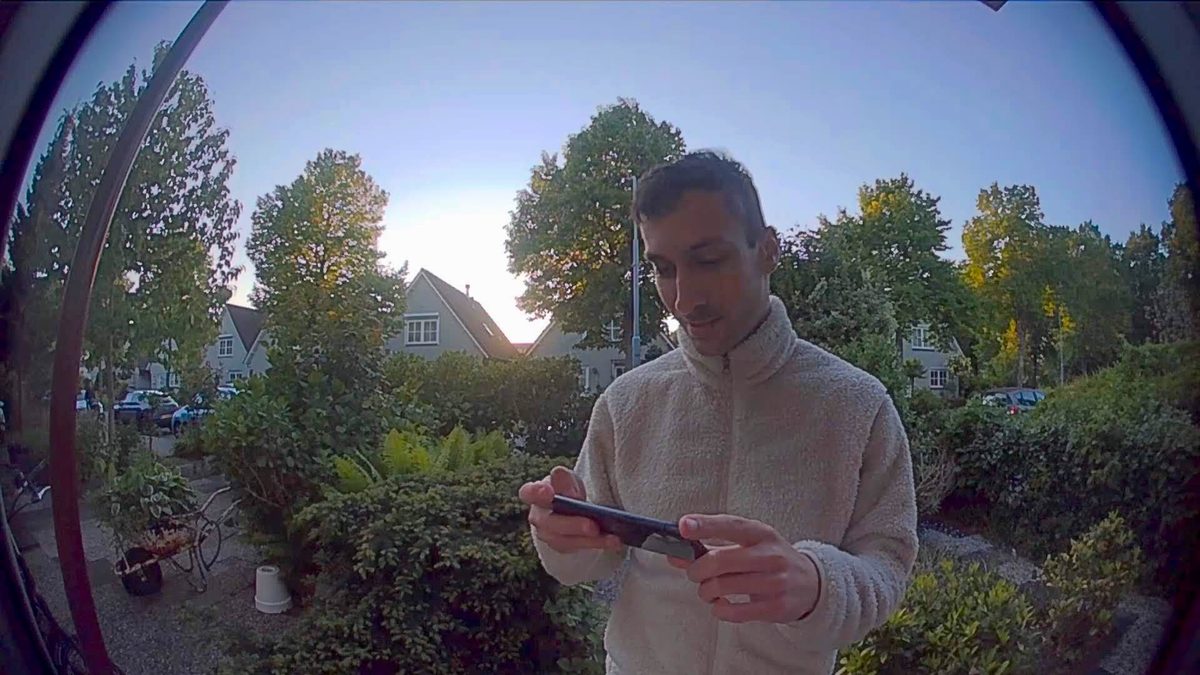
Don’t aim the camera at the street or sidewalk if you can avoid it — even a tight Motion Zone can’t fully compensate for a camera that’s physically pointed at constant traffic. Mount doorbells and cameras at a reasonable height and angle them slightly downward toward your entryway rather than outward toward the road.
If multiple people share the same Ring account, keep in mind that Motion Zones, Sensitivity, and Smart Alerts are device-level settings that only the account owner can change, so adjusting them affects what everyone’s notifications are based on. But each person — owner or shared user — can independently turn their own Motion and Ring Alerts on or off, or snooze them temporarily, without affecting anyone else’s phone. So if just one household member is annoyed by the pings, they can mute their own notifications for that device instead of changing the shared settings for everyone.
A common mistake is jumping straight to the lowest sensitivity setting out of frustration — this often causes the camera to miss real motion, including actual visitors or package deliveries. Make incremental changes and give each one a day before adjusting further.
Explore more: More smart home and tech tutorials.
Ring video doorbell FAQs
Why does Ring say “Someone is at your door” even when nobody rang the bell?
That message is Ring’s generic motion-triggered alert for doorbell cameras — it fires from motion detection near your entry, not just from a doorbell press. Tightening Motion Zones and enabling Smart Alerts (Person only) is the main fix.
Can I turn off motion alerts completely without losing recordings?
Yes. In Motion Settings, you can turn off Motion Alerts (notifications) while the device keeps recording motion events in your Event History, or use Motion Snooze to pause alerts temporarily for a set number of hours.
Do I need a paid subscription to filter alerts by person only?
Yes, Smart Alerts (which distinguish people, vehicles, and packages from general motion) require an active Ring Protect plan. Without a subscription, Motion Zones and the Sensitivity slider are still available and can meaningfully cut down false alerts on their own.
Make Your Digital Life Better
More practical tech how-tos, tool picks, and guides to upgrade your everyday digital life. More on GTWebs.
Want web tips in your inbox? Subscribe to the free newsletter.
Photo: Ring / CC BY-SA 4.0, via Wikimedia Commons.