

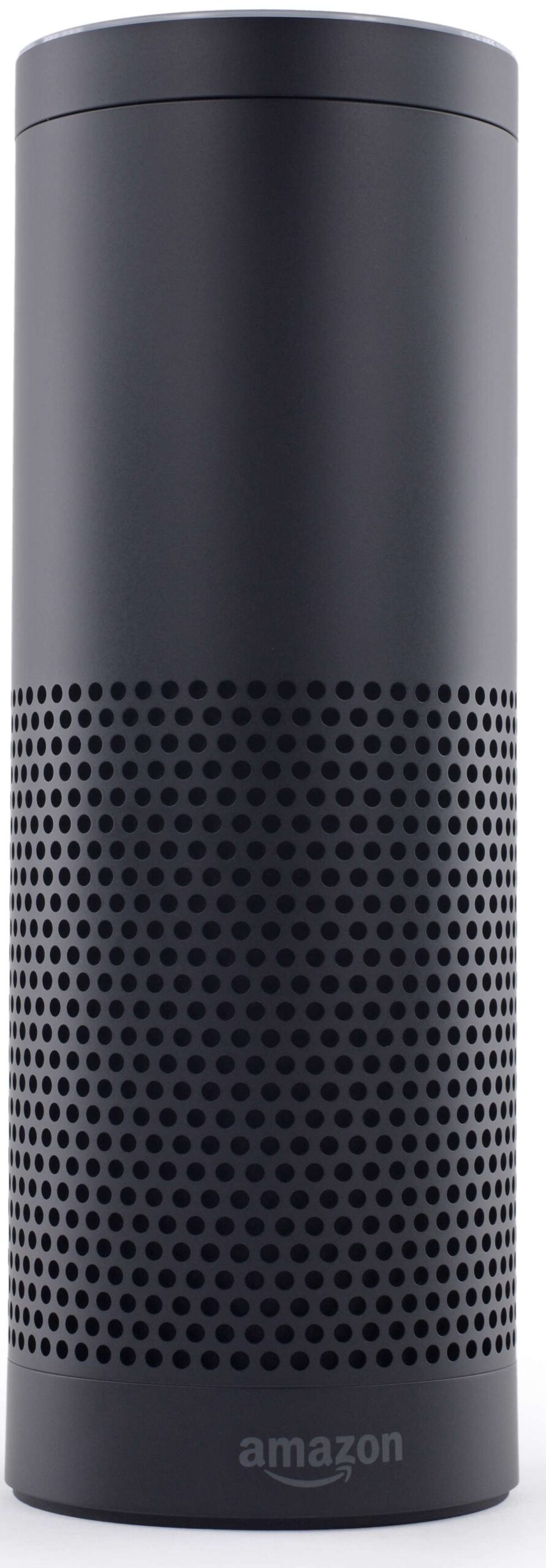
If your Amazon Echo keeps answering when you didn’t call for it, or it ignores the wake word you actually set, you’re not imagining things. It’s one of the most common annoyances in multi-device Alexa households, and it almost always comes down to a handful of fixable settings rather than a broken speaker.
Table of Contents
This guide walks through exactly what to check first, how to properly change or reset the wake word, and the workarounds people use when multiple Echos keep stepping on each other.
Quick Answer
Open the Alexa app, go to Devices > Echo & Alexa > [your device] > Settings > Wake Word, and confirm which word is actually selected. If it’s right but the device still misfires, make sure the device’s software is current, move it farther from other Echos, or give nearby Echos different wake words so they don’t trigger off each other.
Check and Reset the Wake Word Setting
Start by confirming what wake word is actually assigned to the misbehaving device, since it’s easy to assume a setting stuck from a previous change. Open the Alexa app, tap Devices, tap Echo & Alexa, select the specific device, tap Settings, then tap Wake Word. Alexa currently supports five wake words: Alexa, Amazon, Echo, Computer, and Ziggy. Pick the one you want and confirm.
You can also change it by voice: say ‘Alexa, change the wake word’ (or whichever word is currently active) and the device will walk you through the available options. After changing it, give the Echo a minute or two to apply the update before testing again — it needs to reload its on-device wake word model.
If the setting looks correct but the device still responds to the wrong word, or doesn’t respond to its own word reliably, check that it’s running current software. Echo devices update themselves automatically over Wi-Fi when idle, but you can prompt a check by saying ‘Alexa, check for software updates’ or by unplugging the device for about 30 seconds and plugging it back in, which also lets any pending update finish installing. Outdated software is a frequent cause of inconsistent wake word detection.
Stop Multiple Echos From Answering Each Other
In homes with several Echo devices, the more common issue isn’t a wrong setting — it’s that two or more Echos pick up the same voice and the nearest or loudest one answers, even if you meant to talk to a different room. Amazon’s Echo Spatial Perception feature is supposed to let only the closest device respond, but it isn’t perfect, especially across open floor plans or thin walls.
The most reliable fix is to assign different wake words to Echos that are within earshot of each other — for example, set the kitchen Echo to ‘Computer’ and the living room Echo to ‘Echo’, so a request in one room is less likely to be picked up by the other. It won’t eliminate false triggers entirely, since any Echo will still react if it clearly hears its own wake word, but it cuts down on duplicate responses to the same word.
If a particular Echo keeps answering when you don’t want it to, you can also mute its microphone with the mic-off button on top of the device, or physically move it farther from the devices it keeps colliding with. For one-off requests, pressing the action button (the button with a dot icon) lets you speak to that specific Echo directly without saying any wake word at all, which is useful when you want to guarantee which device responds.
Tips / Common Mistakes
Don’t assume the problem is hardware failure before checking the Wake Word setting first — a surprising number of cases are simply the wrong word selected after a past change or a factory reset reverted it to the default ‘Alexa’.
Avoid setting two adjacent Echos to the same wake word if they’re close enough to hear each other; this is the single biggest cause of ‘wrong device answered’ complaints.
Restart the device (unplug for about 30 seconds) after any wake word change, or if you suspect a pending software update hasn’t finished installing, if behavior doesn’t seem to improve right away.
If you’ve recently added a new Echo to the household, check all existing devices’ wake words again — Alexa doesn’t automatically rebalance them to avoid conflicts.
Explore more: More smart home and tech tutorials.
Echo wake word troubleshooting FAQs
Why does my Echo respond to a wake word I didn’t set?
This usually means another Echo nearby (yours or a neighbor’s, in apartments or close-set houses) is set to that word and is the one actually answering. Check which physical device lights up when you speak, and reassign wake words so nearby Echos don’t overlap.
Can I use a custom wake word on Echo devices?
No, consumer Echo devices only let you choose from the built-in list: Alexa, Amazon, Echo, Computer, and Ziggy. Fully custom wake words aren’t supported on standard Echo hardware.
Why did my wake word change back to ‘Alexa’ on its own?
This typically happens after a factory reset, a software update that resets device preferences, or re-registering the device to a new account. Just reset it in the Alexa app under Settings > Wake Word.
Make Your Digital Life Better
More practical tech how-tos, tool picks, and guides to upgrade your everyday digital life. More on GTWebs.
Want web tips in your inbox? Subscribe to the free newsletter.
Photo: Frmorrison at English Wikipedia / CC BY-SA 3.0, via Wikimedia Commons.