

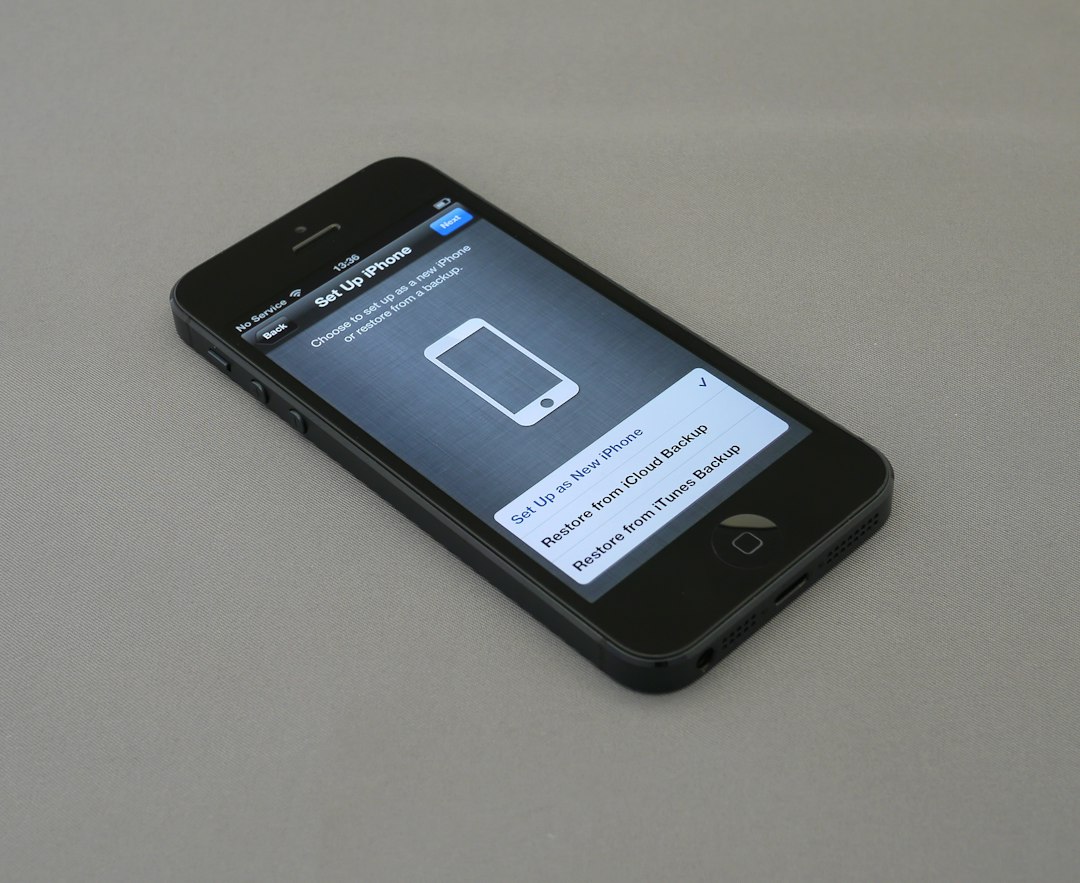
If your iCloud storage keeps filling up, there’s a good chance it’s not photos or messages doing it — it’s app data from apps you barely open anymore. Every app installed on your iPhone that supports iCloud Backup quietly adds its data to your nightly backup unless you tell it not to.
Table of Contents
The good news is you don’t have to delete those apps to stop them from eating your storage. iOS lets you turn off iCloud Backup for individual apps while keeping them installed and fully usable on your phone. Here’s exactly how to find and disable them.
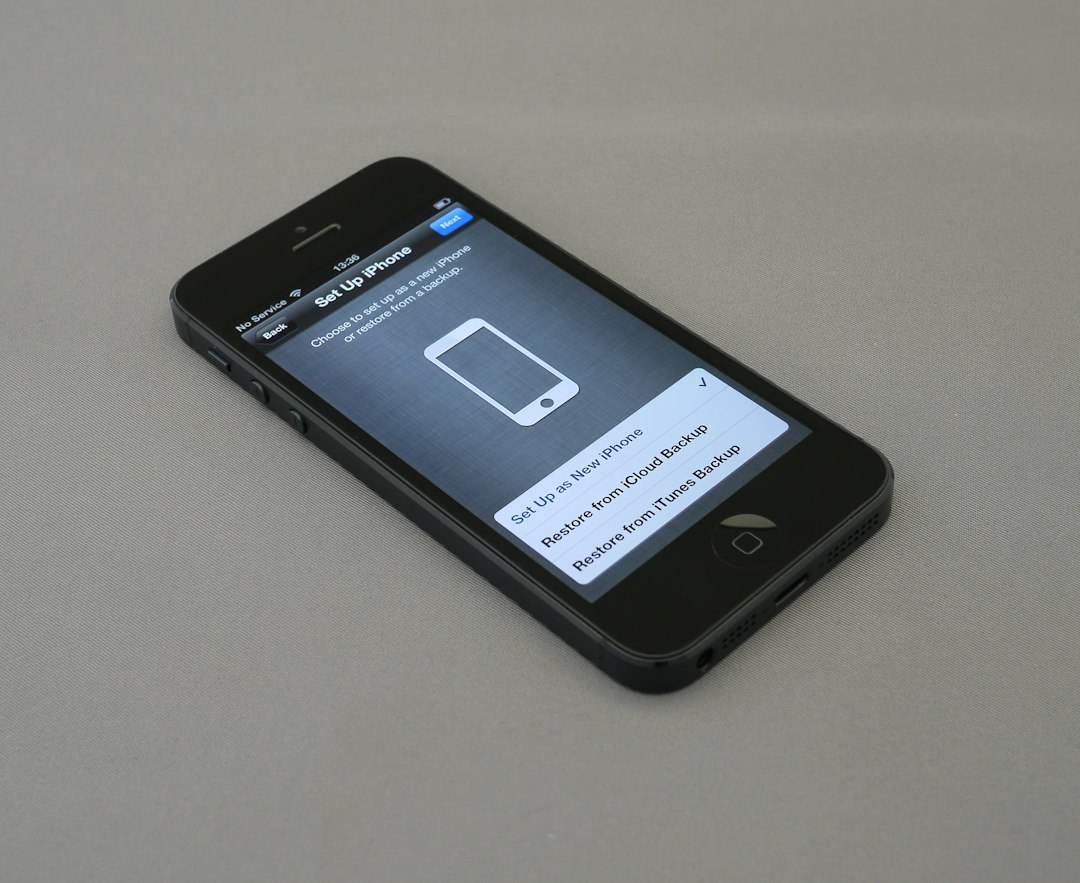
Quick Answer
Go to Settings > [your name] > iCloud > Manage Account Storage (or Storage) > Backups > tap your device, then turn off the switch next to any app you don’t want backed up and confirm Turn Off.
How to Turn Off iCloud Backup for Specific Apps
Open Settings and tap your name at the top of the screen. Tap iCloud, then tap Manage Account Storage (this may appear as just “Storage” depending on your iOS version). Tap Backups, then tap the name of your current iPhone under the list of devices.
You’ll see a list of apps that back up data to iCloud, starting with the ones using the most space. If the app you’re looking for isn’t in the first few shown, tap Show All Apps to see the complete list sorted by storage size.
Tap the switch next to any app you want to stop backing up. iOS will ask you to confirm — tap Turn Off & Delete (or Turn Off). This removes that app’s existing backup data from iCloud and stops future backups from including it. The app itself stays on your phone and keeps working exactly as before; only its backed-up data is affected.
Repeat this for any other unused or rarely opened apps — things like old games, one-off utility apps, or apps with large local caches (document scanners, photo editors, note apps with attachments) tend to be the biggest offenders.
What Actually Happens When You Turn It Off
Turning off backup for an app doesn’t uninstall it and doesn’t stop it from working day to day — it only means that app’s data won’t be included in your next iCloud backup, and its existing backed-up data for that app gets deleted from iCloud to free up space immediately.
If you ever restore your iPhone from an iCloud backup, apps you disabled backup for will typically still reinstall from the App Store, but their saved data (game progress, documents, settings) won’t come back with it. That’s a fine trade-off for an app you rarely use, but worth remembering for anything with data you’d actually miss.
Keep in mind some system-level data and a handful of apps are always included in backups and can’t be turned off individually — the toggle only applies to apps that support optional iCloud Backup.
Tips and Common Mistakes
Sort by size first. The Backups screen lists apps largest-to-smallest, so start at the top — disabling backup for a 2-person group chat’s photo app frees far more space than a dozen small utility apps.
Don’t confuse this with iCloud Drive or Photos. Turning off an app’s backup toggle under Backups is separate from toggling that app under the “Apps Using iCloud” section, which controls whether the app syncs data across your devices in real time (like notes or documents). If you want an app to stop syncing entirely, check that section too.
Check back periodically. New apps default to having backup enabled, so an app you installed last month and forgot about could already be adding bulk to your backup without you noticing.
If you’re still low on space after disabling a few apps, go back to Manage Account Storage and check Backups again — old backups from previous iPhones you no longer own can also be deleted entirely from that same screen.
Explore more: More iPhone and tech how-to guides.
iCloud backup app management FAQs
Will turning off iCloud backup for an app delete the app from my iPhone?
No. The app stays installed and works normally. Only its data stops being included in future iCloud backups, and its existing backed-up data is removed from iCloud.
Can I turn backup back on for an app later?
Yes, go back to Settings > [your name] > iCloud > Manage Account Storage > Backups > your device, and flip the switch back on for that app. It will be included starting with the next backup.
Why can’t I find a specific app in the Backups list?
Tap Show All Apps near the bottom of the list — by default only the apps using the most storage are shown first.
Does this free up space immediately?
Yes, confirming Turn Off removes that app’s existing backup data from your iCloud storage right away, not just from future backups.
Make Your Digital Life Better
More practical tech how-tos, tool picks, and guides to upgrade your everyday digital life. More on GTWebs.
Want web tips in your inbox? Subscribe to the free newsletter.
Photo by Brett Jordan on Unsplash.