

Your podcast cover art is the first thing a potential listener sees, often at a tiny thumbnail size in a crowded app list, so it has to be bold, legible, and technically correct. Get the pixel dimensions or file format wrong and Apple Podcasts can reject your show entirely.
Table of Contents
This guide walks through designing podcast cover art in Canva from a blank canvas to a finished export that meets Apple’s official size and format requirements, plus the design habits that keep your artwork readable at thumbnail size.
Quick Answer
In Canva, start a custom design at 3000 x 3000 pixels (Apple’s recommended size; the accepted range is 1400 x 1400 to 3000 x 3000). Design a square, text-forward layout, then export as JPEG or PNG in RGB color, keeping the file under 512KB.
Step-by-Step: Building Your Cover in Canva
Open Canva and click ‘Create a design,’ then choose ‘Custom size.’ Enter 3000 by 3000 pixels rather than using a preset — Canva’s search results for ‘podcast cover’ include templates, but confirming the custom size yourself guarantees you hit Apple’s exact recommended dimensions instead of a slightly-off preset.
Pick a template to start from, or build from scratch: add a background color or image first, then layer your show title as bold, high-contrast text near the center or upper third. Use Canva’s Text panel to choose a heavy sans-serif font — thin or script fonts disappear at the small sizes most listeners will actually see (roughly 100-160 pixels wide in an app list).
Add your host name, a subtitle, or a simple icon/illustration from Canva’s Elements library if it fits your show’s branding, but resist the urge to fill every corner. Apple’s own design guidance for creators emphasizes keeping the composition simple and bold rather than cramming in extra text or graphics.
Check your ‘safe area’ by mentally shrinking the design to a thumbnail (or using Canva’s zoom-out preview) — anything too close to the edges can get visually cropped or cramped on some platforms, so keep key text and logos comfortably inside the canvas, away from the outer edge.
Once you’re happy with the layout, click ‘Share’ then ‘Download.’ Choose PNG if your design is mostly flat colors, shapes, and text (crisper edges, larger files), or JPG if it’s photo-heavy (smaller files, adjustable quality).
Meeting Apple’s Technical Requirements
Apple Podcasts requires cover art between 1400 x 1400 and 3000 x 3000 pixels, with 3000 x 3000 recommended so your art looks sharp across devices and in any Apple Podcasts feature placement. The file must be a square (equal width and height) JPEG or PNG in RGB color mode — not CMYK, which is common in print-oriented design files.
There’s also a practical file-size ceiling: Apple podcast hosting platforms commonly cap show artwork around 512KB. If your PNG export comes in too large, re-export as JPEG and set the quality slider to roughly 80-90% in Canva’s download options — this shrinks the file substantially with minimal visible quality loss for cover art.
Before uploading to your podcast host or Apple Podcasts Connect, double-check the exported file’s actual pixel dimensions (right-click the file on desktop, or check image properties) rather than trusting Canva’s canvas size alone, especially if you resized or duplicated a template partway through.
Tips and Common Mistakes
Don’t reuse a rectangular YouTube thumbnail or banner as your podcast cover — Apple requires a perfect square, and stretching a non-square image distorts text and logos.
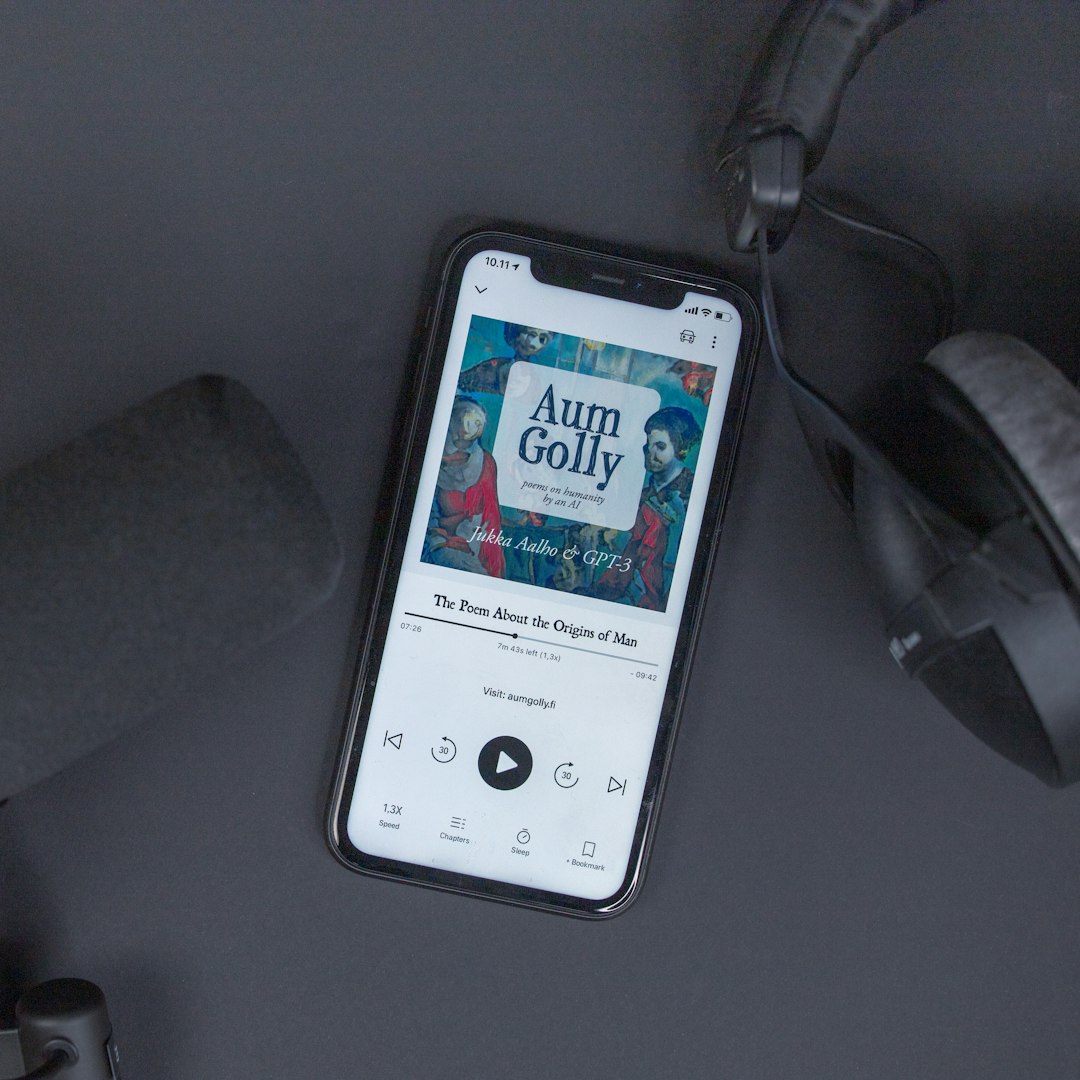
Avoid tiny or thin fonts for the show title; test readability by viewing your design at a small size before exporting, since most listeners will encounter your cover as a small thumbnail, not full-screen.
Skip busy photo backgrounds with lots of small detail — they tend to turn muddy at thumbnail size. A simple background with one strong focal element usually reads better.
Don’t upload a CMYK file exported for print; Canva exports RGB by default for web/PNG/JPG downloads, so this is rarely an issue unless you’ve imported artwork originally built for a print process.
Keep a master file at the full 3000 x 3000 size even if your host accepts smaller uploads — you’ll want the highest-resolution version if you ever redesign, print merchandise, or need Apple’s largest accepted size for feature consideration.
Explore more: more design guides.
Podcast cover art in Canva FAQs
What size should podcast cover art be for Apple Podcasts?
Apple accepts cover art from 1400 x 1400 up to 3000 x 3000 pixels, with 3000 x 3000 recommended. The image must be a perfect square.
Should I export my Canva podcast cover as JPG or PNG?
Either works for Apple Podcasts. PNG tends to look crisper for flat colors and text but produces a larger file; JPG at 80-90% quality is usually smaller and fine for photo-based covers. Just keep the final file under roughly 512KB.
Is Canva’s free plan enough to design podcast cover art?
Yes. Custom canvas sizing, text tools, and many templates and elements are available on Canva’s free plan, though some premium templates, photos, and elements require Canva Pro.
Can I use a rectangular banner image as my podcast cover?
No — Apple Podcasts requires a square image. If you have a rectangular design, you’ll need to crop or redesign it to a 1:1 square in Canva before exporting.
Make Your Digital Life Better
More practical tech how-tos, tool picks, and guides to upgrade your everyday digital life. More on GTWebs.
Want web tips in your inbox? Subscribe to the free newsletter.
Photo by Marty O’Neill on Unsplash.