


Canva has become the go-to design tool for millions of creators, business owners, and marketers — but the moment you try to download a transparent PNG or resize a post for Instagram without rebuilding it from scratch, you hit a wall. That wall is the Free-to-Pro boundary, and knowing exactly where it sits will save you from either paying for features you don’t need or grinding through workarounds you don’t have to.
Table of Contents
This guide covers every meaningful difference between Canva Free and Canva Pro: what you get, what you lose, who genuinely needs the upgrade, and who is perfectly fine staying on the free tier forever.

Quick Answer
Canva Free is genuinely capable for occasional, simple design work — social graphics, basic presentations, personal projects. Canva Pro is worth it if you manage a brand consistently, create content across multiple platforms regularly, or need professional-grade exports like transparent backgrounds or SVG files. If you’re posting a few graphics a week and care about consistent branding, Pro pays for itself quickly in time saved.
What Canva Free Actually Gives You
The free tier is far more useful than most people realize. You get access to over 1.6 million templates spanning social media posts, presentations, flyers, videos, and more. The free asset library includes millions of photos, graphics, and audio clips — more than enough for light use. You also get 5 GB of cloud storage and real-time collaboration with others, making it workable even for small teams on a budget.
You can create one Brand Kit on the free plan, though it limits you to three brand colors. Basic AI features are available but capped at a set number of uses per month. Exports cover the most common formats (PNG, JPG, PDF, MP4) but exclude transparent backgrounds and SVG — two omissions that matter a lot the moment you try to place a logo on a colored background or hand files off to a printer.
The honest summary: Free is the right call for students, hobbyists, occasional social posts, or anyone early in building a brand who doesn’t yet need polished, multi-platform consistency.
What Canva Pro Unlocks
Pro is currently priced at around $15–18 per month (billed monthly), with annual billing bringing that cost down significantly — check Canva’s website for the current rate in your region, as pricing varies and is updated periodically. The upgrade opens up several features that genuinely change how fast you can work.
Magic Resize lets you take a finished design and instantly reformat it for every platform — Facebook, Instagram Story, Pinterest, LinkedIn — without rebuilding it. For anyone managing social media across channels, this alone eliminates hours of manual resizing per month. The Background Remover uses AI to cut subjects from photos in one click, which is essential for product shots, headshots, or branded graphics. Magic Studio — Canva’s suite of AI tools including Magic Write (text generation), Magic Edit, Magic Eraser, and Magic Expand — is fully unlocked on Pro after being heavily restricted on Free.
On the asset side, Pro expands your library to over 141 million premium photos, videos, graphics, and audio files. You get five full Brand Kits instead of one, each supporting unlimited colors, multiple logos, and custom fonts — a must if you manage more than one brand or client. Storage jumps to 100 GB. Exports gain transparent PNG, SVG, and CMYK support, which matters for anyone producing print materials or handing designs to developers. A built-in Content Planner lets you schedule social posts to Instagram, Facebook, LinkedIn, and other platforms directly from Canva.
Pro is a single-user license. If you need to bring in collaborators with full editing rights and shared brand management, you’ll move to Canva Business instead, which is priced per user per month and adds approval workflows, team administration, and advanced collaboration tools.
Who Should (and Shouldn’t) Upgrade
Upgrade to Pro if you’re a small business owner or solopreneur managing your own visual brand, a content creator publishing regularly across more than one platform, a freelancer producing client work and needing professional export formats, or a social media manager running accounts for multiple clients. The combination of Magic Resize, Brand Kits, background removal, and premium assets eliminates the kind of repetitive grunt work that quietly consumes hours every week.
Stick with Free if you’re a student, creating designs only occasionally, working on purely personal projects, or just getting started and still figuring out what your brand looks like. It’s also worth knowing that Canva offers its Pro-level features completely free to verified K-12 teachers, students through eligible programs, and registered nonprofits — if you qualify, apply before paying anything.
One more consideration: if you’re part of a team that needs shared brand assets, approval workflows, or multi-user administration, skip the individual Pro plan and evaluate Canva Business directly. Paying for multiple individual Pro licenses is almost never the right structure for collaborative work at that level.
Tips and Common Mistakes
Take the free trial before committing. Canva periodically offers a 30-day Pro trial, and actually using the features in your real workflow is the only reliable way to judge whether they’re worth the ongoing cost to you specifically. Don’t evaluate the upgrade based on a feature list — evaluate it based on how many times per week you hit the limits of Free.
Pay annually if you decide to upgrade. Monthly billing adds up to meaningfully more over a year. If you’re confident you’ll use Pro long-term, the annual plan is the better deal. On the other hand, if you only need Pro for a short burst — a product launch, a rebrand project — monthly gives you the flexibility to cancel.
Don’t overlook the Brand Kit as soon as you upgrade. Most new Pro users jump straight to Magic Resize or the background remover, but setting up your Brand Kit first (uploading your logo, locking in your colors and fonts) is what makes every future design faster and more consistent. It takes 10 minutes and saves time on every single design after that.
If you use Canva to collaborate with a client or colleague by sharing edit access, check whether that triggers a prompt to upgrade to Canva Business. Understanding that distinction upfront prevents billing surprises — Canva Business is the multi-user plan designed for teams, with per-seat pricing and collaborative brand management features that go beyond what Pro covers.
Explore more: Design tools and guides.
Canva FAQs
Can I use Canva Free for professional or client work?
Yes, with some limitations. Canva Free’s templates and assets can produce professional-looking results, but you’ll hit friction around export formats (no transparent PNGs or SVG), limited Brand Kit options, and watermarked premium assets. For occasional client work with simple requirements, Free is workable. For ongoing client relationships or consistent branded output, Pro is worth it.
Is Canva Pro worth it for small businesses?
For most small businesses actively producing their own marketing content, yes. The Brand Kit, Magic Resize, background removal, and premium asset library all reduce the time and skill required to maintain visual consistency across platforms. The biggest signal: if you find yourself rebuilding the same design at different sizes, or downloading images and removing backgrounds in a separate app, Pro pays for itself quickly.
Does Canva offer any free alternatives to Pro for educators or nonprofits?
Yes. Canva for Education gives verified K-12 teachers and students access to most Pro features at no cost. Canva for Nonprofits extends Business-level access to registered nonprofit organizations for free. Both programs require an application and verification process through Canva’s website.
Make Your Digital Life Better
More practical tech how-tos, tool picks, and guides to upgrade your everyday digital life. More on GTWebs.
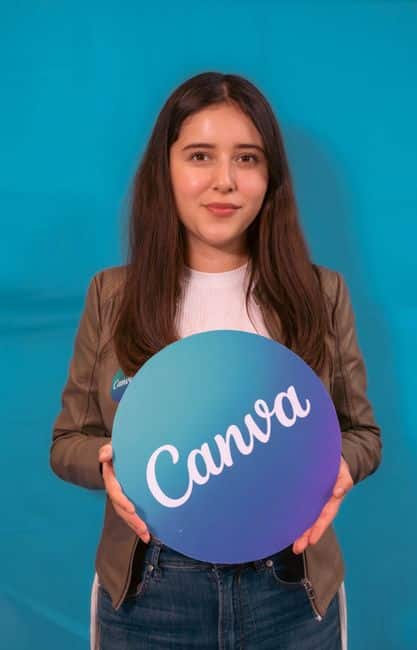
Photo: LyssaElisa / CC BY-SA 4.0, via Wikimedia Commons.