

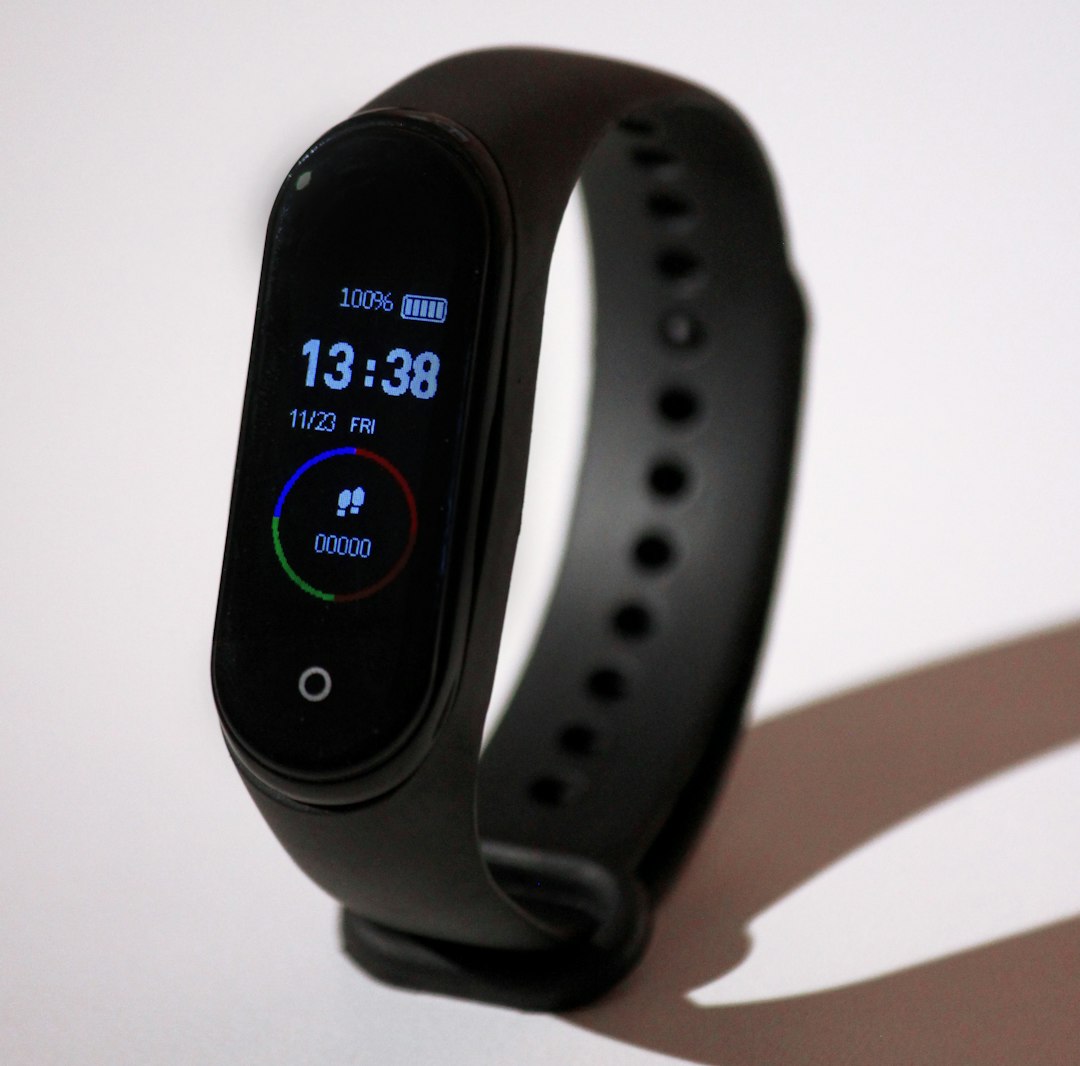
A fitness tracker sitting in a drawer is one of the most common tech regrets people have. Getting started sounds simple—charge it, clip it on, done—but the first week of setup is where most people either build a lasting habit or lose interest entirely. The device itself is just a sensor; what makes it useful is how you configure it, wear it, and read what it tells you.
Table of Contents
This guide walks through the exact steps to set up the most popular fitness trackers in 2026—including Fitbit (now on the Google Health app), Garmin, and Apple Watch—explains how to wear your device for accurate data, and covers the habits and mistakes that separate people who get real value from those who abandon theirs by week three.
Quick Answer
Charge your device fully, download the companion app for your brand (Google Health for Fitbit, Garmin Connect for Garmin, or the Apple Watch app for Apple Watch), create an account with your height, weight, and birth year, enable Bluetooth on your phone, and follow the in-app pairing prompts—most setups take under 15 minutes. The harder part is building the habits afterward, which the rest of this guide covers.
Step-by-Step Setup for the Major Platforms
Start by charging your device before doing anything else. Most trackers ship with a partial charge that won’t last a full setup session, and a dead device mid-pairing is a common first-day frustration. While it charges, download the right companion app. For Fitbit devices, the app is now Google Health (available on iOS and Android)—the old standalone Fitbit app has been retired and Fitbit accounts now require a Google Account to log in. For Garmin, download Garmin Connect from the App Store or Google Play; it requires iOS 16 or later, or Android 9.0 or later. Apple Watch pairs through the built-in Apple Watch app on iPhone. Samsung Galaxy Watch uses the Galaxy Wearable app.
Once the app is installed, create your account and enter your biometric profile—height, weight, sex, and birth year. These aren’t optional fluff: the tracker uses them to calculate stride length, calorie estimates, and resting metabolic rate. Skipping or entering placeholder values will make every calorie and distance reading inaccurate from day one. After your profile is saved, make sure Bluetooth is on, open the app, and select ‘Add Device’ or the equivalent option. The app will scan for your tracker and display a pairing code that appears on both your phone and the device—confirm it on both sides and the initial sync will begin automatically. For Garmin devices, you may also need to grant the app location permissions on Android for Bluetooth scanning to work.
Once paired, take five minutes to set your daily goals inside the app. Most platforms default to 10,000 steps, but you can adjust this to something realistic for where you are right now—a more achievable goal in the first month beats an aspirational one you stop checking. Also confirm that your notification and heart rate monitoring preferences are set the way you want them before you start wearing it in earnest.
How to Wear It Correctly (This Affects Your Data)
Placement matters more than most people realize. Wear the tracker on the inside or outside of your non-dominant wrist, positioned about one to two finger widths above the wrist bone—not directly on the bone and not sliding down toward your hand. The back of the device must stay in full contact with your skin at all times. The band should be snug enough that when you move your arm, the skin underneath moves with the device, but not so tight that it leaves deep marks or feels uncomfortable after a few hours.
During workouts, slide the tracker slightly higher up your forearm and tighten the band one notch. Blood flow in the arm increases the farther from the wrist you go, and a more secure fit reduces the motion artifacts that throw off optical heart rate sensors during exercise. After your workout, loosen it back to your everyday fit. Wearing it too tight all day can cause skin irritation and, counterintuitively, worse heart rate readings due to restricted blood flow.
Wear it to sleep from the start. Most trackers need one to two weeks of sleep data before their sleep stage analysis becomes meaningful. Many people skip this step and then wonder why the sleep insights feel generic—the device is still building your personal baseline. If wearing it to bed feels uncomfortable at first, try it for a few nights with the band slightly looser than you’d wear it during the day.
Tips and Common Mistakes
The single most effective habit is setting one specific, measurable goal for your first month rather than a vague intention like ‘move more.’ Something like ‘average 7,500 steps a day’ or ‘get at least 7 hours of sleep five nights a week’ gives you a clear yes or no each day. Vague goals produce inconsistent checking, and inconsistent checking produces a device that ends up on the nightstand.
Don’t obsess over calorie accuracy—wrist-based calorie estimates are rough approximations and always will be. The sensors are measuring movement and heart rate, then running that through formulas calibrated to average body types. Use the numbers for directional trends over weeks, not as precise accounting. Similarly, don’t buy a tracker loaded with advanced metrics like VO2 max, training load, or HRV trending on day one. Those numbers are only useful once you have weeks of baseline data and understand what they mean for your specific body. Start with steps, active minutes, heart rate, and sleep—master those first.
Manually log workouts that your tracker doesn’t auto-detect well. Strength training, yoga, Pilates, and stationary cycling are commonly missed or miscategorized by automatic exercise detection. Most apps have a ‘+’ or ‘Log Activity’ button; using it for these sessions keeps your weekly activity summaries accurate and helps the app improve its auto-detection over time. Finally, give the device at least six to eight weeks before deciding whether it’s working for you. The users who get the most out of wearables are almost always the ones who have been consistent the longest—short trials don’t surface the patterns that make the data actionable.
Explore more: Fitness guides and tips.
fitness tracker setup FAQs
Do I need to wear my fitness tracker all day and night?
You don’t have to, but consistency dramatically improves the data quality. Wearing it during the day captures your activity and resting heart rate trends; wearing it at night builds your sleep baseline. The more consistent your wear time, especially in the first few weeks, the more accurate and personalized the insights become. Most people find it easiest to just leave it on except when charging.
Why isn’t my fitness tracker detecting my workouts automatically?
Auto-detection works best for walking, running, and some cardio machines. Strength training, yoga, and stationary cycling are frequently missed because the movement patterns are irregular or don’t produce enough wrist motion for the sensor to recognize. The fix is to manually log those sessions in your app. Most platforms let you start a workout mode on the device itself before you begin, which captures the data more reliably than after-the-fact auto-detection.
How often should I sync my fitness tracker?
Most modern trackers sync automatically in the background whenever your phone and device are within Bluetooth range and the app is running. A manual sync—usually done by pulling down on the app’s main dashboard—takes only a few seconds and ensures your latest data is up to date before you check your stats. Daily syncing is a good habit; it also keeps your device’s firmware and app up to date when updates are available.
Make Your Digital Life Better
More practical tech how-tos, tool picks, and guides to upgrade your everyday digital life. More on GTWebs.
Photo by Ivan Shilov on Unsplash.