

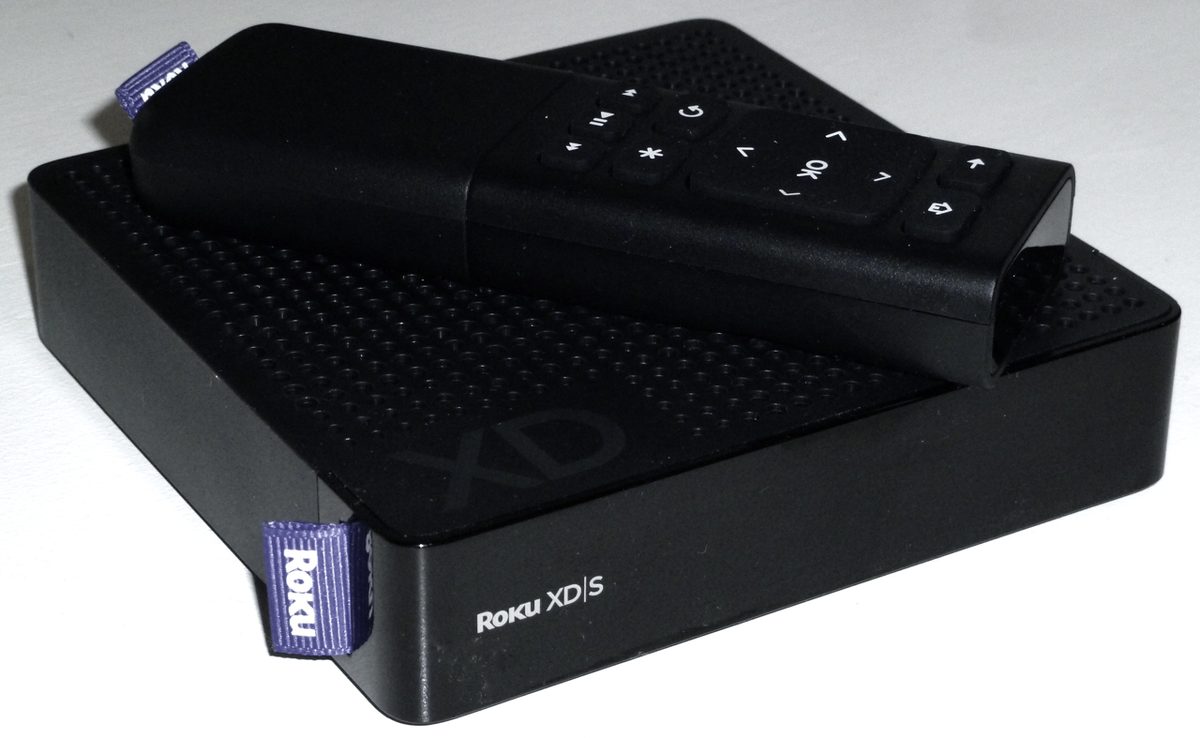
If your Roku Home Screen has started auto-playing loud video ads the moment you turn on the TV, you’re not imagining it — and you’re not alone. Roku has leaned harder into advertising on its Home Screen, menus, and screensaver in recent years, and the settings to control it aren’t always obvious.
Table of Contents
The good news: Roku does give you real controls, just spread across a few different menus. This guide walks through exactly which settings stop autoplay video previews, which ones limit screensaver and menu ads, and which parts of the ad experience Roku currently doesn’t let you turn off at all — so you know what to expect before you go hunting through menus.

Quick Answer
Turn off Auto-play video under Settings > Accessibility to stop videos from playing automatically (they’ll show as static images instead). For banner and screensaver ads, go to Settings > Privacy > Advertising to adjust ad preferences and hide sensitive content categories. Note that Roku’s own support documentation says these settings only apply to non-video banner ads in menus and screensavers — they do not remove video ads or ads inside partner apps.
Step-by-Step: Turning Off Autoplay Video
On your Roku remote or on-screen menu, go to Home, then Settings, then Accessibility, and find Auto-play video. Switch it to Off. With it off, videos that would normally play automatically on the Home Screen and in menus will instead display as a still image — the ad placement itself doesn’t disappear, but it stops moving and making noise.
A few things worth knowing: this setting lives on the device itself, so if you have multiple Roku devices or TVs, you’ll need to repeat it on each one. It also automatically disables if you have a screen reader turned on. And some channels (apps) built with their own video player may have autoplay behavior that isn’t controlled by this system setting at all.
Managing Screensaver and Menu Ads
Head to Home, then Settings, then Privacy, then Advertising. Under Sensitive ad content, you can select categories you don’t want advertised to you — things like alcohol, gambling, horror, mature content, medication, politics, religion, or violence — then press OK to save. This is account-wide, so it applies across your Roku devices.
You can also hide an individual ad as it appears: highlight the ad tile on the Home Screen, press the Star (Options) button on your remote, and choose Hide this ad. Roku resets this hidden-ad allowance every 24 hours, so it’s a daily limit rather than a permanent removal.
It’s important to set expectations here: Roku explicitly states that these ad-preference controls only apply to non-video, banner-style ads that appear in Roku’s own menus and screensaver, and that ad preferences only work when Personalized Ads is enabled. Roku also says it cannot apply these preferences to video ads, ads inside partner apps, or certain themed/sponsored backgrounds shown to all users — so some ad placements are simply outside what these settings cover.
If your screensaver has shifted to a sponsored or seasonal wallpaper theme, check Settings, then Theme, then Additional Settings for a sponsored or seasonal wallpaper toggle. Availability of this exact option can vary by Roku software version and device model, so look for wording close to ‘sponsored’ or ‘seasonal’ in your Theme settings if you don’t see it under that exact label.
Tips and Common Mistakes
Don’t expect one toggle to remove everything. Roku separates its ad controls into at least three places — Accessibility (autoplay), Privacy > Advertising (banner/screensaver ad content), and Theme (sponsored wallpapers) — so check all three if ads are bothering you in different spots.
If you manage multiple TVs or Roku streaming sticks in your house, repeat the Auto-play video setting on each device individually; it isn’t tied to your Roku account and won’t carry over automatically.
Be skeptical of ‘secret menu’ tricks shared in forums that claim to fully disable ads through hidden remote-button sequences. These are unofficial, aren’t documented by Roku, and user reports on whether they still work are inconsistent after software updates — they’re not a reliable fix.
If autoplay or ads seem to have gotten worse after a software update, check that your Roku OS is current (Settings > System > System update) and re-check the Accessibility and Privacy settings, since updates occasionally reset or relocate options.
Explore more: More step-by-step tech tutorials.
Roku autoplay and screensaver ads FAQs
Can I remove Roku ads completely?
No. Roku’s Home Screen and screensaver advertising model doesn’t have a single setting to remove all ads. You can stop autoplay video (Settings > Accessibility) and limit sensitive-category or sponsored-wallpaper ads (Settings > Privacy > Advertising, and Settings > Theme), but Roku states these controls don’t cover video ads or ads inside partner apps.
Why does my Roku play a video ad as soon as I turn on the TV?
This is usually an autoplay video tile on the Home Screen. Go to Settings > Accessibility and turn Auto-play video to Off — the ad will then display as a static image instead of playing automatically.
Does turning off ad preferences stop the screensaver ads?
It can reduce certain banner-style ads in the screensaver and menus if you adjust Settings > Privacy > Advertising, but Roku explicitly says these preferences only apply to non-video banner ads and won’t remove themed or sponsored backgrounds shown to all users.
Will these settings carry over to a new Roku device?
Ad preference settings under Privacy > Advertising are tied to your Roku account and apply across your devices, but Auto-play video and Theme settings are set per device, so you’ll need to configure them again on each new Roku TV or player.
Make Your Digital Life Better
More practical tech how-tos, tool picks, and guides to upgrade your everyday digital life. More on GTWebs.
Want web tips in your inbox? Subscribe to the free newsletter.
Photo: Mattnad / CC BY-SA 3.0, via Wikimedia Commons.