

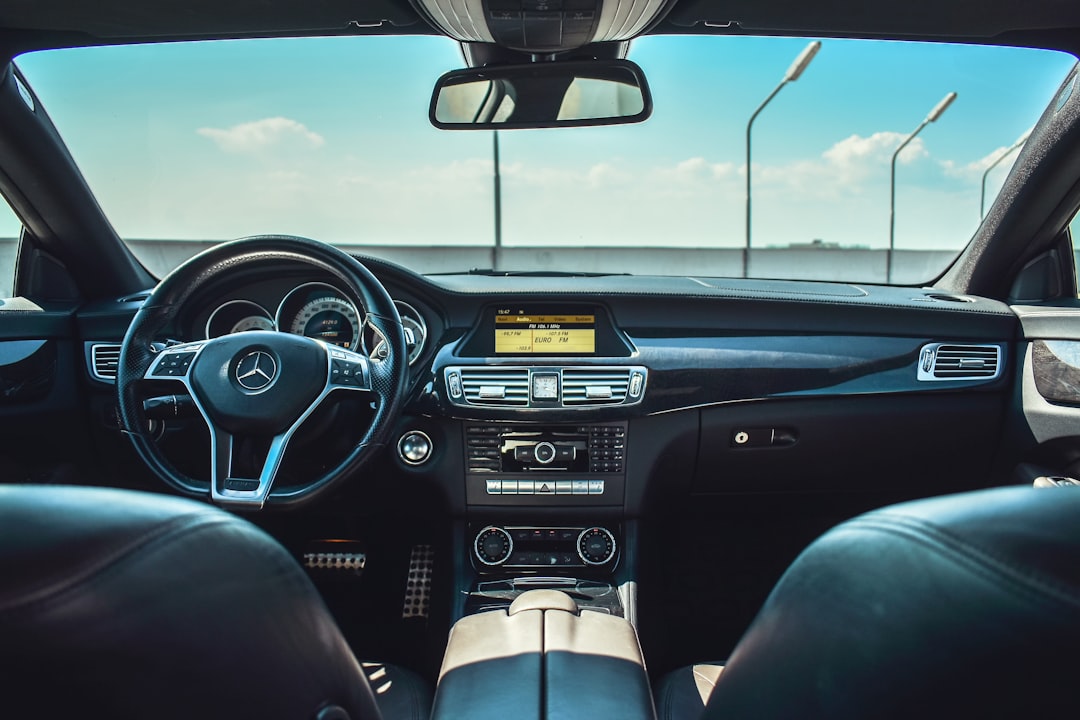
You update your iPhone, get in the car the next morning, and CarPlay just… doesn’t. Blank screen, no icon, or it connects for two seconds and drops. It’s one of the most common complaints after every major iOS release, and the same handful of fixes solve it almost every time.
Table of Contents
Work through these in order — they’re sorted from fastest to most drastic, and most people are back up and running by step 3 or 4.
Quick Answer
- Fix it fastest: Restart the iPhone AND the car’s infotainment system, then reconnect
- The sneaky one: Settings → Screen Time → Content & Privacy Restrictions → Allowed Apps & Features → make sure CarPlay is ON (updates can flip it off)
- The reliable one: Settings → General → CarPlay → your car → Forget This Car, then re-pair from scratch
- Wireless acting up: Test with a data-capable USB cable first to prove the connection works
1. Restart Both Ends
Start with the boring fix, because it genuinely works most often: restart your iPhone, and restart the car’s infotainment system too (turning the car fully off and locking it for a minute usually does it; some head units have their own reboot, often by holding the power/volume knob).
An iOS update leaves a lot of services in a half-refreshed state, and the car side caches the old connection. A clean boot on both ends clears most post-update weirdness.
2. Check Screen Time Isn’t Blocking CarPlay
This is the fix nobody guesses: iOS updates can silently toggle CarPlay off inside Screen Time’s restrictions. Go to Settings → Screen Time → Content & Privacy Restrictions → Allowed Apps & Features, and make sure CarPlay is switched on.
If it was off, that’s your whole problem — CarPlay won’t even attempt to connect while it’s restricted. This one bites people who have never knowingly opened Screen Time in their lives.
3. Make Sure Siri Is On
CarPlay depends on Siri, so if Siri got disabled, CarPlay misbehaves. Open Settings, search for Siri, and confirm it’s enabled (“Talk to Siri” / listen for the wake phrase, or at minimum press-the-button access).
4. Forget the Car and Re-Pair
The single most reliable fix for post-update problems: rebuild the pairing from scratch. On the iPhone, go to Settings → General → CarPlay, tap your car, and choose Forget This Car. If your car’s infotainment system keeps its own list of paired phones, delete the iPhone there too.
Then re-pair the way you did the first time — plug in the cable, or for wireless CarPlay start from the car’s Bluetooth pairing screen. This rebuilds the connection profile the update corrupted, and fixes the connect-then-instantly-drop pattern in particular.
5. If You Use Wireless CarPlay, Test Wired First
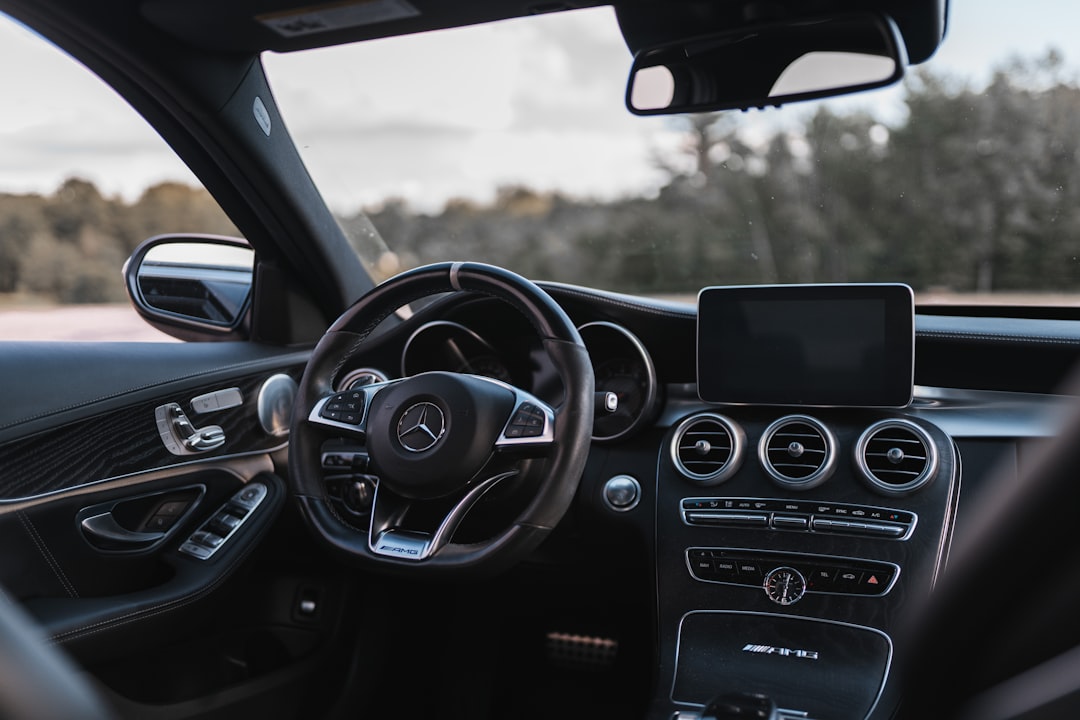
Wireless CarPlay has more moving parts — it uses Bluetooth for the handshake and Wi-Fi for the stream. If wireless won’t connect after an update, plug in with a cable first. If wired works, the phone and car are fine and it’s just the wireless pairing that needs the forget-and-re-pair treatment (and make sure Bluetooth and Wi-Fi are both on).
Cable matters, too: it must be a data cable, not a charge-only one, and cheap or frayed cables cause exactly the flaky connect/disconnect symptoms people blame on the update. Test with an Apple cable or another known-good data cable before ruling anything out.
6. Install the Point Update
If CarPlay broke on a big release (an “iOS 26.0” style update), check Settings → General → Software Update — Apple typically ships fixes for connection bugs in the follow-up point releases within a few weeks. Updating to the latest minor version has resolved whole waves of CarPlay complaints after past releases.
7. Still Nothing? The Last Resorts
Check whether your car has a firmware or infotainment update of its own — automakers ship CarPlay compatibility fixes too, and dealers can apply them. As a final software step, Settings → General → Transfer or Reset iPhone → Reset → Reset Network Settings clears every saved Wi-Fi and Bluetooth pairing (you’ll re-enter Wi-Fi passwords afterward), which cures stubborn wireless CarPlay cases.
If none of that works, the issue is likely the car side or the port hardware — at that point it’s worth a dealer visit rather than more phone-side tinkering.
Explore more: stop Google Photos backing up your screenshots, ChatGPT prompts to declutter your home.
CarPlay FAQs
Why did the iOS update break CarPlay in the first place?
Updates can corrupt the stored pairing profile, flip settings like the Screen Time CarPlay permission, or introduce bugs that Apple patches in the next point release. That’s why forget-and-re-pair plus staying current fixes most cases.
CarPlay connects, then drops after a few seconds. What fixes that?
That pattern is almost always a stale pairing or a bad cable. Forget the car on the iPhone (Settings → General → CarPlay), delete the phone from the car’s paired list, re-pair fresh — and test with a known-good data cable if you connect wired.
Do I need to reset my whole iPhone to fix CarPlay?
Almost never. Reset Network Settings is as far as most people ever need to go, and even that is a last resort after restarting, checking Screen Time, and re-pairing.
Does wireless CarPlay need both Bluetooth and Wi-Fi on?
Yes. Wireless CarPlay pairs over Bluetooth and streams over Wi-Fi, so both must be enabled on the iPhone. Airplane Mode, or turning Wi-Fi off to “save battery,” silently kills it.
Make Your Digital Life Better
More practical tech how-tos, tool picks, and guides to upgrade your everyday digital life. More on GTWebs.
Want web tips in your inbox? Subscribe to the free newsletter.
Photo by Arteum.ro on Unsplash.