

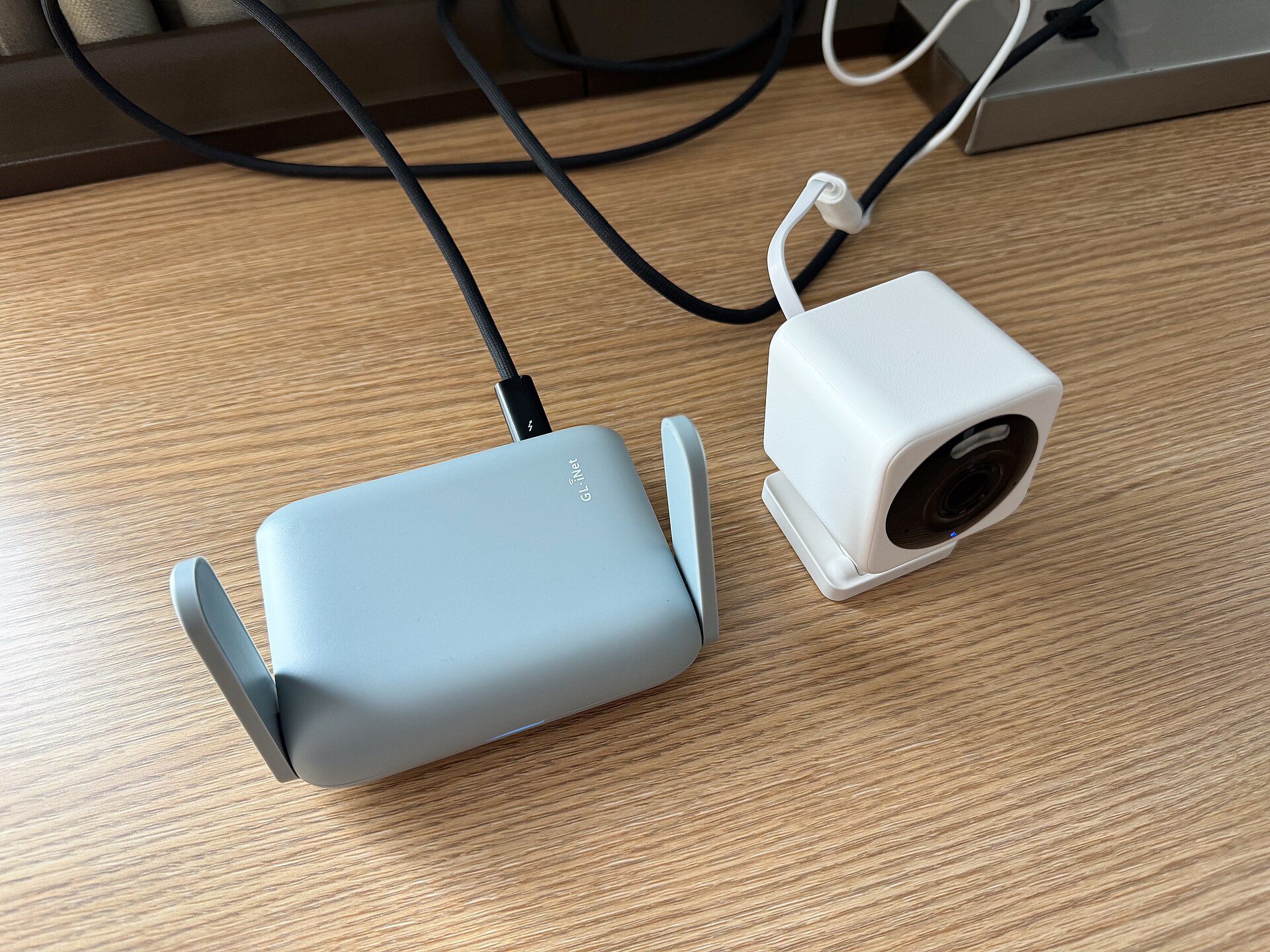
Hotel Wi-Fi is notoriously unreliable and almost always unencrypted at the network level — your laptop, phone, tablet, and streaming stick are all sharing the same open connection with every other guest in the building. A travel router fixes this by connecting to the hotel’s network once and then broadcasting its own private, password-protected Wi-Fi just for your devices. This guide covers choosing the right hardware, setting it up in any hotel room, and navigating the captive portal pages most hotels use for guest authentication.
Table of Contents
The full setup takes about ten minutes the first time. After that, you can be up and running in under two — power the router, connect it to the hotel network, and every device joins your private hotspot exactly as it would at home.
Quick Answer
A travel router plugs into the hotel’s Ethernet port or connects to hotel Wi-Fi in repeater mode, then creates its own password-protected network for all your devices. You authenticate with the hotel once through the router, and every device connected to it gets internet access automatically — no repeated logins, no direct exposure to other guests on the same network.
What to Look for in a Travel Router
Multiple operating modes matter more than raw speed. Look for a router that supports wired WAN mode (Ethernet in from the hotel wall), wireless repeater or WISP mode (Wi-Fi to Wi-Fi relay), and ideally USB tethering so you can share your phone’s cellular data as a fallback. USB-C power is a major convenience — most current travel routers run off a power bank or laptop port without any separate charger.
Built-in VPN support is the next priority. GL.iNet routers run OpenWrt and include WireGuard and OpenVPN clients, meaning every device on your network can tunnel through a VPN simultaneously without per-device configuration. The Beryl AX (model GL-MT3000, around $99) is the most widely recommended mid-range Wi-Fi 6 option. Budget travelers can start with the Slate Plus (GL-A1300, around $70) or the entry-level Opal (GL-SFT1200, around $40), both of which handle the single-login and network-isolation use case well. If you want Wi-Fi 7, GL.iNet’s Beryl 7 (GL-MT3600BE, around $130) steps up to that standard with dual 2.5G ports and faster WireGuard throughput. TP-Link’s Roam 7 (TL-WR3602BE) is their first Wi-Fi 7 travel router, launched in August 2025, and supports 35+ VPN service providers alongside OpenVPN and WireGuard.
For most hotel stays, a Wi-Fi 6 router is more than sufficient. Wi-Fi 7 is worth the step-up if you travel with many devices simultaneously or want the latest standard for future-proofing. The main thing to avoid is any router that only supports one operating mode — hotel networks vary too much to rely on a single connection method.
Step-by-Step Hotel Room Setup
Step 1 — Check for an Ethernet port. Before defaulting to wireless repeater mode, look around the room for a wired jack. Check the work desk, the back of the TV (many hotels route a live Ethernet cable back there and never mention it), and any connectivity panel on the nightstand. A wired connection to your router is faster, more stable, and skips captive portal complications entirely.
Step 2 — Power up the router. Plug in via USB-C to a power bank, laptop port, or USB wall adapter. Wait for the status LED to stabilize — usually a solid or slowly pulsing light — before moving on.
Step 3 — Access the admin panel. Connect your phone or laptop to the router’s default Wi-Fi (the SSID and password are printed on the device label). Open a browser and go to 192.168.8.1 for GL.iNet routers, or 192.168.0.1 (also accessible as tplinkwifi.net) for TP-Link models. Set your admin password on first login.
Step 4 — Connect to the hotel network. In the admin panel, select Ethernet/WAN mode if you found a wired port, or Repeater mode if you’re going wireless. In Repeater mode the router scans for nearby networks — select the hotel’s SSID and enter its password if required. GL.iNet firmware version 4.6 and later includes an ‘Auto-Enable Login Mode for Public Hotspots’ toggle that simplifies this step.
Step 5 — Complete the captive portal. Most hotels use a splash page that requires you to accept terms before granting internet access. Once your router has joined the hotel network, open a browser on any device connected to your travel router and the portal page should appear. Accept and log in once — all other devices on your router’s network are automatically covered. If the portal doesn’t appear, try navigating to a plain HTTP address (not HTTPS) to trigger the redirect, or temporarily disable the router’s VPN if it’s active.
Step 6 — Rename your network and connect everything. Go into the router’s Wireless settings, change the default SSID to something that doesn’t identify you, and set a strong password. Then connect your phone, laptop, tablet, and streaming devices to your new private network. From this point on, all traffic flows through your router’s encryption layer.
Security Tips and Common Mistakes
Set your travel router’s broadcast encryption to WPA3 if all your devices support it, or WPA2 at minimum. Disable WPS (Wi-Fi Protected Setup) in the admin panel — it’s rarely needed for travel use and is a documented attack vector. Most travel routers have a firewall enabled by default; verify it’s active before connecting.
For sensitive tasks like remote work or banking, add a VPN at the router level so all connected devices are protected without individual configuration. WireGuard is faster and simpler to set up than OpenVPN and is supported on current GL.iNet and TP-Link Roam models. Configure this with your VPN provider before you leave home — hotel networks can sometimes block VPN setup traffic.
The most common mistakes: assuming the internet will work immediately after connecting in Repeater mode without first completing the hotel’s captive portal (the router is online, but the hotel hasn’t cleared your session yet); leaving the factory default SSID and admin credentials unchanged; and skipping firmware updates before the trip. Check for updates via the admin panel or the vendor’s mobile app while still on your home network — it takes two minutes and closes known vulnerabilities.
Explore more: Travel tips and guides.
Travel Router Hotel Room Setup FAQs
Do I need a travel router if I already use a VPN app on my phone?
A VPN app protects one device at a time and still exposes that device to local network traffic from other hotel guests. A travel router adds a hardware firewall layer between your devices and the hotel network, and if you run VPN at the router level, that protection extends to every connected device simultaneously — including tablets, smart TVs, and streaming sticks that can’t run VPN apps on their own.
What if the hotel’s captive portal won’t load through my travel router?
Try these steps in order: navigate to a plain HTTP site (not HTTPS) to trigger the redirect; disable DNS Rebinding Attack Protection in the router’s admin panel; turn off any VPN that’s active; reboot the router. If none of those work, use the MAC address cloning feature to mirror your phone’s Wi-Fi MAC address to the router — some hotels filter access by device identity, and cloning your phone’s address can bypass that restriction.
Can I connect a Chromecast or Amazon Fire Stick through a travel router in a hotel?
Yes — this is one of the most practical reasons to travel with a router. Streaming devices have no browser, so they can’t complete a hotel captive portal on their own. With a travel router, you log in once from your phone or laptop, and the Chromecast or Fire Stick connects to your private router network without ever encountering the portal page.
Make Your Digital Life Better
More practical tech how-tos, tool picks, and guides to upgrade your everyday digital life. More on GTWebs.
Photo: Tony Webster / CC BY 2.0, via Wikimedia Commons.