

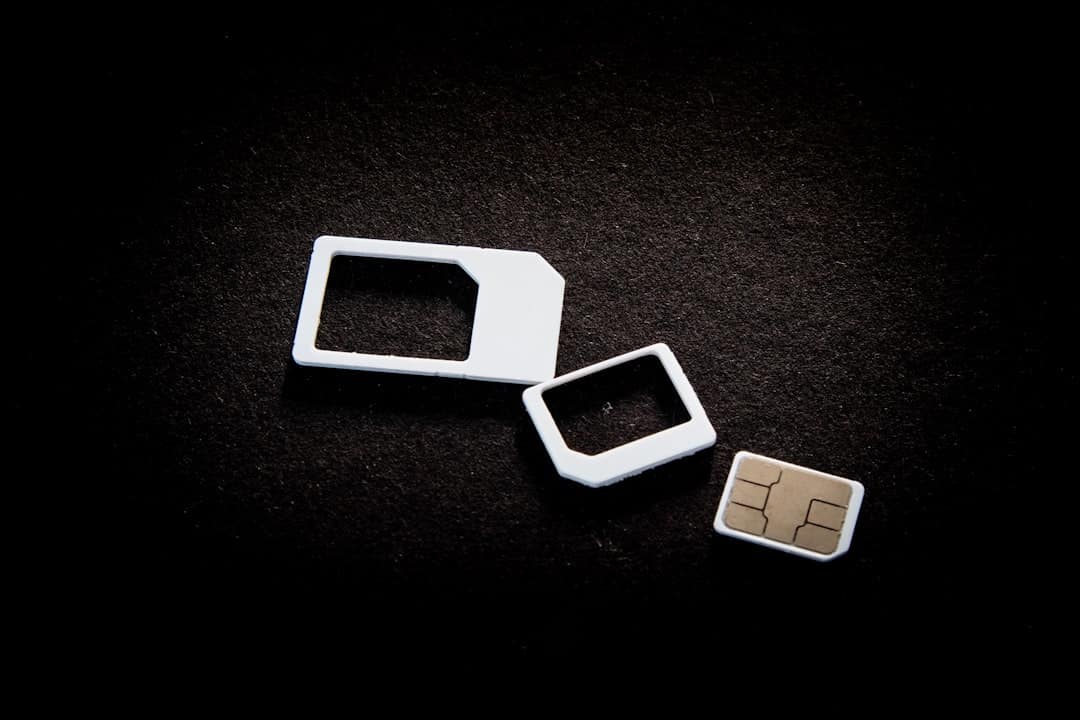
Arriving in a new country and scrambling for a local SIM card is one of travel’s most avoidable headaches. A travel eSIM lets you buy a local data plan online, install it digitally before you leave home, and connect the moment your plane lands — no swapping cards, no airport kiosks, no fumbling with a tiny pin.
Table of Contents
This guide walks you through every step: checking compatibility, choosing a provider, installing on both iPhone and Android, and configuring your settings so data actually works abroad. The whole process takes under five minutes once you know what you’re doing.
Quick Answer
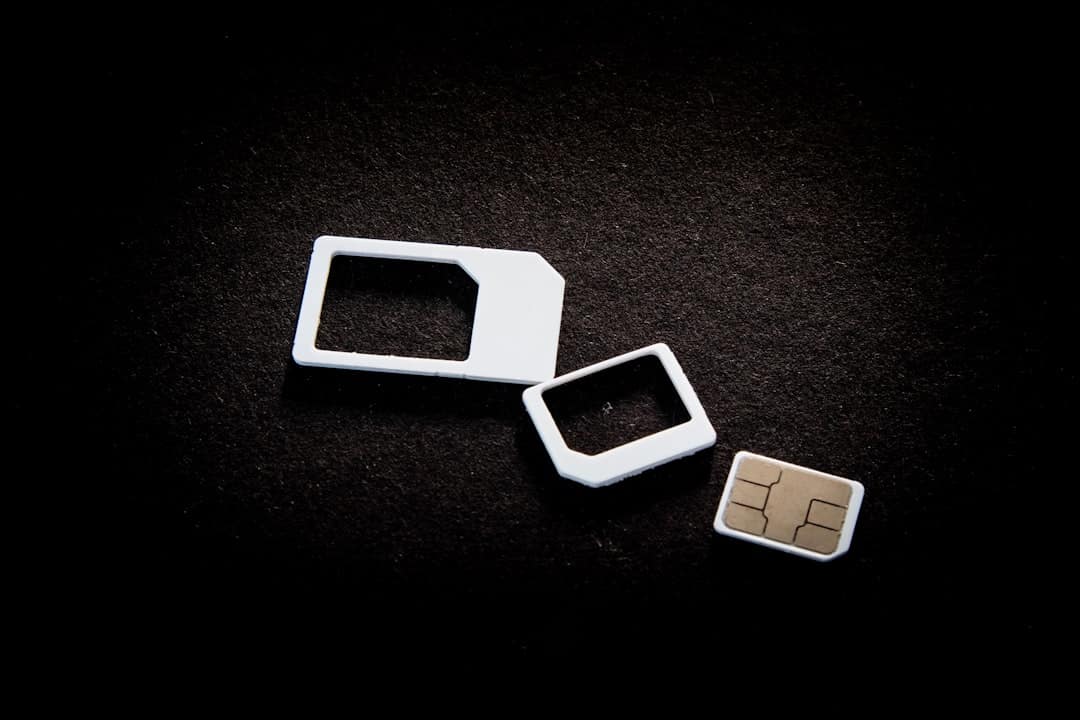
Buy an eSIM plan from a provider like Airalo or Holafly, scan the QR code they email you (Settings > Cellular > Add eSIM on iPhone; Settings > Network & Internet > Download a SIM on Android), then enable Data Roaming for the eSIM and set it as your default data line. Install it at home over Wi-Fi before you travel — your plan typically activates once you arrive and connect to a local network.
Step 1: Check Your Phone Is Compatible and Unlocked
On iPhone, eSIM is supported on the iPhone XR, XS, and every model released since 2018 — that includes the full iPhone 11 through 17 lineup, iPhone SE (2nd generation and later), and iPhone Air. Most iPhone models sold in mainland China use dual physical nano-SIM cards and do not support eSIM — this includes the iPhone 17, iPhone 17 Pro, and iPhone 17 Pro Max sold there. Two exceptions exist: the iPhone Air sold in mainland China is eSIM-only with no physical SIM tray, and the iPhone 17e sold in mainland China supports either eSIM or a physical nano-SIM card. eSIM activation on both of these models in mainland China requires an in-person visit to a carrier store with valid ID. US models of the iPhone 14 and later have no physical SIM tray and are eSIM-only. You can check your model in Settings > General > About under Model Number.
On Android, eSIM is supported on Google Pixel phones from the Pixel 2 onward, Samsung Galaxy S and Z series from around 2019 onward, and many other flagship devices. By 2026 nearly every flagship Android released in the past five years supports it. To confirm, look in Settings > Network & Internet (Pixel) or Settings > Connections > SIM Manager (Samsung) — if you see an option to add or download a SIM, you’re good.
Critically, your device must also be carrier-unlocked. If you bought your phone on a carrier payment plan and never unlocked it, a travel eSIM will fail to activate. Contact your home carrier to request an unlock — most will do this for free once your device is paid off or your contract is fulfilled.
Step 2: Choose a Provider and Buy a Plan
Airalo is the most widely used travel eSIM marketplace, offering both capped data plans (1 GB to 50 GB) and unlimited options across 200+ countries. Fixed-data regional plans start around $4–$5 for small bundles; unlimited plans start around $11 for 3 days and around $72 for 30 days. It works well if you want granular control over how much data you buy.
Holafly specializes in unlimited-data plans, priced from around $6.90 for 1 day up to $75.90 for 30 days depending on the region. If you stream video, use navigation constantly, or just don’t want to think about data caps, Holafly’s flat-rate unlimited approach is simpler. Both providers cover most popular travel destinations and deliver your QR code by email within minutes of purchase.
Whichever provider you choose, buy your plan 1–3 days before departure. This gives you time to install and troubleshoot on your home Wi-Fi rather than at the airport. Do not buy weeks in advance unless the provider explicitly states the validity window starts on first use in-country, not on purchase or installation.
Step 3: Install the eSIM on iPhone
Make sure you’re connected to Wi-Fi, then open Settings and tap Cellular (called Mobile Data in some regions). Tap Add eSIM (or Add Cellular Plan on older iOS). Select Use QR Code and point your camera at the QR code in your provider’s confirmation email. When the Cellular Plan Detected notification appears, tap it and follow the prompts, then tap Add Cellular Plan to confirm.
If the QR code won’t scan, you can enter the details manually: tap Enter Details Manually on the QR scan screen and type in the SM-DP+ address and activation code from your email. Once installed, iOS will ask you to label the plan — something like ‘Travel Data’ works fine. You’ll also be asked which line to use for calls, messages, and cellular data; select your new eSIM for data and keep your physical SIM as the default for calls so you don’t miss anything.
Step 4: Install the eSIM on Android
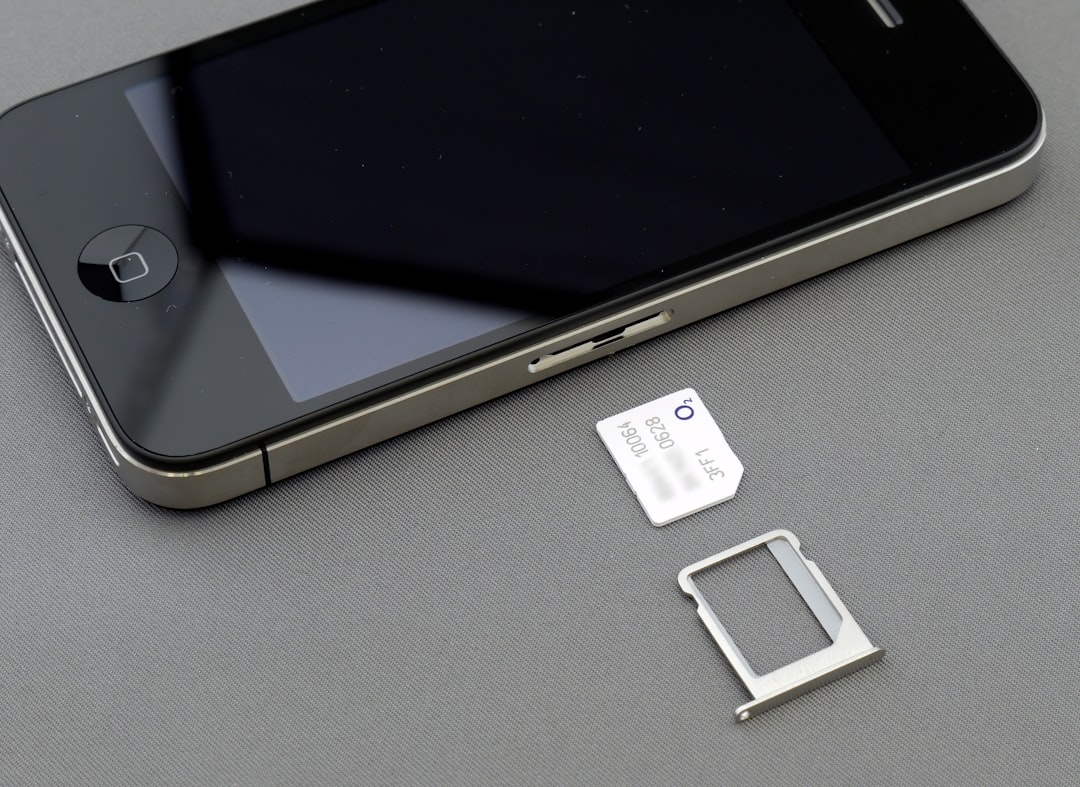
On a Google Pixel, go to Settings > Network & Internet, then tap the ‘+’ icon next to the SIM option and select Download a SIM instead. Tap Next, then scan the QR code from your provider. Once downloaded, go back to Settings > Network & Internet > SIMs, toggle on your new eSIM, and enable both Mobile Data and Data Roaming for that line.
On a Samsung Galaxy, go to Settings > Connections > SIM Manager > Add eSIM. Tap Scan QR Code from service provider, scan the code, and confirm the download. After installation, go back to SIM Manager, tap the travel eSIM, and set it as your Mobile Data line. Make sure Data Roaming is also toggled on within the same screen. The menu paths look slightly different across Android brands, but the core flow — find the SIM or eSIM section in Settings, choose to download or add a SIM, scan a QR code — is the same everywhere.
Step 5: Configure Your Data Settings
This is the step most people skip and then wonder why their eSIM shows as connected but delivers no internet. First, confirm that Data Roaming is enabled specifically for the travel eSIM — not just turned on globally, but switched on for that individual SIM line. On iPhone, go to Settings > Cellular, tap the name of your travel eSIM, and toggle Data Roaming on. On Android, find the same toggle inside the SIM-specific settings.
Second, make sure your home SIM’s Data Roaming is turned off. If both lines have data roaming enabled, your phone may silently switch to your home carrier’s roaming network and rack up charges without warning. With these two settings correct — travel eSIM roaming on, home SIM roaming off — your phone will use the travel eSIM for all data while your home number stays reachable for calls and SMS.
Common Mistakes to Avoid
Activating too early is the biggest trap. Many travel eSIM plans start their validity countdown the moment you activate the profile on your phone, not when you land. Read your provider’s terms carefully — if it says the plan activates on installation, wait until 1–2 days before departure. If it says it activates on first in-country connection, you can install it any time.
Forgetting to enable Data Roaming on the eSIM line is the second most common issue, and it’s responsible for the classic ‘eSIM shows connected but I have no internet’ problem. Skipping the carrier unlock check is a close third — always confirm your device is unlocked before purchasing. Finally, don’t delete your eSIM profile mid-trip to ‘fix’ a connection issue; reinstalling often isn’t possible without a new QR code, and most providers charge for replacements.
Explore more: More travel guides and tips.
Travel eSIM Setup FAQs
Can I keep my regular number while using a travel eSIM?
Yes. On a dual-SIM phone (which includes most modern iPhones and Androids), you keep your physical SIM active for calls and SMS while the eSIM handles data. Your regular number stays reachable the whole trip — just make sure your home carrier’s data roaming is disabled so you’re not charged for data on that line.
When should I install my travel eSIM — before or after I land?
Install it at home before you travel so you can do it over your own Wi-Fi without rushing. Most eSIM plans only begin consuming their validity period when your phone connects to a local network at your destination, so installing early doesn’t waste days. Check your specific provider’s terms to confirm, since a few providers do start the clock on activation.
Do I need to remove my physical SIM to use a travel eSIM?
No. That’s one of the main advantages of eSIM — it runs alongside your physical SIM. You set the eSIM as your data line abroad and leave your home SIM in place for calls and messages. Just disable data roaming on your home SIM to avoid surprise charges.
Make Your Digital Life Better
More practical tech how-tos, tool picks, and guides to upgrade your everyday digital life. More on GTWebs.
Photo by User_Pascal on Unsplash.