

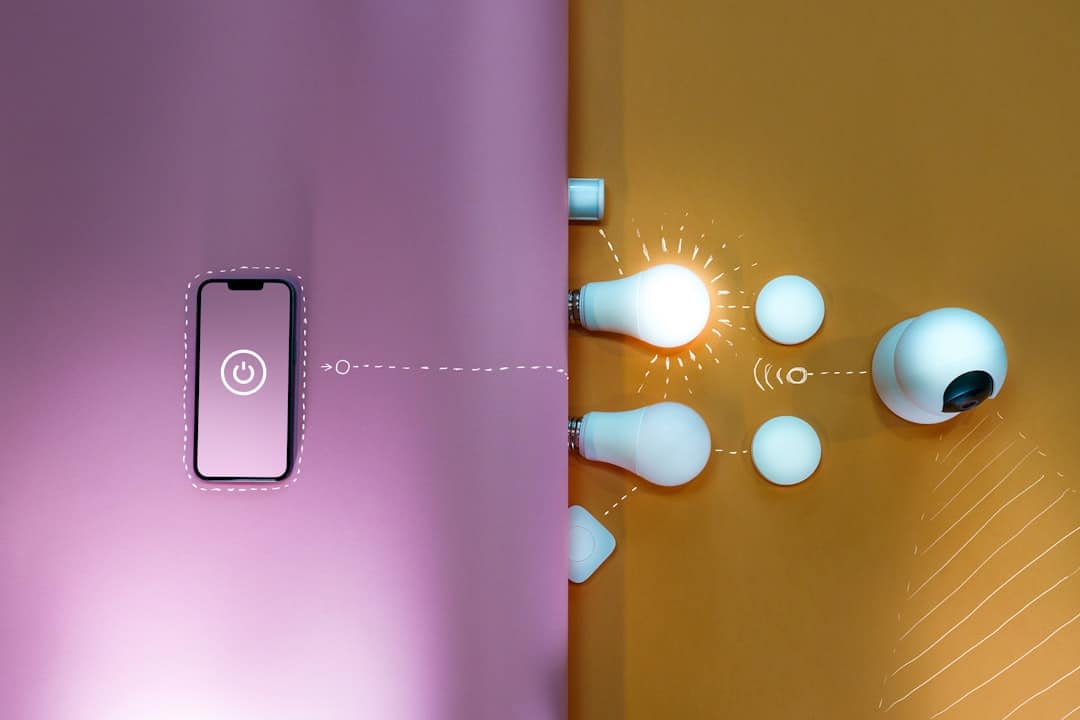
Smart lighting used to mean buying a hub, a bridge, and a bundle of extra gear before you could dim a single bulb. That’s no longer the case. Many of today’s most popular smart bulbs connect directly to your home Wi-Fi or your phone’s Bluetooth, skipping the hub entirely and getting you up and running in minutes.
Table of Contents
In this guide you’ll learn exactly which smart bulbs work without a hub or bridge, whether Bluetooth bulbs can run with zero Wi-Fi or internet at all, how to set either type up step by step, and which pitfalls to avoid so your lights actually stay reliable.
Quick Answer
Yes to both questions. Wi-Fi bulbs (Wyze, TP-Link Kasa, LIFX, Sengled, Govee) connect straight to your router with no hub or bridge box required. Bluetooth-only bulbs — like Philips Hue’s Bluetooth line or GE Cync’s Bluetooth-only models — pair directly with your phone and work with zero Wi-Fi or internet connection at all. Either way, all you need is the bulb’s free app and, for Bluetooth, to stay within roughly 30–100 feet of the light.
How ‘Hub-Free’ Actually Works (No Bridge Required)
A traditional smart-lighting hub or bridge exists for one reason: older bulbs spoke Zigbee or Z-Wave, radio protocols your router and phone can’t understand directly. The hub sat between them, translating the bulb’s signal into something your home network and voice assistant could reach over the internet.
Newer hub-free bulbs remove that translator by building the network radio straight into the bulb. Wi-Fi bulbs talk directly to your router, the same way your laptop does. Bluetooth bulbs talk directly to your phone’s built-in Bluetooth radio. In both cases, the bulb IS the connected device — there’s no separate bridge box to buy, plug in, or manage. ‘Hub-free’ and ‘bridge-free’ describe the exact same setup.
Wi-Fi vs. Bluetooth: Which Hub-Free Option Is Right for You?
Wi-Fi bulbs — like the Wyze Bulb Color, LIFX A19, TP-Link Kasa KL130, and Govee H6008 — connect directly to your home router. That means remote control from anywhere, schedules, and Alexa or Google Assistant links without any bridge. The trade-off is a slightly longer initial setup, since the bulb has to join your network.
Bluetooth bulbs, like Philips Hue’s Bluetooth line and GE Cync’s Bluetooth-only bulbs, pair directly with your phone and are nearly instant to set up. They work even with zero internet access. The limitation is range — you generally need to be within 30 to 100 feet, depending on the brand — and you lose remote (away-from-home) access unless you also link a compatible smart plug or speaker. For a single room or small apartment, Bluetooth is perfectly practical. For a full house you plan to control remotely, Wi-Fi is the stronger choice.
Can You Control Bluetooth Smart Bulbs Without Wi-Fi at Home?
Yes — this is exactly what Bluetooth-only smart bulbs are built for. Because Bluetooth is a direct, device-to-device radio, the bulb never needs to reach a router, an internet connection, or a cloud account to respond to commands. Turn on the wall switch, open the app with Bluetooth enabled on your phone, and the bulb connects immediately over that local radio link. This makes Bluetooth bulbs a solid fix for rental units without control over the router, Wi-Fi dead zones, workshops, RVs, or any room where you just want lighting control without touching your network settings.
One nuance worth knowing: some ‘Bluetooth-only’ bulbs, including GE Cync’s Bluetooth-only line, need to be paired with a companion Cync smart plug, switch, or a Google Home/Nest device if you also want to control them when you’re away from home. That companion requirement is only for remote access — local, at-home control never needs Wi-Fi or a hub.
Extending Bluetooth Range and Controlling Multiple Bulbs
Point-to-point Bluetooth is limited both by distance and by how many bulbs one phone can juggle — Philips Hue’s Bluetooth mode, for example, caps out at 10 bulbs per control device. Bluetooth mesh solves both problems: mesh-capable bulbs relay signals to each other, so commands hop from bulb to bulb instead of relying on a single direct link to your phone. That extends effective coverage well beyond a single room and lets some brands’ apps manage groups of 50 or more bulbs at once, all without adding a hub.
Top Hub-Free Smart Bulbs Worth Considering
Wyze Bulb Color connects over 2.4 GHz Wi-Fi via the Wyze app, supports RGB color and tunable white, and works with Alexa and Google Assistant — no hub needed.
LIFX bulbs connect directly to Wi-Fi through the LIFX app with no account bridge, no hub, and a wide color range. TP-Link Kasa (KL130 and similar) uses the Kasa Smart app on 2.4 GHz and integrates with Alexa and Google Assistant out of the box. Sengled and Govee (such as the H6008) follow the same direct-to-router model at a budget-friendly price point.
Philips Hue’s Bluetooth bulbs let you control up to 10 lights using the official Hue app without a Hue Bridge — a clean option for smaller spaces. GE Cync offers both Wi-Fi direct-connect bulbs and Bluetooth-only bulbs, both hub-free at home.
For the most future-proof approach, look for bulbs labeled Matter-compatible. Matter is an open smart home standard backed by Apple, Amazon, Google, and Samsung. Matter-certified bulbs connect directly to a compatible smart speaker — such as an Amazon Echo, Apple HomePod mini, or Google Nest Hub — and work across ecosystems without any brand-specific hub. IKEA, Signify (Philips Hue), and others now offer Matter-certified products, and the lineup keeps growing.
Step-by-Step: Setting Up a Wi-Fi Smart Bulb Without a Hub
Step 1 — Confirm your Wi-Fi band. Nearly all hub-free Wi-Fi smart bulbs require a 2.4 GHz network, not 5 GHz. Connect your phone to your router’s 2.4 GHz band before setup; if your router combines both bands under one SSID, you may need to temporarily split them in the router’s admin settings.
Step 2 — Screw in the bulb and leave the wall switch on. Smart bulbs need constant power to respond to app commands. If you have a dimmer switch, swap it for a standard on/off switch first — most smart bulbs aren’t compatible with in-wall dimmers and the combination causes flickering or failed setups.
Step 3 — Download the brand’s app (Wyze, Kasa Smart, LIFX, Govee, or Philips Hue) and create a free account if prompted.
Step 4 — Tap ‘Add Device’ and follow the prompts. The app will ask for your Wi-Fi password and walk the bulb through connecting. The bulb will often flash or cycle colors to signal pairing mode. If you have a VPN active, turn it off — VPNs frequently block the local network discovery the app needs.
Step 5 — Name and group your lights (‘Living Room Lamp’, ‘Kitchen Ceiling’) so voice commands work cleanly, and group bulbs by room for one-tap control.
Step 6 — Link to your voice assistant (optional). Open the Alexa or Google Home app, add your bulb brand as a linked skill, sign in with your bulb app credentials, and your lights appear ready for voice commands.
Step-by-Step: Setting Up a Bluetooth-Only Bulb Without Wi-Fi
Step 1 — Leave the wall switch on so the bulb has constant power, and enable Bluetooth on your phone.
Step 2 — Download the brand’s app and open it near the bulb, within about 30 feet.
Step 3 — Tap ‘Add Device’ and choose the Bluetooth pairing option rather than a Wi-Fi setup path. The app scans for nearby bulbs and finds it in seconds — no network password screen appears, since none is needed.
Step 4 — Confirm pairing when the bulb flashes, then name it. Bluetooth-only setups skip the router entirely, so this is typically the fastest of all the hub-free methods.
Common Mistakes and How to Avoid Them
Using a dimmer switch is the most common hardware mistake. Smart bulbs manage their own dimming electronically, and pairing them with an in-wall dimmer causes flickering, failed pairing, or a shortened bulb life. Always connect smart bulbs to a standard on/off switch, and never cut power at the switch to ‘turn off’ a bulb — use the app or a voice command instead so it stays connected and ready.
For Bluetooth bulbs specifically, walls, floors, and distance are the usual culprits behind dropped connections — stay within the brand’s stated range, or choose a mesh-capable model if you need whole-home coverage. And if you’re using a Bluetooth-only bulb like Cync’s, remember that away-from-home control needs a paired smart plug, switch, or Nest device; that’s separate from everyday local control, which never touches Wi-Fi.
hub-free smart bulb setup FAQs
Can I control Bluetooth smart bulbs without Wi-Fi at home?
Yes. Bluetooth-only bulbs pair directly with your phone over a local radio link, so they work with zero Wi-Fi and zero internet connection. You just need the bulb’s app and to stay within roughly 30–100 feet, depending on the brand and whether it supports Bluetooth mesh.
Can I control smart bulbs without a hub or bridge device?
Yes. Wi-Fi smart bulbs (Wyze, Kasa, LIFX, Sengled, Govee) connect straight to your router, and Bluetooth bulbs connect straight to your phone — both skip the translator hardware a hub or bridge used to provide. All you need is the brand’s free app.
Can smart lights work without internet?
Bluetooth-only bulbs work with no internet connection at all, since your phone talks directly to the bulb. Wi-Fi bulbs need a working local network to receive app commands, but many still respond to physical switches even if your internet goes down; remote access and voice assistant commands do require internet.
Do hub-free smart bulbs work with Alexa and Google Assistant?
Most Wi-Fi hub-free bulbs (Wyze, Kasa, LIFX, Sengled, Govee, Cync) link directly to Alexa or Google Assistant through the brand’s skill or linked account — no hub needed. Bluetooth-only bulbs typically need a paired smart plug, switch, or Matter-compatible speaker to reach a voice assistant.
What is Matter and should I buy Matter-compatible bulbs?
Matter is an open smart home standard backed by Apple, Amazon, Google, and Samsung that lets bulbs work across ecosystems without a brand-specific hub. If you’re buying new bulbs today, choosing Matter-certified models is the most future-proof, hub-free option.
How many bulbs can I control over Bluetooth without a hub?
It depends on the brand’s Bluetooth implementation. Point-to-point systems like Philips Hue’s Bluetooth mode cap out at 10 bulbs per control device, while Bluetooth mesh-capable bulbs can let one app manage 50 or more bulbs relayed across the mesh.
Make Your Digital Life Better
More practical tech how-tos, tool picks, and guides to upgrade your everyday digital life. More on GTWebs.
Want web tips in your inbox? Subscribe to the free newsletter.