

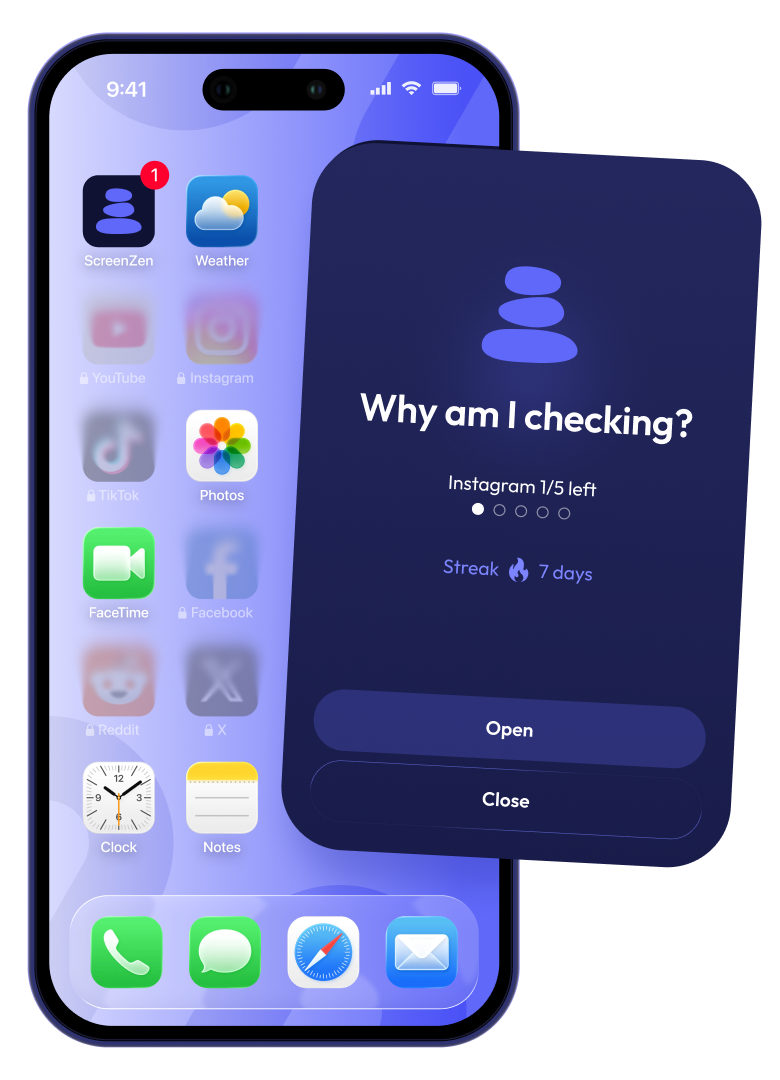
You don’t need a parental-control app to fix an adult phone habit, and you definitely don’t need to pay for one. The tools built into most phones already track your usage for free, and a handful of dedicated apps add the one thing built-in trackers usually lack: friction that actually makes you stop and think before you open Instagram for the tenth time today.
Table of Contents
This guide walks through the best free options for adults specifically, what each one is good at, and how to set one up so it changes behavior instead of just producing a chart you ignore.
Quick Answer
For most adults, the best free combo is your phone’s built-in tracker (Apple Screen Time, or Android’s Digital Wellbeing where it’s available) paired with ScreenZen, a fully free app that adds a delay or scroll-limit before you can open distracting apps on iOS, Android, Mac, or Windows. If you only want to tame one specific app, One Sec’s free tier does that well with a short breathing pause before it opens.
The Best Free Screen Time Apps for Adults
Start with what’s already on your device. Apple’s Screen Time (Settings > Screen Time) is free and built into every iPhone. On Android, Google’s Digital Wellbeing (Settings > Digital Wellbeing) is free too, but Google’s own support documentation notes it’s available on ‘some phones’ rather than every device — availability depends on your manufacturer and Android version, and some brands ship their own equivalent (for example, Samsung’s Digital Wellbeing integration or similar tools from other OEMs) instead of Google’s version. Check Settings on your specific phone to see what you have. Where it’s present, it shows app-by-app usage and pickups, lets you set daily app timers that gray out icons once you hit them, and offers a bedtime/focus mode that mutes notifications and dims the screen on a schedule. It’s a solid baseline, but the limits are easy to snooze or bypass with one tap, which is why they don’t change habits for everyone on their own.
ScreenZen is the strongest fully-free dedicated option. It’s free on iOS, Android, macOS, and Windows, supported by optional donations rather than a paywall, and it works by adding a wait time before an app opens, capping how many times you can unlock it per day, or interrupting an endless-scroll session after a set number of minutes. It also blocks distracting websites using accessibility permissions, and you can schedule different rules for different times of day, which is useful for keeping evenings scroll-free without touching work-hours use.
One Sec takes a different approach: instead of blocking, it inserts a few seconds of friction, such as a breathing prompt, before an app opens, then asks whether you still want to go in. The free version applies this to one app of your choice, which is enough if you have a single problem app (usually a social feed) and want to see whether friction alone curbs your habit before paying for the Pro version, which unlocks unlimited apps.
YourHour is a free, Android-only option built around gamified tracking rather than hard blocking. It shows a running total with a color-coded overlay (green, amber, red) as you approach your limit, blocks apps once you hit it, and scores your recent habits from ‘Rookie’ to ‘Champion’ to make the tracking feel less like a lecture. It’s a good fit if you’re more motivated by streaks and stats than by friction.
How to Set One Up So It Actually Works
Pick one or two apps to target first, not everything. Trying to restrict your whole phone on day one usually leads to disabling the app within a week. Check your built-in tracker (or a dedicated app’s stats, if your phone doesn’t have one) to see which two or three apps actually eat your time, and start there.
Choose friction over an outright block if you tend to just disable restrictions. A delay or breathing pause (ScreenZen, One Sec) interrupts the automatic reach-for-your-phone reflex without making you feel locked out, which tends to stick longer than a hard block you’ll find a workaround for.
Set limits for the moments that matter most, like the first hour after waking up and the hour before bed, rather than a flat all-day cap. Both ScreenZen and the built-in tools let you schedule rules by time of day.
Turn off the option to extend or skip the limit for a few days before deciding it isn’t working. Most of these apps let you grant yourself ‘just five more minutes,’ and using that escape hatch every time defeats the purpose.
Tips and Common Mistakes
Don’t just install a tracker and stop there. Tracking alone (seeing your daily total) rarely changes behavior by itself; pair it with a blocking or friction feature on the specific apps you overuse.
Avoid picking the app with the most features if you know you won’t set it up. A free app you actually configure and keep beats a paid one you install and abandon.
Recheck your limits every couple of weeks. As one habit improves, a different app usually creeps up to fill the gap, so revisit your usage report periodically and shift your focus app as needed.
If a free app’s paywall keeps interrupting your flow (for example, YourHour’s ads or One Sec’s one-app cap), that’s a signal to either accept the limitation or try a different free tool before assuming you need to pay.
Explore more: More technology guides.
best free screen time app for adults FAQs
Is there a truly free screen time app with no paywall?
Yes. ScreenZen is free on iOS, Android, Mac, and Windows, supported by optional donations rather than a required subscription. Apple’s Screen Time is also fully free and built into every iPhone; Android’s Digital Wellbeing is free where your phone includes it.
Do screen time apps actually reduce phone use for adults?
Apps that add friction, like a short delay or breathing pause before an app opens, tend to work better than apps that only track and notify, since notifications are easy to dismiss on autopilot. Combining a tracker with a friction or blocking feature on your worst two or three apps is the most reliable approach.
What’s the difference between One Sec and ScreenZen?
One Sec focuses on a brief friction pause (like a breathing prompt) before an app opens, and its free tier covers one app. ScreenZen offers more controls (wait times, daily unlock caps, scroll interrupts, website blocking, and scheduling) and is free across all your apps and platforms.
Does every Android phone have Digital Wellbeing built in?
No. Google’s own support page says it’s available on ‘some phones’ — it depends on your manufacturer and Android version. Check Settings > Digital Wellbeing on your device; if it’s missing, your phone maker may offer a similar built-in tool, or you can use a free third-party app like ScreenZen instead.
Make Your Digital Life Better
More practical tech how-tos, tool picks, and guides to upgrade your everyday digital life. More on GTWebs.
Want web tips in your inbox? Subscribe to the free newsletter.
Images: Screenzen.