

Most “free” PDF editors aren’t really free — they stamp a watermark across your document, cap you at a few edits, or quietly funnel you toward a subscription the moment you try to save. If you just need to fix a typo, fill out a form, delete a page, or add a signature without paying Adobe’s monthly fee, you have better options.
Table of Contents
This guide covers the free PDF editors that actually deliver on “no watermark, no subscription” in 2026, what each one is best at, and the limits you should know about before you commit an hour of work to one.
Quick Answer
PDFgear is the most fully-featured option with no watermark, no usage caps, and no forced subscription — it handles editing, converting, e-signatures, and OCR at no cost. LibreOffice Draw (free, open-source, offline) is the best pick if you want a permanent desktop tool with no usage limits at all. Sejda and PDF Candy are solid browser-based editors, but both cap how much you can process on the free tier.
The Best Free, Watermark-Free PDF Editors
PDFgear (Windows, Mac, iOS, Android, and web) offers full text and image editing, page management, PDF-to-Word/Excel/PowerPoint conversion, e-signatures, compression, and OCR — all without watermarking your output or gating features behind a paywall. It’s the closest thing to an Acrobat replacement that costs nothing.
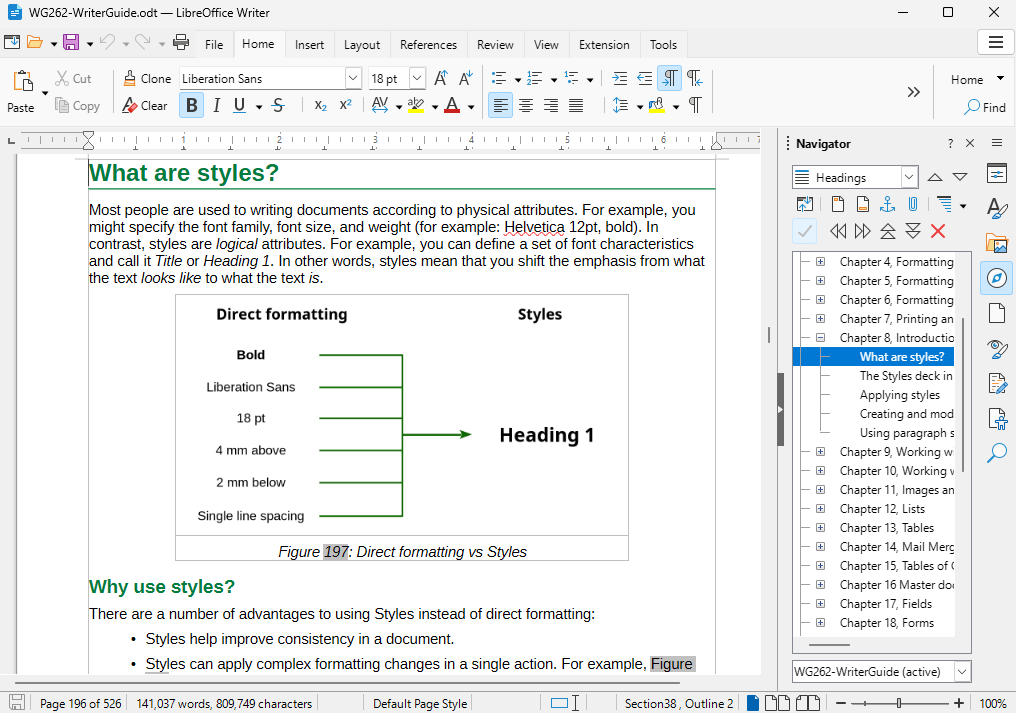
LibreOffice Draw is part of the free, open-source LibreOffice suite. Open any PDF in Draw and you can edit text, move or replace images, add and delete pages, and adjust formatting much like a native document. Because it’s a real desktop install rather than a web app, there are no usage limits, no file-size caps, and no internet connection required — a good fit for people who edit PDFs regularly or work with sensitive files they don’t want to upload anywhere.
Sejda (web and desktop) has one of the cleanest editing interfaces of any free tool — text editing, whiteout, page reordering, form filling, and merging all work well. The free online tier is genuinely watermark-free and subscription-free, but it limits you to 3 tasks per hour, caps file size and page count, and auto-deletes uploaded files after 2 hours — fine for occasional edits, but you’ll hit the wall fast if you’re processing several files back-to-back. Sejda’s free desktop app has its own limits too, so it isn’t a way around the cap.
PDF24 Creator is a free downloadable app from the German developer Geek Software GmbH, in continuous development since 2006. It bundles dozens of tools — edit, merge, split, compress, convert, sign — and processes files locally on your machine rather than uploading them to a server, which is useful if privacy matters to you. It’s free for both personal and commercial use with no subscription tier at all.
PDF Candy (web and desktop) packs dozens of tools into one interface, including text editing, watermarking, metadata editing, and OCR. The online version limits how much you can do with each tool on the free tier, while the desktop app is built for offline use and batch processing.
How to Pick the Right One for Your Task
For a single quick edit — fixing a name, deleting a page, adding a signature — a browser-based tool like Sejda or PDF Candy is fastest since there’s nothing to install. Just check the free-tier limits first if you have several files to process in one sitting, since Sejda’s hourly cap can stall a batch job partway through.
For regular or bulk PDF work, install a desktop app that has no free-tier usage ceiling instead: PDFgear, LibreOffice Draw, or PDF24 Creator all run on your own machine rather than a shared server.
If you’re editing anything sensitive — contracts, medical records, financial documents — favor tools that process files locally (LibreOffice Draw, PDF24 Creator, or the desktop versions of PDFgear/PDF Candy/Sejda) rather than uploading them to a web service, even a free and reputable one.
If you mainly need to convert a PDF to an editable Word or Excel file rather than edit it directly inside a PDF, PDFgear’s built-in converter or LibreOffice’s Import feature are quick ways to get an editable version without extra software.
Tips and Common Mistakes
Don’t judge a tool by its homepage alone — many sites advertise “free” prominently but only reveal the watermark or task limit after you’ve uploaded your file and finished editing. Test with a throwaway page first.
Watch for usage caps on tools like Sejda, whose free online version allows 3 tasks per hour — running out mid-project is a common frustration. Sejda’s free desktop app is also limited, so if you regularly hit the cap, switch to a tool without free-tier limits, such as LibreOffice Draw, PDF24 Creator, or PDFgear.
If a site asks you to install a browser extension or a ‘PDF helper’ program to unlock editing, be cautious — stick to the developer’s official download page rather than third-party bundlers, which sometimes bundle adware.
For scanned documents (images of text rather than selectable text), you’ll need OCR before you can edit the content — PDFgear, PDF24, and PDF Candy all include OCR in their free tiers, but accuracy varies with scan quality.
Always keep a copy of the original PDF before editing. Some free tools flatten forms or strip metadata during the edit-and-resave process, which isn’t always reversible.
Explore more: More technology guides.
Free PDF editors with no watermark or subscription FAQs
Is there really a 100% free PDF editor with no watermark?
Yes. PDFgear and LibreOffice Draw both let you edit and export PDFs without adding a watermark or requiring payment, and neither imposes a usage cap on how much you can edit.
Which free PDF editor works offline?
LibreOffice Draw and PDF24 Creator are downloadable desktop apps that process files locally without an internet connection. PDFgear and PDF Candy also offer desktop versions in addition to their web tools.
Why do some free PDF tools add a watermark?
Watermarking is a common way for freemium PDF services to push users toward a paid plan. Tools like PDFgear and LibreOffice Draw avoid this by monetizing differently (or not at all) instead of degrading free output.
What’s the catch with Sejda’s free plan?
Sejda doesn’t watermark files or require a subscription, but the free online tier caps you at 3 tasks per hour, limits file size and page count, and deletes uploaded files after 2 hours. The free desktop app has its own task limits, so it’s fine for occasional use but limiting for bulk editing.
Can I edit a scanned PDF for free without a subscription?
Yes, if the tool includes OCR (optical character recognition) to convert the scanned image into editable text first. PDFgear, PDF24 Creator, and PDF Candy all include free OCR.
Make Your Digital Life Better
More practical tech how-tos, tool picks, and guides to upgrade your everyday digital life. More on GTWebs.
Want web tips in your inbox? Subscribe to the free newsletter.
Images: Pdfgear.