

You don’t need Adobe Illustrator skills or a design degree to turn a wall of stats into something people actually read. Modern infographic tools do the layout, spacing, and color pairing for you — you just drop in your content and swap a template.
Table of Contents
The catch is that “free” means very different things across these tools: some give you a genuinely usable free tier, others cap you at a handful of downloads a month, and a few are really free trials in disguise. This guide breaks down which free infographic makers are worth your time in 2026, what their free plans actually include, and how to avoid getting stuck redesigning everything after hitting a paywall.

Quick Answer
For most non-designers, Canva is the best free infographic maker overall — it has a genuine free-forever plan, a huge template library, and no download cap. If you need more chart types and data-heavy layouts, Visme’s free plan is a strong second option, though it locks a few export formats and features behind paid tiers.
The Best Free Infographic Makers, Compared
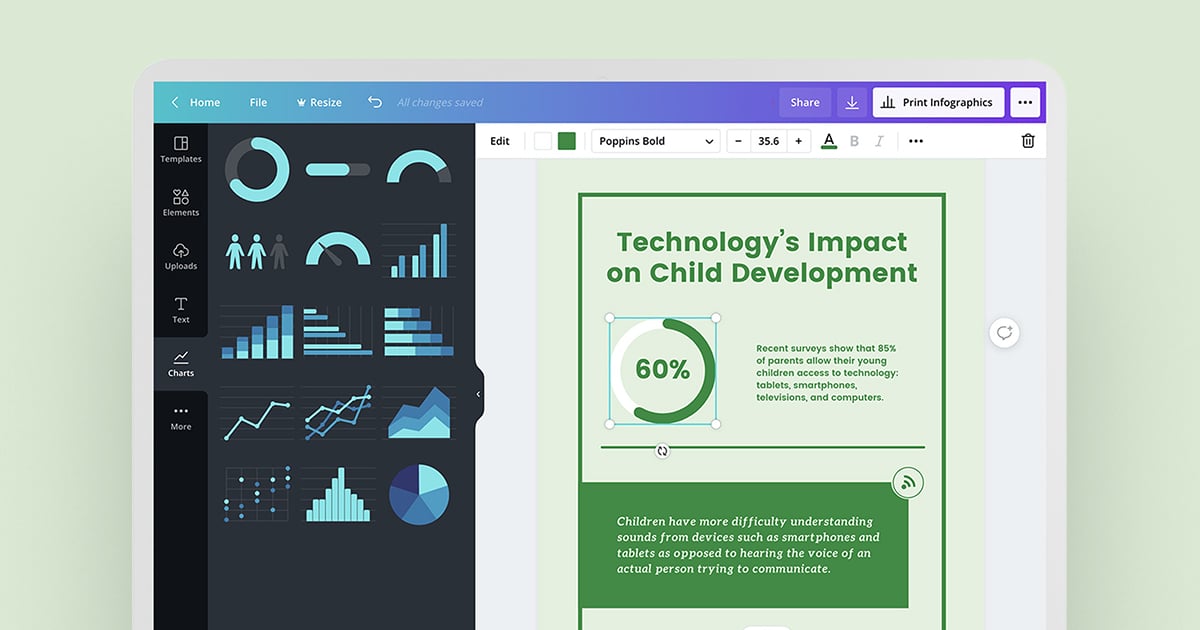
Canva: The free plan is genuinely free forever, not a trial. You get a large library of infographic templates, drag-and-drop editing, stock photos, icons, and basic charts, with no limit on how many designs you download. Premium templates and elements are marked with a small crown icon, but there’s almost always a free alternative that looks just as good. This is the easiest starting point if you’ve never designed anything before.
Visme: Visme’s free Basic plan allows unlimited projects and gives you access to most templates and basic charts, which makes it a good fit for data-heavy infographics. The trade-offs: free projects are capped at a set number of slides/pages, exports are limited mostly to JPG, PNG, and basic PDF, and you can’t remove the Visme watermark or access brand kit tools without upgrading to a paid plan.
Adobe Express: The free plan includes a large template library, basic photo editing and effects, and some cloud storage, so it’s a solid option if you’re already in the Adobe ecosystem. Some exports carry a small Adobe Express watermark, and premium templates and stock assets are locked behind a paid upgrade.
Piktochart: Piktochart’s free plan caps you at a small number of active visuals and a limited, non-refreshing number of PNG downloads, so it’s best for a single one-off project rather than ongoing use. There’s no PDF or PowerPoint export on the free tier, and premium templates require a paid plan.
Snappa: Snappa’s free Starter plan gives you access to its full template and photo library, but limits you to a handful of downloads per month on a single-user account. That’s fine for occasional use, but frequent posters will hit the ceiling fast. Paid plans unlock unlimited downloads.
Venngage: Venngage’s free plan lets you build a limited number of designs, and — unlike some competitors — it does let you upload your own images, just up to a modest cap rather than unlimited uploads. The bigger limitation is exporting: free designs are generally shareable only via a public link rather than as a downloadable PNG or PDF, so you’ll typically need to upgrade to a paid plan to actually export or download your finished infographic.
How to Make an Infographic for Free, Step by Step
Start with your content, not the template. Write out your headline, key stats, and the 3-5 points you actually want readers to take away before you open any design tool — infographics fail when people try to cram everything in.
Pick a template built for your content type. Look for ‘process,’ ‘comparison,’ ‘timeline,’ or ‘statistics’ templates depending on whether you’re explaining steps, contrasting options, showing a sequence, or presenting data.
Swap colors and fonts to match your brand, but keep it to two or three colors and two fonts max — most free tools let you save these as a simple palette even without a paid brand kit.
Replace placeholder charts with your real numbers using the built-in chart tool rather than pasting in a screenshot; native charts stay editable and look sharper.
Export as PNG for web and social use, or PDF if you need a printable or shareable document — and check your chosen tool’s free-plan export limits before you build the whole thing, so you’re not stuck at the finish line.
Tips and Common Mistakes
Check the download and export limits before you start designing, not after. Piktochart, Snappa, and Venngage all restrict free exports in different ways (Venngage’s free plan generally doesn’t allow direct downloads, only public link sharing, even though it does allow a limited number of your own image uploads) — building a full infographic only to find you can’t get it out of the tool is the single most common frustration with free tools.
Don’t mix more than two or three fonts and colors — free templates are pre-balanced, and every extra font or color you add moves you further from a ‘designed’ look.
Keep text short. Infographics are meant to be scanned, so use headlines and short phrases instead of full sentences wherever possible.
Watch for watermarks on free exports (Adobe Express, Visme) — if the infographic is going in front of clients or on a company site, factor in whether removing the watermark is worth a paid upgrade.
Size for where it’s going. Export at the resolution or aspect ratio the platform expects (square or vertical for social, wider for blog embeds or PDFs) rather than resizing after the fact.
Explore more: more design guides and resources.
Free infographic makers FAQs
What is the best truly free infographic maker?
Canva is the closest thing to a genuinely free infographic maker — its free plan has no download cap and includes a large template library, unlike tools that limit you to a few downloads per month.
Do free infographic makers add a watermark?
Some do. Adobe Express and Visme can add a small watermark or restrict certain export formats on free plans, while Canva does not watermark free exports.
Can I use a free infographic maker for client or commercial work?
Generally yes, but check each tool’s license terms and any watermark or export restrictions first — paid plans are usually what remove watermarks and unlock full-resolution downloads for client-facing work.
What file format should I export an infographic in?
Use PNG for web and social sharing, and PDF if you need a print-ready or downloadable document; most free plans support PNG, with PDF export often reserved for paid tiers.
Make Your Digital Life Better
More practical tech how-tos, tool picks, and guides to upgrade your everyday digital life. More on GTWebs.
Want web tips in your inbox? Subscribe to the free newsletter.
Images: Canva.