


In this quick tutorial, I’ll show you how to create a text expansion shortcut that will paste your full email address anytime you type a set of a couple or few characters.
Table of Contents
Step 1. Open Keyboard Maestro Editor
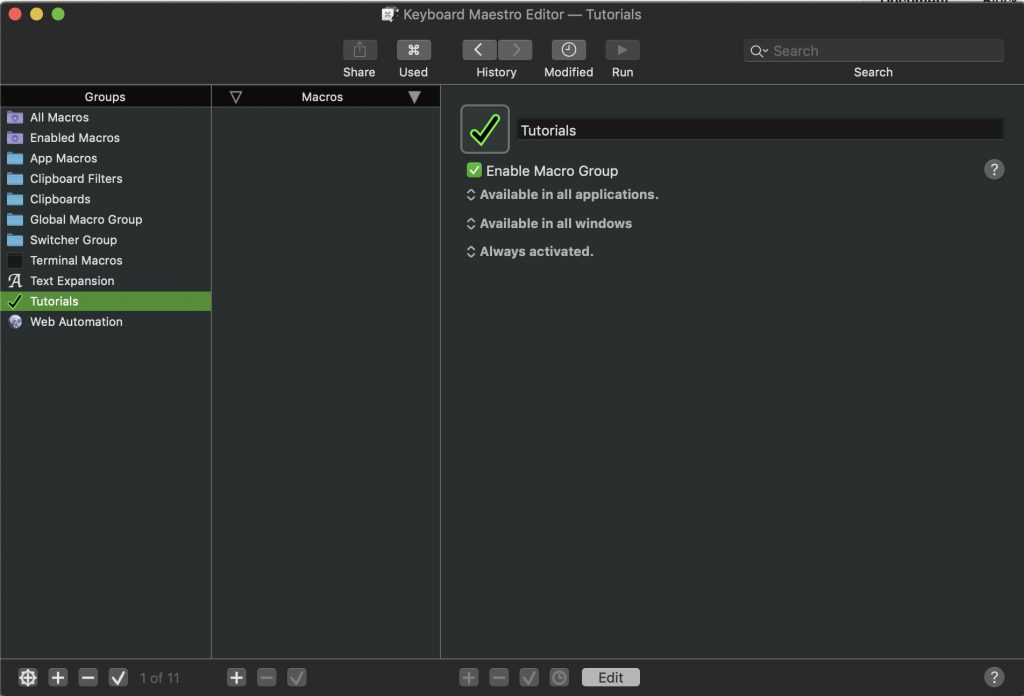
Step 2. Click the second “+” button from the left and name your new macro
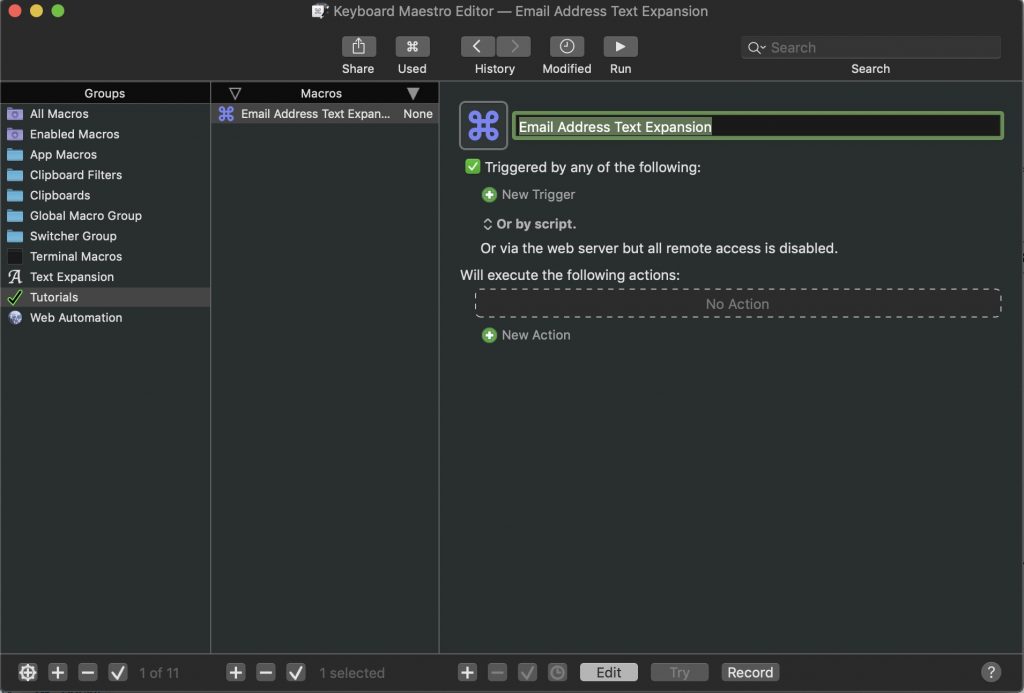
Step 3. In the Categories column, choose the Text category, then choose the Insert Text by Pasting action in the Actions column.
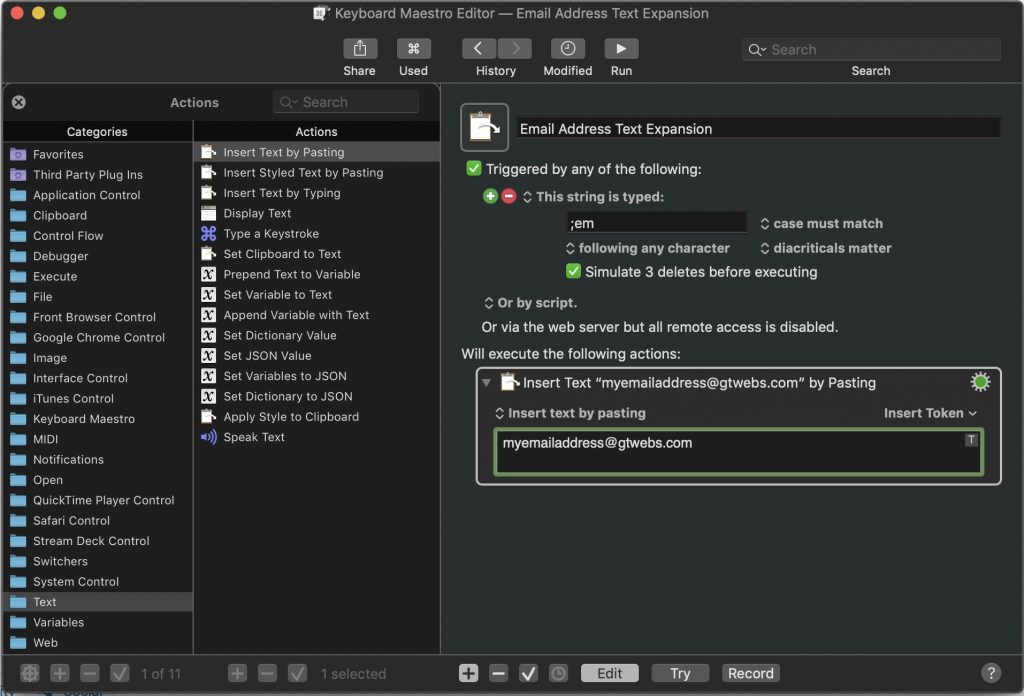
Step 4. In the right side of the window, under “Triggered by any of the following,” Click + New Trigger and choose Typed String Trigger
Step 5. Enter 2 or 3 characters that will be used as the trigger. In this example I’m using “;em” of which I recommend using a special character to start the sequence since you will likely never type a semi-colon followed by one or two characters in everyday typing. Anything can work here, as long as it’s something you think you’ll only ever type when you want to paste in your full email address.
Step 6. See it in action!


Like magic!!
Happy Macro-ing!
What Is Text Expansion?
Text expansion is a productivity technique where you type a short abbreviation and it automatically expands into a longer phrase, paragraph, or data snippet. For example, typing ;em could instantly expand to your full email address, or ;addr could paste your complete mailing address.
This might sound trivial, but consider how many times per day you type your email address — filling out forms, signing up for services, responding to messages, entering login credentials. Even at just 10 times per day, a text expander saves you thousands of keystrokes annually.
Built-in Text Replacement on macOS
macOS has a built-in text replacement feature that works across most applications. To set it up, follow Apple’s official guide:
- Open System Settings → Keyboard → Text Replacements (or Text Input → Text Replacements on newer macOS)
- Click the + button
- In the Replace column, type your abbreviation (e.g.,
;em) - In the With column, type your email address
- Click Add — the replacement is now active system-wide
Pro tip: Start all your abbreviations with a semicolon (;) or backslash (\) to avoid accidental triggers. You don’t want “email” expanding every time you type that word in a sentence.
Power User: Dedicated Text Expansion Apps
While the built-in macOS feature handles simple replacements, dedicated apps offer much more power:
TextExpander
The gold standard for text expansion. TextExpander supports fill-in-the-blank snippets, date/time stamps, clipboard content insertion, and even JavaScript-powered snippets that can calculate values. It syncs across Mac, iPhone, iPad, and Windows. The downside is it requires a subscription ($3.33/month).
Alfred (with Snippets)
If you already use Alfred as a Spotlight replacement, its built-in snippet feature is excellent. Alfred snippets support dynamic placeholders like {date}, {clipboard}, and {cursor} (to position your cursor after expansion). It’s a one-time purchase with the Powerpack.
Espanso (Free, Open Source)
Espanso is a cross-platform, open-source text expander that runs on Mac, Windows, and Linux. Configuration is done via YAML files, which appeals to developers. It supports regex triggers, shell command output, and form-based snippets.
Essential Snippets Every Professional Should Set Up
Here are the most impactful text expansion shortcuts to configure:
;em→ Your primary email address;em2→ Your secondary/work email address;ph→ Your phone number;addr→ Your full mailing address;sig→ Your email signature block;zoom→ Your personal Zoom meeting link;ty→ “Thank you for your email. I’ll review this and get back to you shortly.”;br→ “Best regards,\nYour Name”
Text Expansion for Developers
Developers can take text expansion further with code snippets. Set up expansions for boilerplate code you type frequently — console.log statements, import blocks, function templates, or SQL query patterns. Some code editors like VS Code have built-in snippet systems, but a system-wide text expander works across all applications including terminals, Slack, and email.
For more productivity tools and automation tips, visit GTWebs where we regularly cover ways to work smarter as a tech professional.