

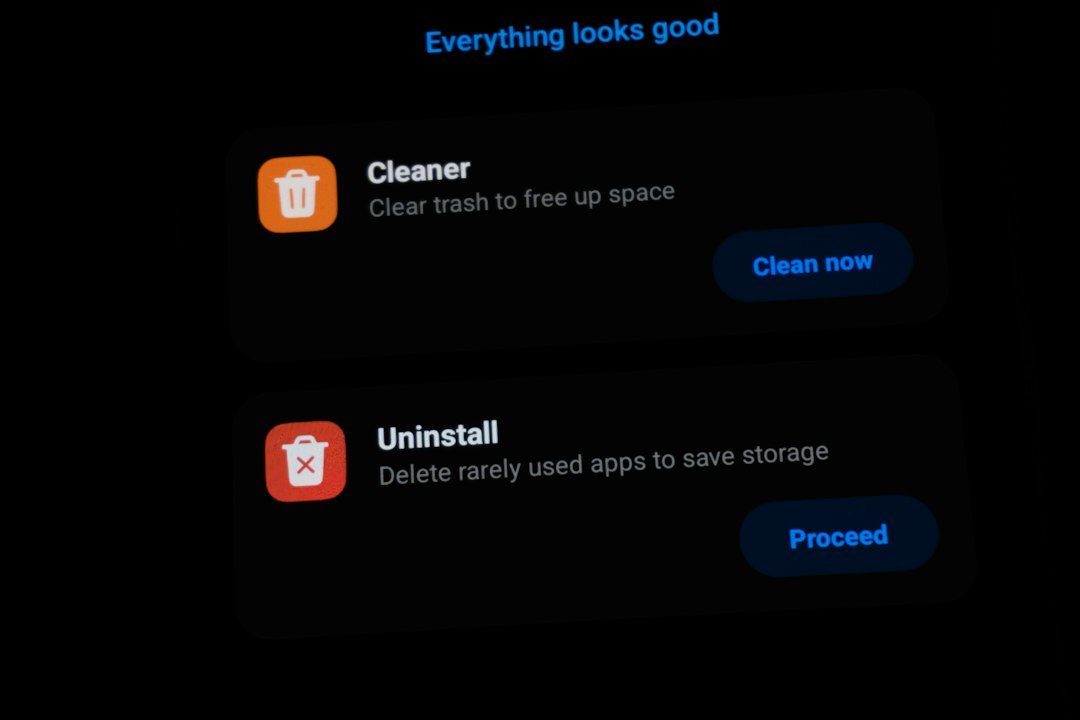
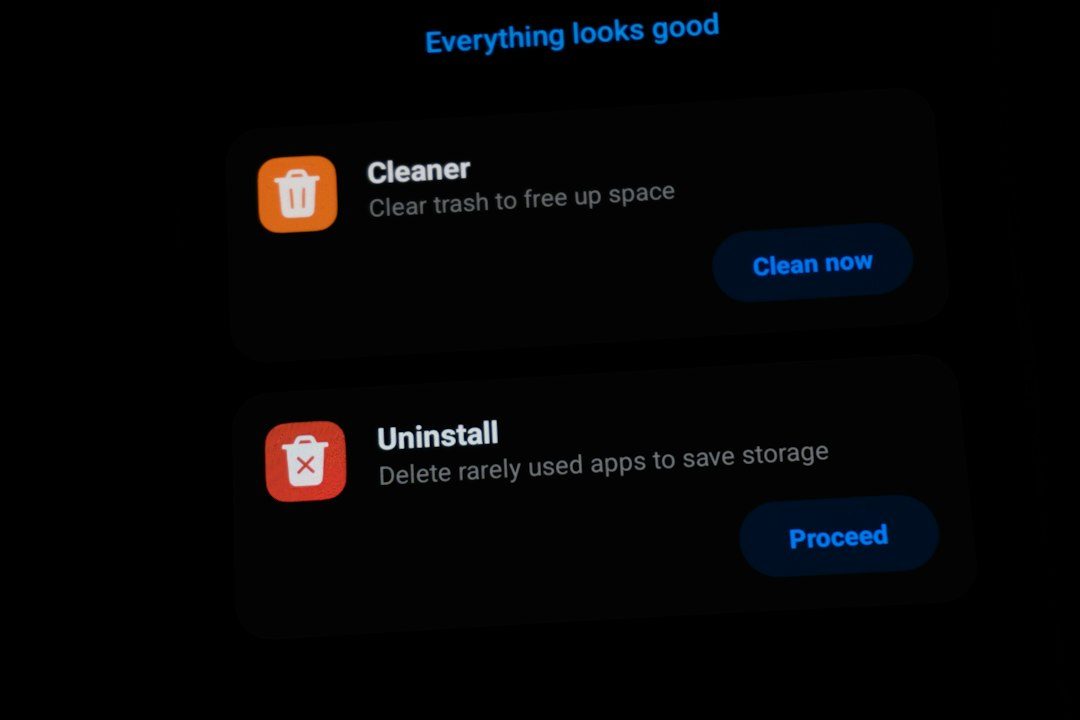
That “storage space running out” banner always shows up at the worst time — mid-download, mid-update, or right before you need to take a photo. Deleting a few apps buys you a week before it comes back, which means the real problem usually isn’t a lack of apps, it’s cached data, duplicate files, and photos/videos that are still sitting on your phone even though they’re already safely backed up.
Table of Contents
This guide walks through the fixes that actually last: finding what’s really eating your space, clearing it out the fast way, and turning on automatic cleanup so you stop getting the warning altogether.
Quick Answer
Open Settings > Storage to see what’s actually using space, clear app caches (either per-app or with a system-wide “Free up space” option if your phone has one), then use Google Photos’ “Free up space on this device” feature and the Files by Google app’s duplicate-file cleaner to remove media that’s already backed up. Finally, turn on your phone’s automatic storage manager so backed-up photos and videos clear themselves before the warning reappears.
Step 1: Find Out What’s Actually Taking Up Space
Go to Settings and tap Storage. Most Android phones show a breakdown by category — apps, photos/videos, audio, system data, and “other” or cached files. This tells you whether the problem is a handful of huge apps, years of accumulated photos, or just bloated cache data.
From there, tap Apps (or go to Settings > Apps) and sort by size. It’s common to find one or two apps — games, social media apps, or messaging apps with large media caches — responsible for a disproportionate share of your used storage. Tap any app, then tap Storage to see its app size versus cache size separately.
Step 2: Clear Cache, Then Clear the Real Clutter
For a single app, go to its Storage screen and tap “Clear cache.” This removes temporary files without touching your logins, settings, or saved data inside the app. Some phones also have a system-wide option in Storage, labeled something like “Free up space” or “Clear cached data,” that clears cache from every app in one tap instead of going through them one by one.
Once cache is handled, open the Google Photos app, tap your profile photo in the top right, and look for “Free up space on this device” (on some versions this is under Library > Utilities > Free up space). This tool only lists photos and videos that are already backed up to your Google Account, and removing them just deletes the local copy on your phone — the originals stay exactly where they are in your Google Account, viewable anytime in the Photos app or at photos.google.com. Because the item was never deleted from your account, it doesn’t go into any trash or recovery queue; you just view or re-download it from the cloud whenever you need it again.
Next, open Files by Google (preinstalled on most Android phones, or free from the Play Store). Tap the menu, then Clean, and look at the “Duplicate files” card — tap Select files to review and move copies to the trash. The same screen typically surfaces old screenshots, large downloads, and files already backed up elsewhere, which are usually safe to clear next.
Tips and Common Mistakes
Turn on automatic cleanup so this doesn’t become a recurring chore: in Settings > Storage, look for a Storage Manager or Smart Storage toggle. When enabled, it automatically removes backed-up photos and videos from your device after a set number of days or once your free space gets low — you keep every photo in the cloud, just not a local copy clogging up the phone.
Don’t confuse “delete from device” with “delete everywhere.” Using “Free up space on this device” in Google Photos only removes the local copy and never touches your cloud copy, since the item is backed up and isn’t being deleted from your account — there’s no trash step involved, because nothing left your account. Actually deleting a photo from your account (from within Google Photos itself) is a different action: it moves the item to Trash, where Google currently holds backed-up items for about 30 days before permanently deleting them. If a photo or video was never backed up in the first place, how (and whether) you can get it back after deleting it depends on your specific Android device, so don’t count on it — make sure backup is on before you delete anything you might want later.
Watch messaging apps separately — apps like WhatsApp and Telegram often auto-download every photo and video sent to you, and that media doesn’t show up when you’re just checking the Photos app. Check each app’s own storage/data-usage settings and disable auto-download if space keeps disappearing.
If you’ve cleared cache, offloaded photos, and removed duplicates but storage still fills up fast, the culprit is often offline maps, downloaded music/podcast episodes, or a streaming app’s “download for offline” feature — check those app-specific download managers before assuming you need a new phone.
Explore more: More Android and tech how-to guides.
Android storage management FAQs
Is it safe to clear an app’s cache?
Yes. Cache is just temporary data the app rebuilds automatically — clearing it doesn’t delete your logins, saved data, or app settings, though the app may load slightly slower the next time you open it while it rebuilds the cache.
Will “Free up space” in Google Photos delete my photos permanently?
No. It only removes the local copy on your phone of photos and videos that are already backed up to your Google Account — the originals stay in your account and remain viewable anytime in the Photos app. Nothing is deleted from your account, so there’s no trash or recovery window involved in that step.
How long do deleted photos stay in Google Photos’ Trash before they’re gone for good?
Google currently keeps backed-up photos and videos in Trash for about 30 days before permanently deleting them (you can also empty the Trash yourself sooner). That only applies to items actually deleted from your account — photos removed from your device with “Free up space on this device” never go to Trash, since they’re still safely backed up and were never deleted from your account.
Why does the storage warning keep coming back even after I delete things?
Usually because cache, message attachments, and offline downloads keep rebuilding in the background. Turning on your phone’s automatic Storage Manager / Smart Storage feature handles this ongoing buildup for you instead of requiring a manual cleanup every few weeks.
Make Your Digital Life Better
More practical tech how-tos, tool picks, and guides to upgrade your everyday digital life. More on GTWebs.
Want web tips in your inbox? Subscribe to the free newsletter.
Photo by Zulfugar Karimov on Unsplash.