

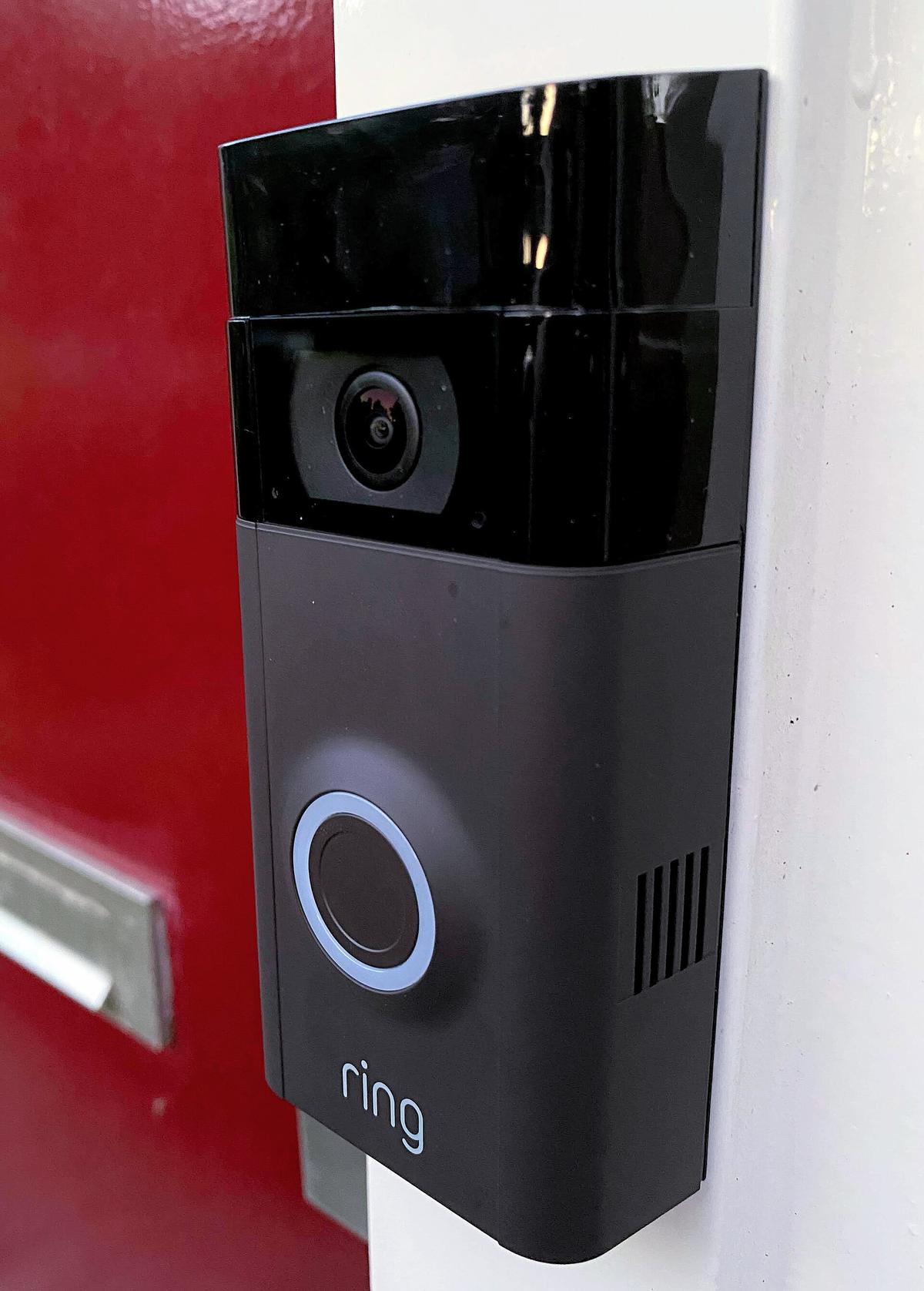
If your Ring doorbell chimes at the door but the push notification doesn’t hit your phone until minutes later, you’re not imagining it. It’s one of the most common complaints in the Ring community forums, and it usually comes down to a handful of fixable causes rather than a dead device.
Table of Contents
This guide walks through exactly where the delay is probably coming from — the doorbell’s Wi-Fi signal, Ring’s app settings, or your phone’s notification settings — and gives you a clear order of steps to fix it.
Quick Answer
Late Ring notifications are almost always caused by a weak Wi-Fi signal at the doorbell, a phone setting that’s holding alerts back (Focus, Do Not Disturb, or Scheduled Summary), or a snooze/schedule setting left on in the Ring app. Check your device’s signal strength first, then work through the app and phone settings below.
Check Your Doorbell’s Wi-Fi Signal First
Open the Ring app, tap the menu, select your doorbell, and go to Device Health. Under the Network section you’ll see a Signal Strength reading (RSSI). A reading close to 0 is strong; once it drops into the roughly -60 to -90 range, video and alerts start to lag or drop. If your signal is weak, move your router closer, reduce the number of walls between it and the doorbell, or add a Ring Chime Pro, which doubles as a Wi-Fi extender for Ring devices specifically.
Also reboot your router. A router that’s been running for weeks without a restart is a frequent, boring cause of lag across every connected device, including your doorbell.
Fix the Ring App Settings
In the Ring app, open your doorbell’s device settings and confirm Ring Alerts, Motion Detection, and Motion Alerts are all toggled on — if one of these got switched off during an update, alerts can arrive late or not at all.
Check for an active Snooze. Ring lets you pause alerts for a device or globally; if a snooze was set and never cleared, that’s a silent cause of ‘delayed’ notifications that are really just being held back.
Review your Motion Schedule and Motion Sensitivity settings too. A schedule that limits alerts to certain hours, or sensitivity set too low, can make it look like notifications are slow when really they’re just not firing until a bigger, later event triggers them.
Pull up Event History for the device. If you see the recorded event timestamp is close to real-time but the notification itself lagged, that points to delivery (Wi-Fi or phone) rather than detection. If the event itself was logged late, the problem is on the doorbell/Wi-Fi side.
Fix Your Phone’s Settings
Phones can hold notifications back in ways that make them look late even though they arrived on time. On iPhone, open Settings > Notifications > Scheduled Summary and make sure it’s turned off, or that Ring isn’t included in it — a summary queues up alerts and delivers them in a batch instead of right away. Also check Settings > Focus to confirm no active Focus mode is silencing Ring, and in Settings > Notifications > Ring, turn on Time Sensitive Notifications so Ring alerts can break through Focus and Do Not Disturb. Note that Background App Refresh is a separate feature that controls whether apps can quietly fetch content when you’re not using them — it doesn’t control push notification delivery, so toggling it on or off won’t speed up or delay Ring alerts; focus on the notification settings above instead.
On Android, find Ring under battery settings and make sure it’s excluded from battery optimization or ‘sleeping apps’ lists — Android’s battery management can throttle how quickly background notifications get delivered.
Turn off Do Not Disturb, or at least confirm Ring is allowed through it on both iPhone and Android. Also disable any VPN running on the phone while testing — VPNs can add enough latency to push delivery to make alerts feel sluggish.
If you wear a smartwatch paired to your phone, check whether notifications are routing there instead of surfacing on your phone screen, which can make them seem delayed or missing.
As a reset step, restart your phone, and if the problem persists, uninstall and reinstall the Ring app to clear out any corrupted notification tokens.
Tips / Common Mistakes
Don’t assume it’s the doorbell. Test by having someone press the button while you watch Event History load in real time — if the event logs instantly but the phone notification lags, the fix is on the phone/network side, not the hardware.
Don’t skip the router reboot. It sounds too simple, but outdated router DHCP leases and congested 2.4GHz channels are a very common, very fixable cause of alert lag.
Don’t overlook Scheduled Summary on iPhone — it’s one of the most common silent causes of notifications that technically arrived but didn’t surface until later.
If delays only happen at specific times of day, suspect your home Wi-Fi being saturated by other devices (streaming, backups) rather than the doorbell itself.
Explore more: More step-by-step tech tutorials.
Ring Doorbell notification delays FAQs
Why are my Ring notifications sometimes instant and sometimes minutes late?
Inconsistent delays usually point to a borderline Wi-Fi signal at the doorbell or network congestion at certain times of day, rather than a setting that’s fully broken. Check Device Health for signal strength and see if the lag correlates with peak internet usage in your home.
Does a Ring Protect subscription affect notification speed?
No — notification delivery speed depends on your doorbell’s Wi-Fi signal, the Ring app/phone settings, and push notification delivery, not on which subscription tier you have.
Will a Ring Chime Pro actually fix delayed notifications?
It can, if the root cause is a weak Wi-Fi signal at the doorbell. The Chime Pro extends your Wi-Fi specifically to Ring devices, which helps the doorbell send motion and ring events to Ring’s servers faster and more reliably.
Why do I get a notification but the video takes a long time to load?
That’s usually a separate Wi-Fi bandwidth issue rather than a notification delay — the alert itself fired on time, but loading the live or recorded video depends on your connection speed at that moment.
Does turning on Background App Refresh for Ring make notifications arrive faster?
No. Background App Refresh governs whether an app can periodically update its content in the background; push notifications are delivered by Apple’s push service independently of that setting. Notification delays are controlled by things like Focus, Scheduled Summary, and the Ring app’s own alert settings, not Background App Refresh.
Make Your Digital Life Better
More practical tech how-tos, tool picks, and guides to upgrade your everyday digital life. More on GTWebs.
Want web tips in your inbox? Subscribe to the free newsletter.
Photo: Amin / CC BY-SA 4.0, via Wikimedia Commons.