

If you’ve ever been mid-task and had Windows 11 interrupt you with a notification suggesting you “finish setting up your device” or try some feature you’ve never asked about, you’re not alone. These tips and suggestions are opt-out, not opt-in, and Microsoft tends to re-enable a few of them after major updates.
Table of Contents
This guide walks through where these settings live and how to shut them off. Which method is best depends on your edition: the Settings toggles work everywhere, while the “Do not show Windows tips” policy is only supported on Enterprise and Education.
Quick Answer
On any edition, open Settings (Win+I) > System > Notifications, scroll down and expand “Additional settings,” then turn off “Get tips and suggestions when using Windows” and the option about suggesting ways to finish setting up your device. On Windows 11 Enterprise or Education, you can also enforce this system-wide with the Group Policy setting “Do not show Windows tips.” Microsoft lists that policy as not supported on Windows 11 Pro, so on Pro and Home stick with the Settings toggles (or the per-user registry value below), which are the same switches Windows itself uses.
Turn Off Tips and Suggestions in Settings
This is the fastest method and works on every edition of Windows 11. Press Windows key + I to open Settings, then select System from the left sidebar and click Notifications on the right.
Scroll to the bottom of the Notifications page and click to expand “Additional settings.” Here you’ll find a few related options worth turning off, including “Get tips and suggestions when using Windows” and the one that suggests ways to finish setting up your device to get the most out of Windows. Depending on your Windows 11 build, you may also see an option for the Windows welcome experience after updates. Uncheck each one you don’t want.
While you’re on the Notifications page, it’s also worth reviewing the main app list above and turning off notifications for individual apps that send their own promotional alerts, since not every unwanted popup comes from the “tips” settings specifically.
If you’re also seeing suggestions in the Start menu or on the lock screen, those are controlled separately. In Settings, go to Personalization > Start and turn off “Show recommendations for tips, app promotions, and more,” then go to Personalization > Lock screen and turn off the option that shows fun facts and tips from Windows on your lock screen.
Block Tips with Group Policy (Enterprise and Education Only)
If you manage machines running Windows 11 Enterprise or Education, Group Policy gives you a more durable fix than the Settings toggles. Press Windows key + R, type gpedit.msc, and press Enter.
Navigate to Computer Configuration > Administrative Templates > Windows Components > Cloud Content. Double-click “Do not show Windows tips” and set it to Enabled, then click Apply and OK. Restart your PC for the change to fully take effect.
Microsoft documents this policy as supported on Enterprise and Education editions and marks it as not supported on Pro. Pro users may still see the setting in gpedit.msc, but it shouldn’t be relied on to have any effect there. The same Cloud Content folder has related policies worth reviewing on supported editions, such as those for consumer experiences and Windows Spotlight on the lock screen.
Disable Tips via the Registry
The Registry offers two different values, and it matters which one you use. The first is the per-user value behind the Settings toggle, which works on Home and Pro (and every other edition). Press Windows key + R, type regedit, press Enter, and approve the User Account Control prompt.
Navigate to HKEY_CURRENT_USER\SOFTWARE\Microsoft\Windows\CurrentVersion\ContentDeliveryManager. Double-click the DWORD named SubscribedContent-338389Enabled and set its value data to 0. This is the same setting as the “Get tips and suggestions when using Windows” toggle, so it only affects the current user account and is effectively a manual way to flip that switch. Sign out and back in, or restart, to apply it.
The second is the policy value used by Group Policy. On Enterprise or Education, if you can’t use gpedit.msc, go to HKEY_LOCAL_MACHINE\SOFTWARE\Policies\Microsoft\Windows\CloudContent (create the CloudContent key under Windows if it doesn’t exist), add a DWORD (32-bit) Value named DisableSoftLanding, and set it to 1. Because this is simply the registry backing for the “Do not show Windows tips” policy, it has the same edition limits: don’t expect it to take effect on Pro or Home.
Always back up the Registry (File > Export) before editing it, in case you need to undo a change.
Tips / Common Mistakes
Don’t stop at just one toggle. Windows 11 spreads these prompts across at least three places, Notifications settings, Start menu recommendations, and the lock screen, so turning off only one won’t fully quiet things down.
Expect some settings to reset after a major feature update. Microsoft periodically reintroduces “finish setting up your device” style prompts after big Windows updates, even when you’d previously turned them off, so it’s worth rechecking Settings after installing one.
Don’t assume Group Policy will work just because you’re on Windows 11 Pro. Microsoft lists the “Do not show Windows tips” policy as unsupported on Pro, and the DisableSoftLanding registry value is the same policy, so Pro and Home users should rely on the Settings toggles or the per-user ContentDeliveryManager value instead. Home also doesn’t include gpedit.msc at all.
Skip third-party “debloat” scripts you find online for this specific task. The built-in Settings toggles and the options above cover what’s needed and carry far less risk than running an unfamiliar script with admin rights.
Explore more: More Windows and tech tutorials.
Windows 11 notification tips and suggestions FAQs
Will turning off tips and suggestions stop all Windows 11 notifications?
No. It only stops Microsoft’s promotional and “getting started” style prompts. You’ll still get notifications from your apps, Windows Update, and security alerts unless you disable those separately in Settings > System > Notifications.
Why do these notifications keep coming back after I turn them off?
Major Windows 11 feature updates sometimes reset related settings or reintroduce new variants of these prompts. If they reappear, revisit Settings > System > Notifications > Additional settings and re-disable them.
Does the Group Policy ‘Do not show Windows tips’ setting work on Windows 11 Pro?
No. Microsoft documents this policy as supported on Enterprise and Education and not supported on Pro. The DisableSoftLanding registry value is the same policy, so it has the same limitation. On Pro, use the Settings toggles under System > Notifications > Additional settings instead.
Is there a way to stop the Start menu from showing recommended apps?
Yes. Go to Settings > Personalization > Start and turn off “Show recommendations for tips, app promotions, and more.” This is a separate setting from the notification tips toggle.
Does disabling these settings affect Windows Update or security features?
No. These settings only control promotional tips, suggestions, and feature callouts. They have no effect on Windows Update, security patches, or Windows Defender notifications.
Make Your Digital Life Better
More practical tech how-tos, tool picks, and guides to upgrade your everyday digital life. More on GTWebs.
Want web tips in your inbox? Subscribe to the free newsletter.
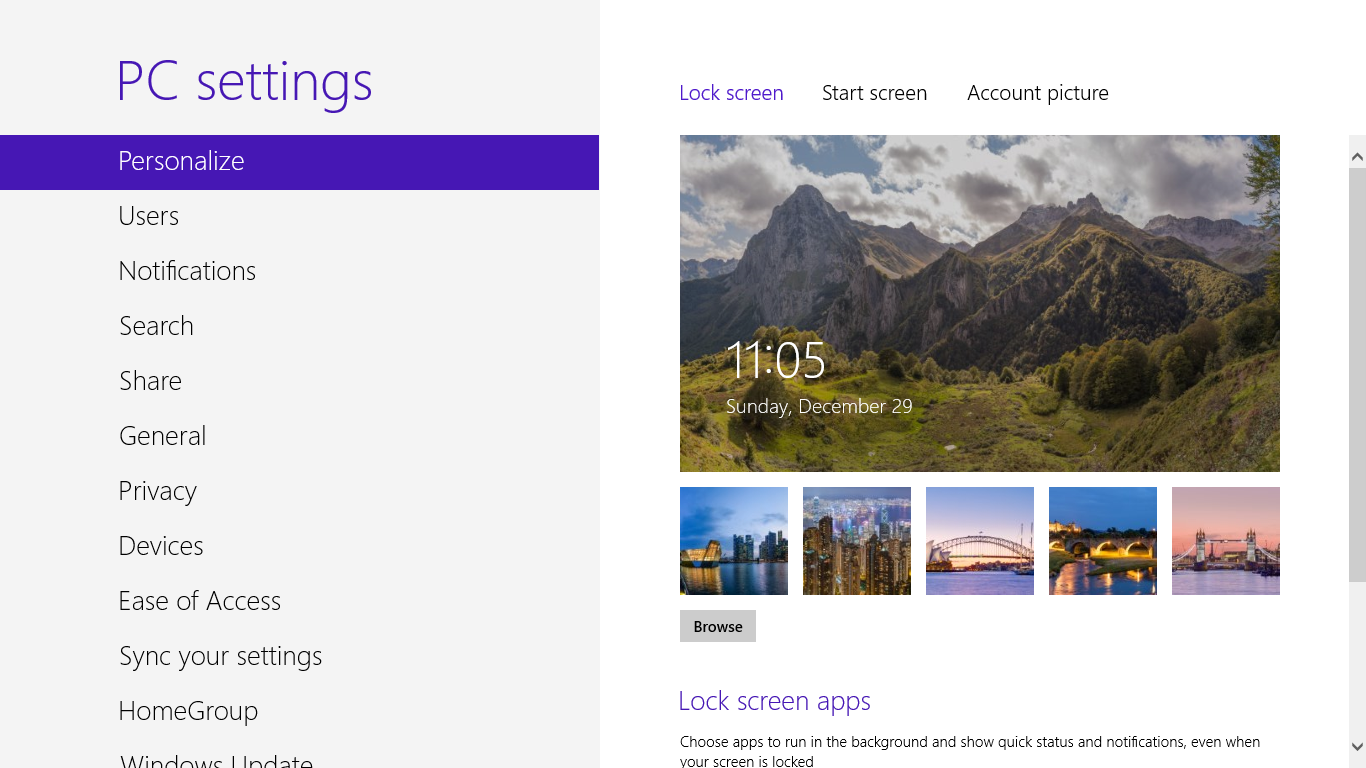
Photo: Lock screen background: Benh LIEU SONG This screenshot: 茅野ふたば (talk · contribs) / CC BY-SA 4.0, via Wikimedia Commons.