

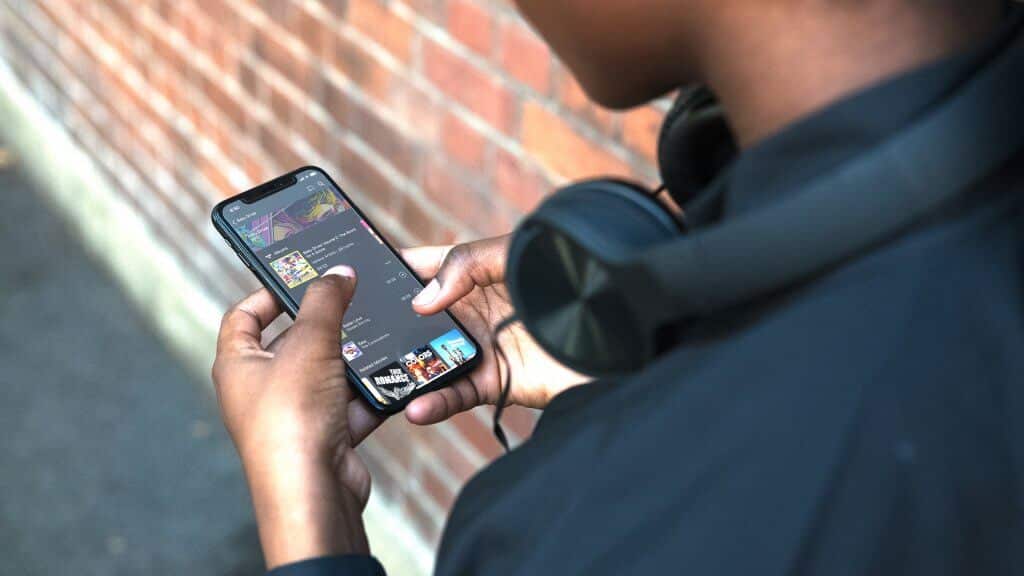
Streaming your own movies, TV shows, and music library to any device in the house (or anywhere in the world) used to mean fighting with clunky media players. Today, two free-to-start tools make it simple: Plex and Jellyfin. Both turn a spare PC, NAS, or mini server into a Netflix-style interface for the files you already own.
Table of Contents
This guide walks through picking hardware, installing either server, organizing your media so it gets matched correctly, and setting up remote streaming — plus the key differences that should decide which one you pick.
Quick Answer
Install Plex Media Server or Jellyfin on a computer or NAS that stays on 24/7, point it at folders containing your movies, TV shows, and music, let it scan and fetch artwork automatically, then connect from the free apps on your phone, TV, or browser. Jellyfin is fully free and open-source with no subscription. Plex is free for local use and for remote music or photo streaming, but now requires a paid Plex Pass or Remote Watch Pass to stream video remotely, outside your home network.
Step 1: Pick Your Hardware
You need a device that can stay powered on and reachable on your network: an old desktop, a Mac Mini, a Raspberry Pi (for light libraries), or a purpose-built NAS from Synology or QNAP. If you only ever watch on devices that can play your files natively (called ‘direct play’), almost any hardware works fine.
If you’ll be transcoding — converting video on the fly for devices or connections that can’t handle the original file — look for a CPU with built-in hardware transcoding support, such as an Intel chip with Quick Sync. Jellyfin includes hardware transcoding for free; Plex restricts it to Plex Pass subscribers. Some newer NAS models have also removed the graphics drivers needed for hardware transcoding, so check current compatibility lists before buying hardware specifically for this.
Step 2: Install and Configure the Server
For Plex: download Plex Media Server from plex.tv for your OS or NAS, run the installer, then sign in or create a free Plex account when the setup wizard opens in your browser. Add a library for each media type (Movies, TV Shows, Music) and point it at the matching folder.
For Jellyfin: download the free installer from jellyfin.org for Windows, macOS, Linux, or Docker, then open the setup wizard in your browser to create an admin account. Add media libraries the same way — one folder per content type.
Both tools work best when your files follow standard naming conventions, such as ‘Movie Name (Year).mkv’ for movies and ‘Show Name/Season 01/Show Name S01E01.mkv’ for TV. Clean naming lets the server match titles to online metadata automatically and pull in posters, descriptions, and cast info. Messy or renamed files are the number one cause of wrong matches.
Step 3: Set Up Remote Access
In Jellyfin, remote access works out of the box on the free tier — you’ll typically forward port 8096 (HTTP) or 8920 (HTTPS) on your router to your server’s local IP address, or use a reverse proxy or VPN for a more secure setup.
In Plex, remote access uses port 32400 and can often auto-configure itself through your router’s UPnP settings. As of Plex’s 2025-2026 changes, remote music streaming through Plexamp and remote photo streaming remain free, but streaming video away from your home network now requires a paid Plex Pass or the cheaper Remote Watch Pass. Watching video at home on your own network is still free either way.
Whichever server you choose, avoid exposing the admin interface directly to the internet without HTTPS or a VPN. A reverse proxy (like Nginx or Caddy) with a valid SSL certificate, or a WireGuard/Tailscale VPN into your home network, are both safer than raw port forwarding.
Step 4: Install Client Apps
Both platforms have apps for Android, iOS, Fire TV, Android TV, Roku, and web browsers, plus support in smart TVs and streaming boxes. Jellyfin also has actively developed community clients for platforms like Kodi and Apple TV. Sign into the app with your server credentials (Jellyfin) or Plex account (Plex), and your library appears ready to browse and stream.
Tips and Common Mistakes
Rename messy files before your first library scan — fixing metadata after the fact is more tedious than doing it right the first time. Create separate libraries for Movies, TV, and Music rather than dumping everything into one folder, since mixed content confuses the metadata matchers.
Don’t oversubscribe your upload bandwidth: if multiple people stream remotely at once and your server has to transcode each stream, a weak CPU or slow home upload speed will cause buffering. Test with a couple of remote streams before assuming your setup can handle a full household.
Back up your server’s database/config folder (not just your media files) — that’s where watch history, user accounts, and library settings live, and losing it means rebuilding your setup from scratch.
Explore more: More Culture guides.
Plex or Jellyfin media server FAQs
Is Jellyfin really free, or are there hidden costs?
Jellyfin’s server software, clients, hardware transcoding, and remote access are all free with no subscription tier — it’s open-source and community-run. You only pay for the hardware and electricity to run it.
Do I need a Plex Pass to use Plex?
No, the core Plex server, local (in-home) streaming, and remote music or photo streaming remain free. A Plex Pass or the lower-cost Remote Watch Pass is only required if you want to stream video from your personal library while away from your home network, and Plex Pass also unlocks hardware transcoding and a few extra features.
Which one should I choose, Plex or Jellyfin?
Choose Jellyfin if you want a fully free, privacy-focused, open-source setup with no subscriptions. Choose Plex if you value its more polished interface, broader smart-TV app support, and don’t mind paying for remote video streaming and hardware transcoding.
Can I run both Plex and Jellyfin on the same server?
Yes, they can run side by side on the same machine pointed at the same media folders, since neither modifies your original files. This lets you try both before settling on one.
Make Your Digital Life Better
More practical tech how-tos, tool picks, and guides to upgrade your everyday digital life. More on GTWebs.
Want web tips in your inbox? Subscribe to the free newsletter.
Images: Plex.