

If you’ve ever scrolled through a bank statement and found a subscription you forgot you had — a streaming trial that quietly converted to paid, a gym app you stopped using, a duplicate cloud storage plan — you’re not alone. Recurring charges are easy to sign up for and easy to lose track of, and most people are paying for at least one service they no longer use.
Table of Contents
AI-powered spending trackers solve this by linking to your bank and credit card accounts, automatically categorizing transactions, and flagging recurring charges you might otherwise miss. This guide compares the leading options, walks through how to set one up in under 10 minutes, and covers the mistakes that make people abandon these apps after a week.
Quick Answer
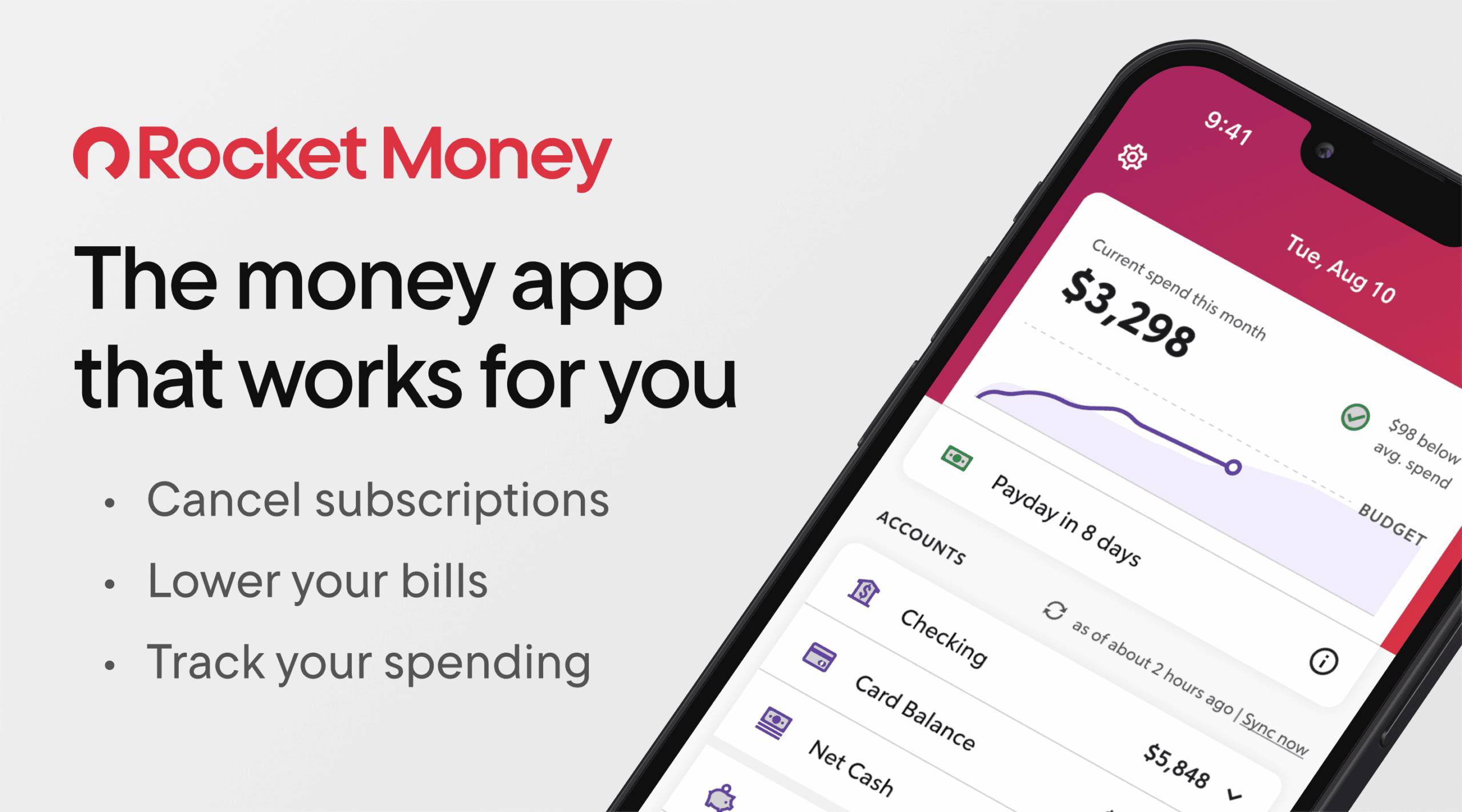
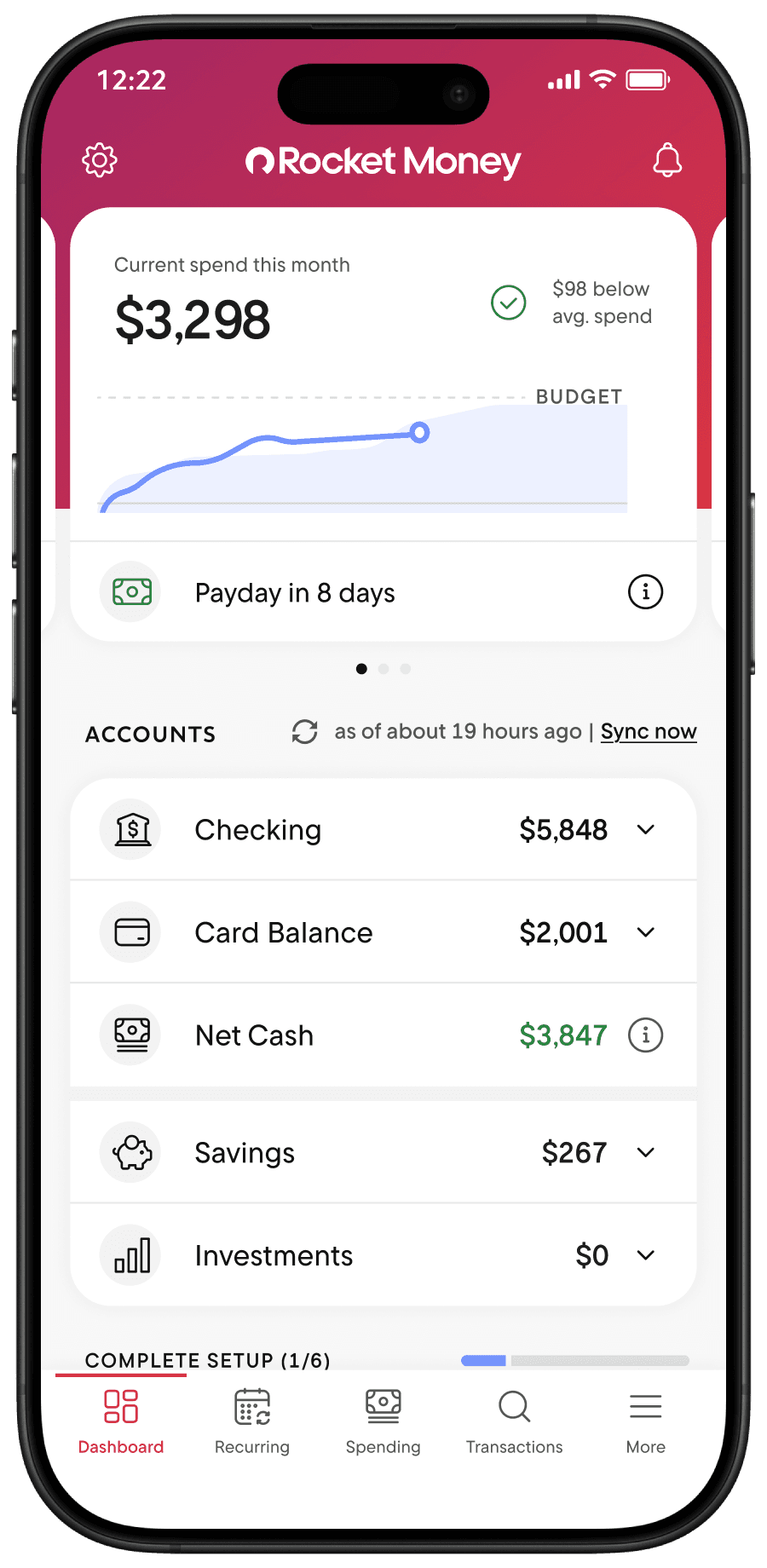
Rocket Money is the best overall pick for most people: it’s free to start, automatically scans linked accounts for recurring subscriptions, and lets you cancel unwanted ones directly in the app (Premium adds bill negotiation). Copilot Money is the better choice if you want more polished AI transaction categorization and a full net-worth and investment dashboard — but it’s iPhone/Mac/web only and has no permanent free tier.
How These Apps Actually Catch Wasted Subscriptions
Both apps work the same basic way: you securely link your bank, credit card, and investment accounts (typically through Plaid, the same connector used by most fintech apps), and the app pulls in your transaction history. From there, an algorithm scans for charges that repeat on a regular cycle — same merchant, similar amount, roughly monthly or annual timing — and surfaces them as a ‘subscriptions’ list separate from your regular spending.
Rocket Money leans into automation: once it finds a recurring charge, you can tap to cancel it, and Rocket’s team will contact the provider on your behalf for services it can cancel directly. Its Premium tier also offers bill negotiation, where a human agent tries to get your internet, phone, or cable bill lowered.
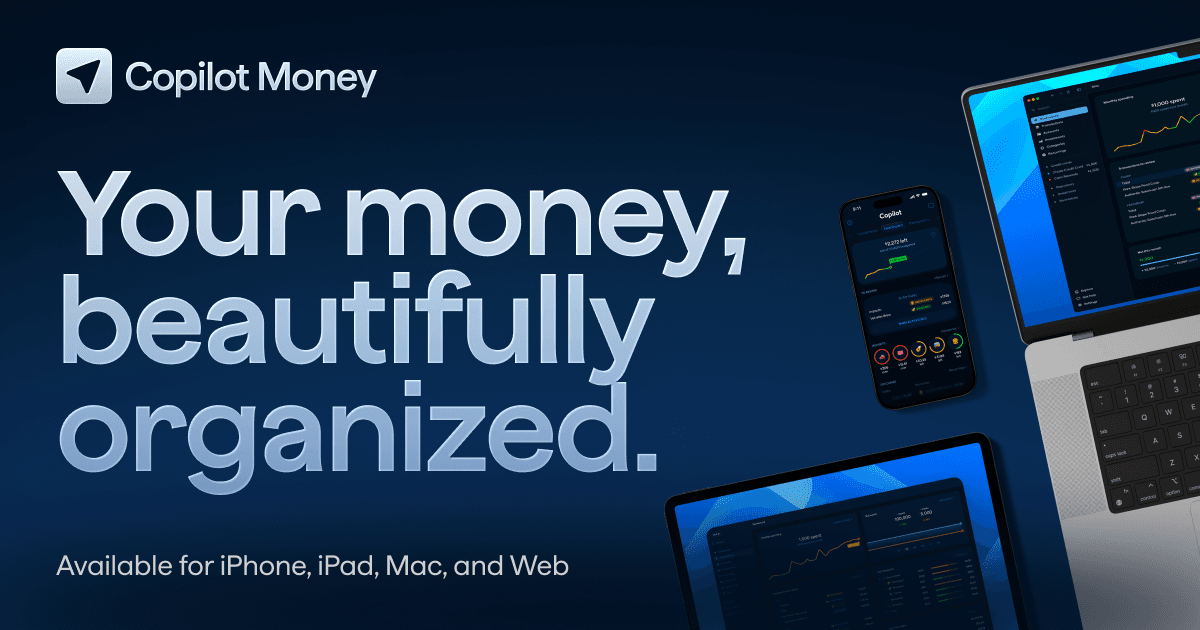
Copilot Money puts more emphasis on AI-driven categorization — it tags every transaction automatically and refines its accuracy the more you use it and correct it. It will flag subscriptions and upcoming recurring charges, but it expects you to cancel them yourself rather than doing it for you. In exchange, you get a more complete financial picture, including investments, cash flow trends, and net worth in one dashboard.
Setting Up an AI Spending Tracker in Under 10 Minutes
Download the app and create an account, then link your checking account, credit cards, and any accounts you use for recurring payments (including PayPal or Apple Pay if a service bills through them). Most apps use bank-level, read-only connections, meaning the app can see transactions but can’t move your money.
Give it a day or two — ideally a full billing cycle — to pull in enough transaction history to reliably detect patterns. New accounts sometimes miss annual subscriptions until they’ve seen at least one full year of data, so don’t assume the first scan caught everything.
Review the flagged subscriptions list line by line. Apps occasionally misclassify a one-time purchase as recurring or vice versa, so confirm before canceling anything. For each subscription you don’t recognize or don’t use, cancel it in-app if the feature is supported, or use the flag as a reminder to cancel it directly with the provider.
Turn on low-balance and large-transaction alerts so new recurring charges get caught early instead of six months later.
Tips and Common Mistakes
Don’t skip the review step. Automated cancellation is convenient, but tapping ‘cancel’ on the wrong line item (say, a subscription a family member actually uses) creates more cleanup work than it saves.
Watch free trials closely. Many ‘forgotten subscription’ problems start with a free trial that silently converts to a paid plan; set a calendar reminder a day or two before any trial ends, since app-based recurring-charge detection usually only catches it after you’ve already been billed once.
If you’re using a paid tier specifically to catch subscriptions, remember to reassess whether you still need the app itself after your initial cleanup — ironically, an unused premium finance-tracking subscription is exactly the kind of wasted spending these tools are meant to catch.
Check platform availability before you commit. Copilot Money is Apple-only (iPhone, iPad, Mac, web), so Android users will want Rocket Money or a similar cross-platform option instead.
Explore more: More technology guides.
AI apps for tracking spending and subscriptions FAQs
Is it safe to link my bank account to an AI spending tracker?
Reputable apps like Rocket Money and Copilot Money use read-only bank connections (typically via Plaid) and bank-level encryption, meaning the app can view transactions but cannot initiate transfers or payments. Stick to well-established apps with clear security documentation rather than lesser-known alternatives.
Do these apps cancel subscriptions for me automatically?
Rocket Money can cancel many subscriptions on your behalf and offers bill negotiation as part of its Premium plan. Copilot Money identifies and flags recurring charges but expects you to cancel them yourself.
How much do Rocket Money and Copilot Money cost?
Rocket Money has a genuine free tier covering account linking and subscription tracking; Premium uses a pay-what-you-want sliding scale, typically letting you choose a price between about $7 and $14 per month, and adds cancellation assistance and bill negotiation. Copilot Money has no permanent free tier and costs $13/month billed monthly or $95/year (about $7.92/month) billed annually.
Which app is better if I don’t want to pay anything?
Rocket Money’s free tier is the more capable no-cost option, since it includes account linking, subscription tracking, and spending trend analysis without a subscription fee.
Make Your Digital Life Better
More practical tech how-tos, tool picks, and guides to upgrade your everyday digital life. More on GTWebs.