

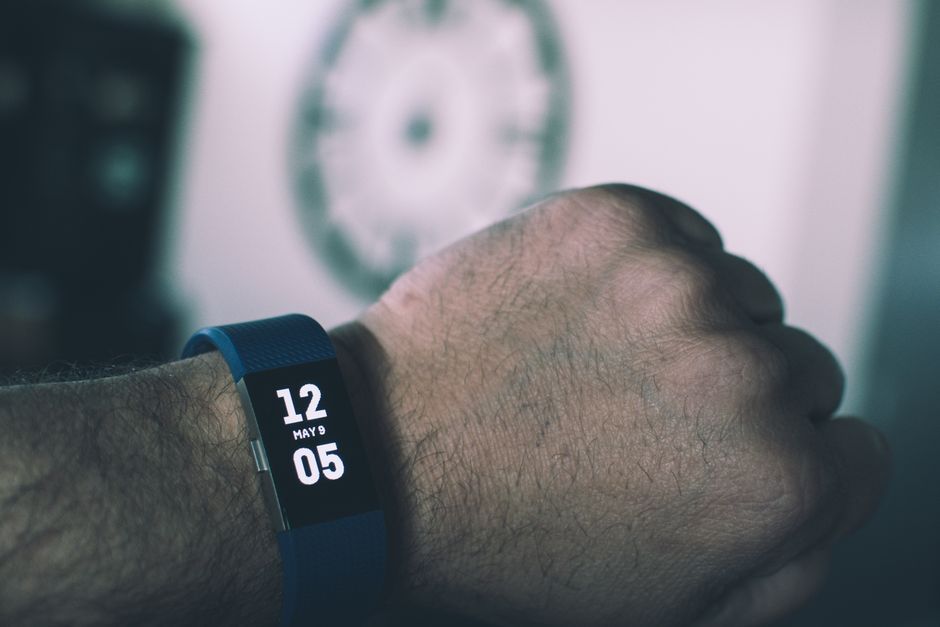
Logging meals in MyFitnessPal is only half the picture — if your calorie burn from workouts and daily steps isn’t showing up automatically, you’re stuck doing manual math every day. Connecting a fitness tracker closes that loop, so the app adjusts your remaining calorie budget based on real activity instead of guesswork.
Table of Contents
This guide walks through the general connection process plus the exact steps for the most common trackers: Fitbit, Garmin, Apple Watch/Apple Health, and Android devices via Google Health Connect or Samsung Health.
Quick Answer
Open the MyFitnessPal app, tap More (or the menu icon), select Apps & Devices, find your tracker or health app, tap Connect, and sign in to grant permission. On iPhone this connects through Apple Health (and Apple Watch has its own MyFitnessPal app); on Android it usually goes through Google Health Connect (or Samsung Health), which acts as the go-between for your tracker’s data.
Step-by-Step: Connecting a Tracker
1. Open MyFitnessPal and tap the More menu at the bottom of the screen (on some Android versions this is a dropdown menu instead of a tab).
2. Tap Apps & Devices, then search for your specific tracker or health platform — Fitbit, Garmin, Apple Health, Google Health Connect, Samsung Health, Polar, Withings, and dozens of others are listed.
3. Tap Connect next to the one you use, then log in with that account’s credentials when prompted.
4. Grant the requested permissions — usually read/write access to steps, active energy (calories burned), workouts, and sometimes sleep or weight.
5. Give it a few minutes and check your Diary; exercise calories and step counts should start appearing automatically going forward. Note that MyFitnessPal only pulls in data logged after you connect — it won’t backfill your tracker’s history.
Platform-Specific Notes
Fitbit: Connect it the same way through Apps & Devices, then sign in to your Fitbit account. Once your Fitbit data syncs to Fitbit.com (which can take a few minutes after your device syncs), it typically shows up in MyFitnessPal within about 15 minutes.
Garmin: Garmin Connect has a built-in MyFitnessPal integration that syncs in both directions — your Garmin activity calories flow into MyFitnessPal, and your MyFitnessPal calorie intake can flow back into Garmin Connect. Enable it from either app’s Connections/Apps & Devices settings.
Apple Watch: MyFitnessPal has its own Apple Watch app, separate from the general Apple Health connection. Install it from the Watch app on your iPhone (or the App Store on the watch itself) and open it once on your wrist to register the watch with MyFitnessPal. Then, in the iPhone app, go to More > Steps and select ‘Apple Watch’ as your step source so it pulls step counts directly from the watch (combined with the iPhone’s own motion coprocessor via HealthKit) instead of just your phone. For workouts and active-energy calories, also connect Apple Health from More > Apps & Devices > Apple Health and toggle on Read & Write for Steps, Active Energy, and Workouts — then confirm the same permissions in the Health app itself under your profile icon > Apps > MyFitnessPal.
Android via Google Health Connect: In MyFitnessPal, tap More > Apps & Devices > Google Health Connect and follow the prompts to allow all permissions on the Health Connect screen. Your actual tracker (Fitbit, Garmin, etc.) needs to be separately connected to Health Connect as its data source. Data syncs periodically through the day, or you can force a sync from MyFitnessPal’s menu.
Samsung Health: Connect it the same way from Apps & Devices; Samsung Health can either sync directly or route through Health Connect depending on your Android version.
Tips and Common Mistakes
Only connect one source for calorie burn (for example, don’t run both Apple Health and a separate Fitbit connection feeding the same data) — overlapping sources can double-count exercise calories and inflate your daily budget.
If steps or workouts stop appearing, check permissions in both apps — a phone software update or app update can silently reset permissions, especially on iPhone.
Remember historical data doesn’t transfer — if you connected mid-week, don’t expect last week’s workouts to appear.
On Android, if syncing feels stuck, try unlinking and reconnecting Health Connect, or force-close and reopen both apps before troubleshooting further.
Double-check you’re logged into the correct tracker account — a common issue is having two Fitbit or Garmin accounts and connecting the wrong one.
Explore more: More fitness how-to guides.
MyFitnessPal FAQs
Does MyFitnessPal sync automatically once connected?
Yes, once permissions are granted, MyFitnessPal periodically pulls in steps, workouts, and calorie burn throughout the day. You can also force a manual sync from the app’s menu if you don’t want to wait.
Can I connect more than one fitness tracker to MyFitnessPal?
Technically you can connect multiple apps, but it’s best to use only one as your primary calorie-burn source to avoid duplicate or conflicting data.
Does MyFitnessPal have an Apple Watch app?
Yes. MyFitnessPal offers a dedicated Apple Watch app you install from the Watch app on your iPhone. Open it once on your wrist to register the device, then in the iPhone app go to More > Steps and choose Apple Watch as your step source so counts come from the watch directly.
Is connecting a tracker to MyFitnessPal free?
Yes, connecting Apps & Devices is available on the free version of MyFitnessPal; you don’t need Premium to sync a fitness tracker.
Make Your Digital Life Better
More practical tech how-tos, tool picks, and guides to upgrade your everyday digital life. More on GTWebs.
Photo by Brett Sayles on Pexels.