

A MacBook that’s hot to the touch and running its fans at full blast isn’t just annoying, it can throttle performance and shorten your session before the battery drains. Most of the time the cause is software, not a failing machine, so before you book a repair appointment there are several things worth trying yourself.
Table of Contents
Below are seven fixes you can run through in order, starting with the fastest checks and ending with the ones that take a little longer but solve stubborn cases.
Quick Answer
Open Activity Monitor and sort by CPU to find the process driving the heat, quit or update it, unplug the charger, make sure vents aren’t blocked, and update macOS. If the MacBook is still hot after that, a restart (or a full SMC reset on Intel models) usually clears a stuck thermal state.
Start With Activity Monitor
Open Activity Monitor (Applications > Utilities, or search it with Spotlight using Cmd+Space) and click the CPU tab, then sort by % CPU. If one process is pinned near the top of the list and staying there, that’s usually your heat source. Browser helper processes, especially Chrome Helper (Renderer), are a frequent offender because each open tab and extension runs its own process.
You’ll often also see kernel_task using a large share of CPU. According to Apple support, kernel_task isn’t actually the source of the heat, it’s macOS deliberately making the CPU less available to other processes as a way of managing temperature. Chasing kernel_task itself won’t fix anything; instead look at what’s forcing the Mac to protect itself in the first place, and check the Energy tab in Activity Monitor for high-impact apps running in the background.
Give Background Tasks Time to Finish
Spotlight indexing (mds_stores), Photos analysis (photoanalysisd), and Time Machine backups can all spike CPU and heat for a while after a big file transfer, a macOS update, or setting up a new Mac. These are normal and usually taper off within an hour or so, so if your MacBook just got a large update or you just migrated data to it, that’s often the explanation rather than a fault.
If it’s been going for hours with no sign of finishing, check System Settings > Siri & Spotlight to confirm indexing status, or try excluding a large folder from Spotlight temporarily to see if that’s the trigger.
Fix the Physical Setup
Charging generates its own heat, so if you’re already running hot, unplug the charger and let the battery do the work for a bit. Set the MacBook on a hard, flat surface rather than a bed, couch, or your lap, since fabric and soft surfaces block the intake vents on the bottom of the case and trap heat underneath.
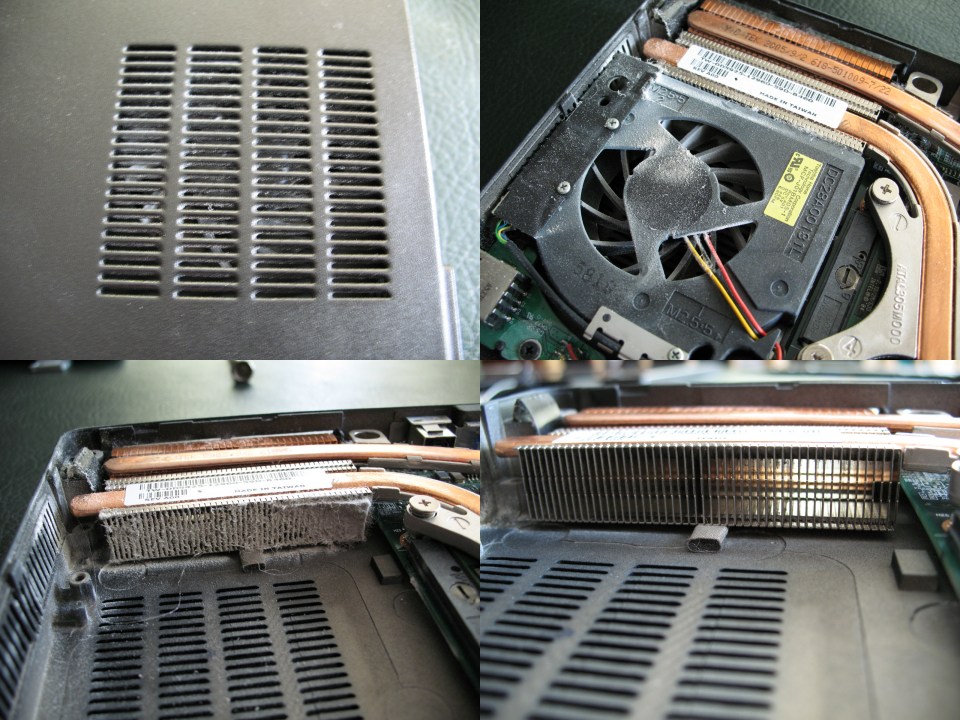
If the fans sound louder than usual or the Mac runs warm even doing light tasks, dust buildup in the vents and fans could be restricting airflow. That’s a case for a professional cleaning at an Apple Store or authorized repair provider rather than opening the case yourself, since MacBooks aren’t designed for easy user access to the internals.
Update and Restart
Go to System Settings > General > Software Update and install any pending macOS and app updates. Apple regularly ships thermal management and efficiency fixes, so if the overheating started right after an update, a follow-up patch may already address it.
If none of the above helps, a restart clears a lot of stuck background states. On Apple Silicon MacBooks (M1 and later), there’s no separate SMC to reset, choose Shut Down from the Apple menu, wait about 30 seconds, then power back on. On Intel-based MacBooks, the SMC reset steps depend on the chip inside: on models with the Apple T2 Security Chip, shut down, then hold the left Control and Option (Alt) keys plus the right Shift key for 7 seconds, add the power button to that combination and hold all four for another 7 seconds, then release and power the Mac back on. On Intel MacBooks without a T2 chip, shut down, unplug the charger, then hold the left Shift, Control, and Option keys together with the power button for 10 seconds before releasing and restarting.
Tips / Common Mistakes
Don’t rely on aggressive ‘CPU cleaner’ or ‘Mac speed booster’ apps to fix heat issues, many of these run their own background processes and can make things worse. Stick to Activity Monitor, System Settings, and Apple’s own tools first.
Avoid closing the lid to ‘let it cool down’ while it’s still doing heavy work in clamshell mode, since the fans still have to work against a mostly sealed space. Instead, let the screen stay open and the vents clear until CPU usage drops.
If a specific browser is consistently the top process, check for a pending update, disable extensions one at a time to isolate the cause, and keep tab counts down, since each tab, especially ones with video or ads, adds its own overhead. If you’re unsure whether your Intel MacBook has a T2 chip, check Apple menu > About This Mac, or look it up by model, before attempting an SMC reset, since using the wrong key combination simply won’t trigger the reset.
Explore more: More technology guides.
MacBook overheating FAQs
Is it bad for my MacBook to run hot occasionally?
Occasional warmth under heavy load (video export, gaming, large downloads) is normal and expected. It becomes a concern when the Mac stays hot during light use, the fans run constantly, or performance visibly slows down, which points to a specific process or airflow problem worth investigating.
Why does kernel_task use so much CPU?
kernel_task is part of macOS itself, not a rogue app. One of its jobs is to intentionally take up CPU capacity to keep the processor cooler when something else is pushing temperatures up, so a high kernel_task reading is a symptom of heat, not the cause of it.
Does using my MacBook while it’s charging cause overheating?
Charging adds some extra heat on top of whatever the Mac is already doing, so combining a full charging cycle with a demanding task (like gaming or video editing) is one of the more common ways MacBooks get noticeably hot. Unplugging during those sessions, when practical, can help.
How do I reset the SMC on my Intel MacBook?
It depends on whether your Mac has the Apple T2 Security Chip. On T2 models, shut down, then hold left Control, left Option, and right Shift for 7 seconds, add the power button and hold all four for 7 more seconds, then release. On non-T2 Intel MacBooks, shut down, unplug the charger, then hold left Shift, Control, Option, and the power button together for 10 seconds. Apple Silicon Macs (M1 and later) don’t have a separate SMC reset; a normal shut down and restart serves the same purpose.
When should I get my MacBook serviced instead of troubleshooting it myself?
If it runs hot and loud even during idle or light use, if the fans never spin down, or if you notice a burning smell or the case is hot enough to be uncomfortable to touch, stop troubleshooting and get it checked by Apple or an authorized repair provider, since that can indicate a hardware or dust/airflow issue beyond a software fix.
Make Your Digital Life Better
More practical tech how-tos, tool picks, and guides to upgrade your everyday digital life. More on GTWebs.
Photo: KeySpace / CC BY-SA 4.0, via Wikimedia Commons.