

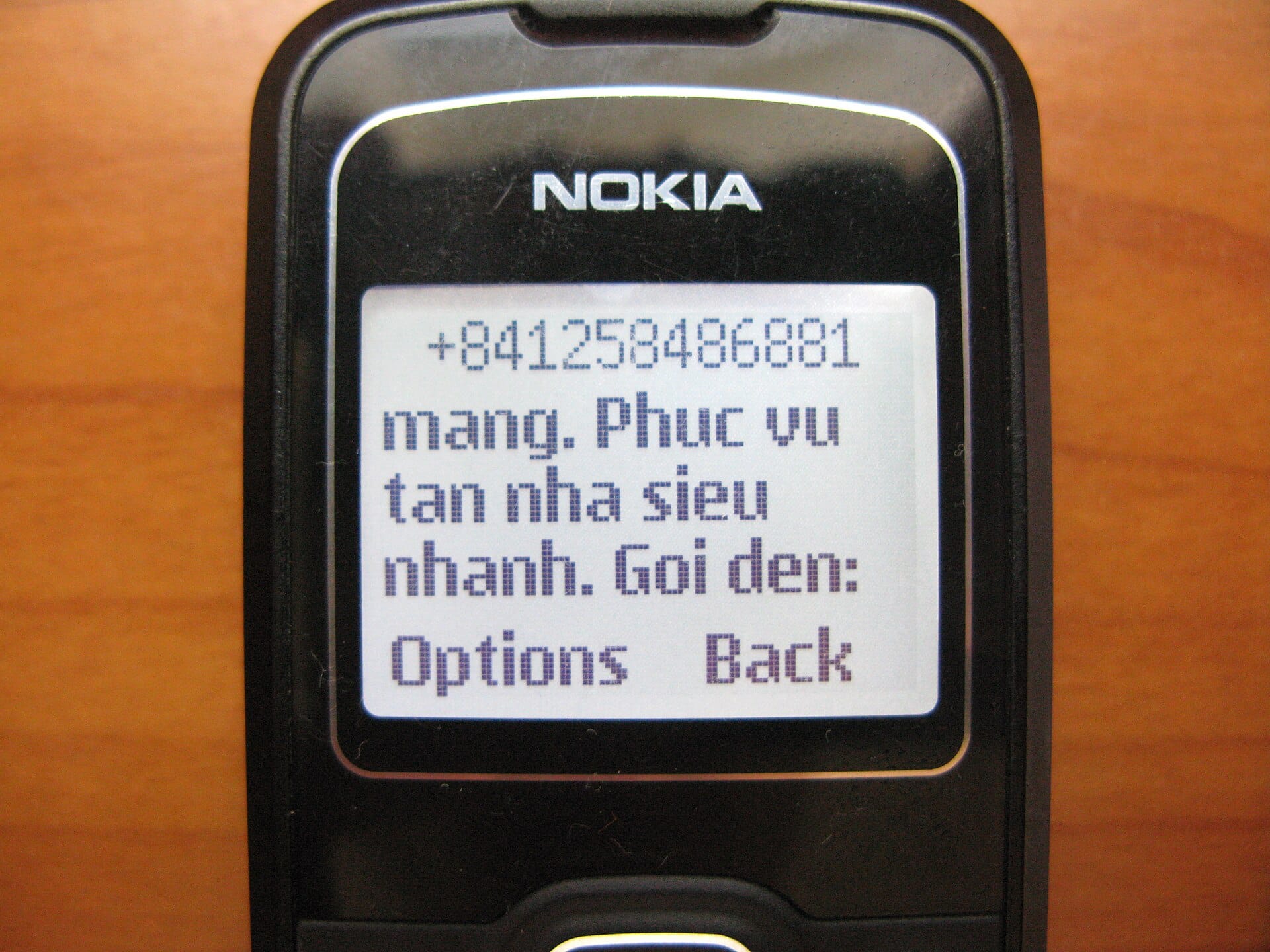
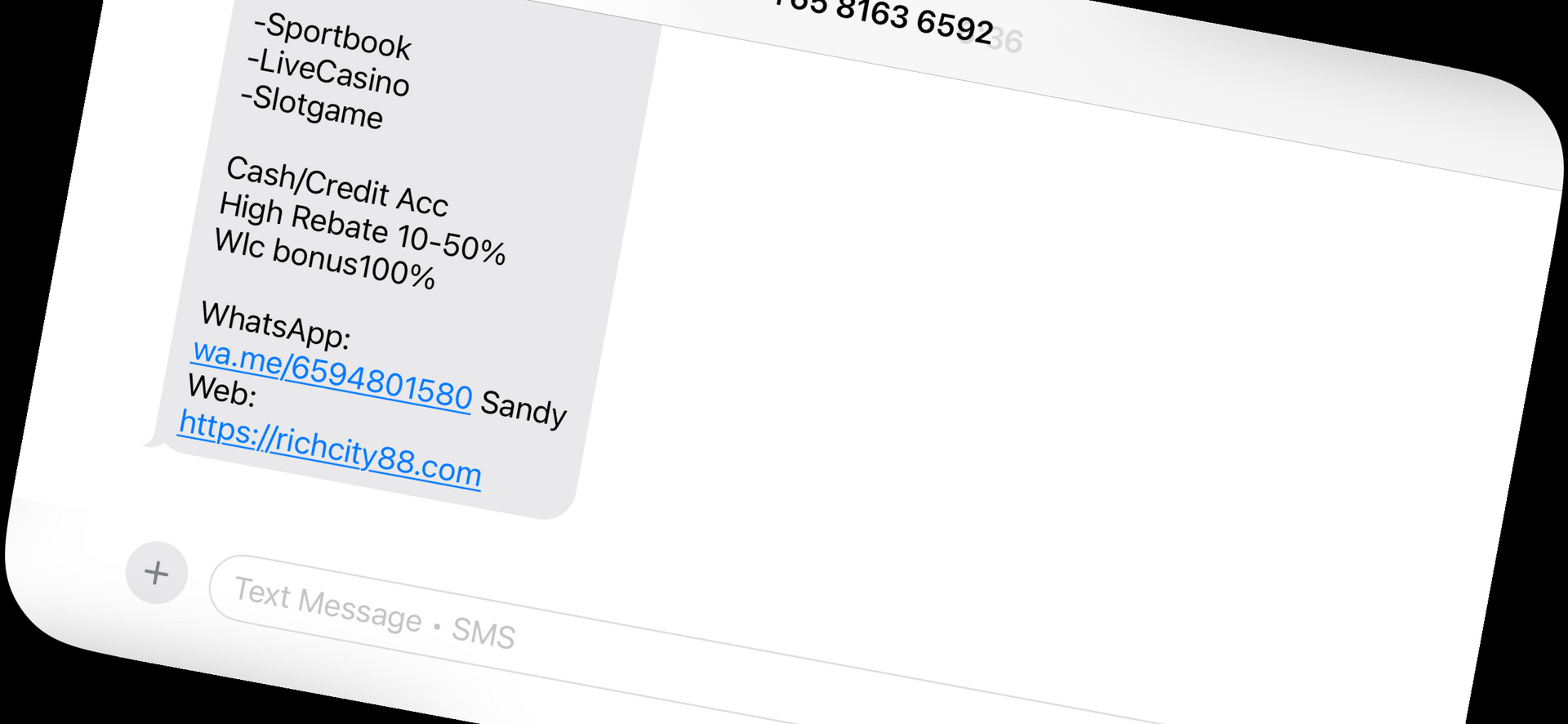
If your Android phone has become a revolving door for fake package alerts, phishing links, and shady prize notifications, you are far from alone — spam texting has become one of the most common forms of digital harassment in the US. The good news is that Android gives you multiple layers of defense, and most of them are completely free and already on your phone.
Table of Contents
This guide walks you through every effective method in order of ease: starting with the built-in Google Messages spam filter that takes thirty seconds to enable, moving through manual blocking and carrier reporting, and finishing with prevention habits that stop spam before it ever reaches your inbox.
Quick Answer
Open Google Messages, tap your profile icon, go to Messages Settings > Spam Protection, and toggle on Enable Spam Protection. This single step filters the majority of spam texts automatically. For anything that slips through, long-press the message and tap Block & Report Spam.
Step 1: Enable Spam Protection in Google Messages
Google Messages is the default SMS app on most Android phones and has a built-in spam filter powered by Google’s machine learning. To turn it on: open the Messages app, tap your profile picture in the top-right corner, select Messages Settings, tap Spam Protection, and toggle on Enable Spam Protection. That’s it. Going forward, suspicious messages are automatically flagged and moved out of your main inbox into a Spam & Blocked folder.
If you use a Samsung phone with One UI, the native Samsung Messages app has its own version of this feature. Open Samsung Messages, tap the three-dot menu, choose Settings, select Block Numbers and Spam, and enable Caller ID and Spam Protection. Both apps handle this quietly in the background — you only notice when you check the spam folder and see what was caught.
A privacy note worth knowing: Google states that when spam protection is active, anonymized information about suspicious messages — including phone numbers of unknown senders — may be sent to Google to improve detection. Your name and personal phone number are not shared.
Step 2: Block and Report Individual Senders
When a spam text lands in your inbox despite the filter, block it immediately so future messages from that number never appear again. In Google Messages, open the conversation, tap the three-dot menu in the top-right corner, and select Block & Report Spam. Confirm by tapping OK. This both blocks the number locally and sends an anonymous report to Google, helping improve the filter for everyone.
Alternatively, long-press the message thread from your inbox list, tap the block icon (a circle with a line through it) that appears at the top of the screen, and confirm. The sender is blocked instantly. You can review and manage your blocked list anytime by going to Messages Settings > Spam & Blocked.
Step 3: Report Spam to Your Carrier
Major US carriers — AT&T, Verizon, and T-Mobile — all support forwarding spam texts to the short code 7726 (which spells SPAM on a keypad). To do this, copy the spam message, open a new text to 7726, paste the message, and send it. Your carrier will use this report to improve their own network-level spam filtering, which blocks texts before they ever reach your phone.
All three major carriers also apply automatic network-level spam text filtering as part of your plan at no extra cost — Verizon, for example, reports blocking over a billion spam texts per month using machine learning on their network before messages ever reach subscribers. One important clarification: Verizon Call Filter, a separate Verizon app, is a call-spam detection and blocking service only — it does not filter text messages. For spam texts, the 7726 reporting shortcode and the app-level spam protection described above are the tools to use.
Step 4: Use a Third-Party Spam Blocking App
If built-in tools are not catching enough, third-party apps offer more aggressive filtering. Truecaller identifies and blocks unknown numbers using a crowdsourced database of reported spammers and is free with optional premium features. Hiya offers similar caller ID and spam detection with a clean interface. RoboKiller goes further with AI-based filtering that can block texts before you see them. These apps are available on the Google Play Store.
One important caveat: these apps request broad permissions including access to your messages, contacts, and call history to function. Read the privacy policy of any app before granting those permissions, and stick to established, well-reviewed apps. For most users, Google Messages’ built-in protection plus manual blocking handles the vast majority of spam without needing a third-party app.
Prevention: Stop Spam Before It Starts
Blocking spam reactively is only half the solution. The other half is keeping your number off the lists that spammers buy and sell. Never reply to a spam text — even texting STOP to an unknown sender confirms your number is active, which can result in more spam. Never click links in unsolicited messages, as these are often phishing attempts designed to steal credentials or install malware. Register your number at donotcall.gov (the FTC’s National Do Not Call Registry) to reduce legitimate telemarketing, though this has less effect on offshore spam operations.
Be selective about where you share your phone number online. Avoid posting it publicly on social media profiles or in forum bios. When signing up for apps or websites that do not strictly need a phone number, consider using a secondary number — Google Voice offers a free US number that can absorb sign-up SMS codes without exposing your real number to data brokers.
Tips and Common Mistakes
Do not assume blocking one number from a spam campaign will stop the campaign — bulk spammers rotate through thousands of numbers, so the filter and the report-to-carrier step matter more than individual blocks. Do check your Spam & Blocked folder occasionally, since legitimate messages from new businesses or contacts can sometimes be incorrectly flagged; tap Not Spam to restore them and train the filter. Do keep Google Messages updated via the Play Store, as spam detection models are updated regularly through app updates rather than OS updates. And do not call back unknown numbers you do not recognize — if a number leaves no voicemail, it almost certainly was not important.
Explore more: More technology guides.
Android spam text blocking FAQs
Does blocking a number on Android actually stop the texts?
Yes — once a number is blocked in Google Messages or Samsung Messages, texts from that number are silently intercepted and moved to the Spam & Blocked folder without notifying you. The sender gets no indication they are blocked. However, spammers often rotate numbers, so a new number from the same campaign may still get through until it is caught by the spam filter or blocked manually.
What does forwarding a spam text to 7726 do?
Forwarding to 7726 (SPAM) sends the message content to your carrier’s fraud team. AT&T, Verizon, and T-Mobile all support this shortcode. The carrier uses your report to update their network-level spam filters, which can block similar messages for all their customers. It takes about ten seconds and is one of the most effective things you can do beyond blocking the number yourself.
Why am I still getting spam texts even after enabling spam protection?
No spam filter catches 100% of messages. Spammers continually change tactics to evade detection, and brand-new spam numbers may not yet be in any blocklist database. If you are getting a high volume of spam, make sure you have also reported to your carrier via 7726, check whether your number has been exposed in a data breach (haveibeenpwned.com can check your email for linked accounts), and consider a third-party app like Truecaller for an additional layer of filtering.
Make Your Digital Life Better
More practical tech how-tos, tool picks, and guides to upgrade your everyday digital life. More on GTWebs.
Photo: Phó Nháy / Public domain, via Wikimedia Commons.